Maintain institutional content, documents, visual identity, storage and records.
Platform brings together content introducing and explaining VisuoLab, institutional documents, visual identity materials and operational settings. It also lets you maintain form and other platform records within your permissions.
In Platform → Settings, locate the area to consult or update.
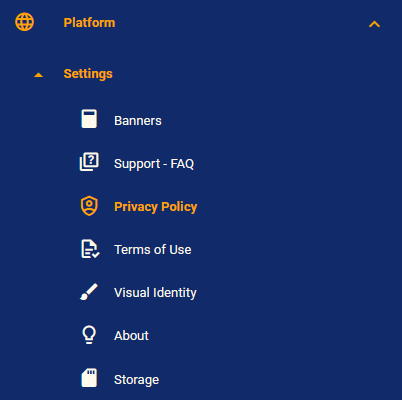
Platform and Settings menu with content, documents, visual identity and storage.
Area
What managers can monitor or maintain
Banners
Texts and videos introducing pages, sections and tools. Locate banners by ID, title, location and status.
Support - FAQ
Questions and answers addressing users’ platform doubts.
About
Content introducing VisuoLab and the institution.
Use each screen’s search, filters and actions. Check the record and its location before editing.
Examples: Banners, FAQ and About
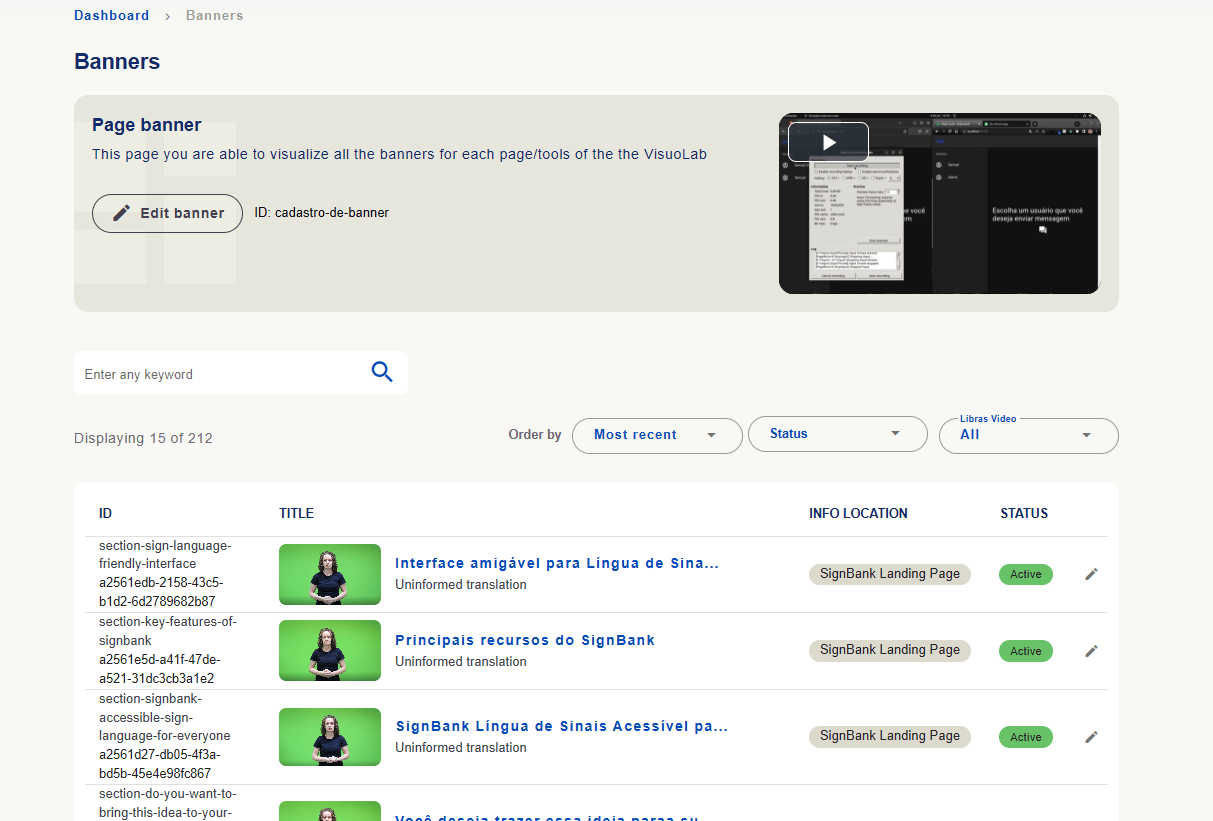
Banners: the list shows ID, title, Info location and status. Search, sorting and filters help find the banner. Locations and counts are installation examples.
Banner management with identification, title, location, status and editing action.
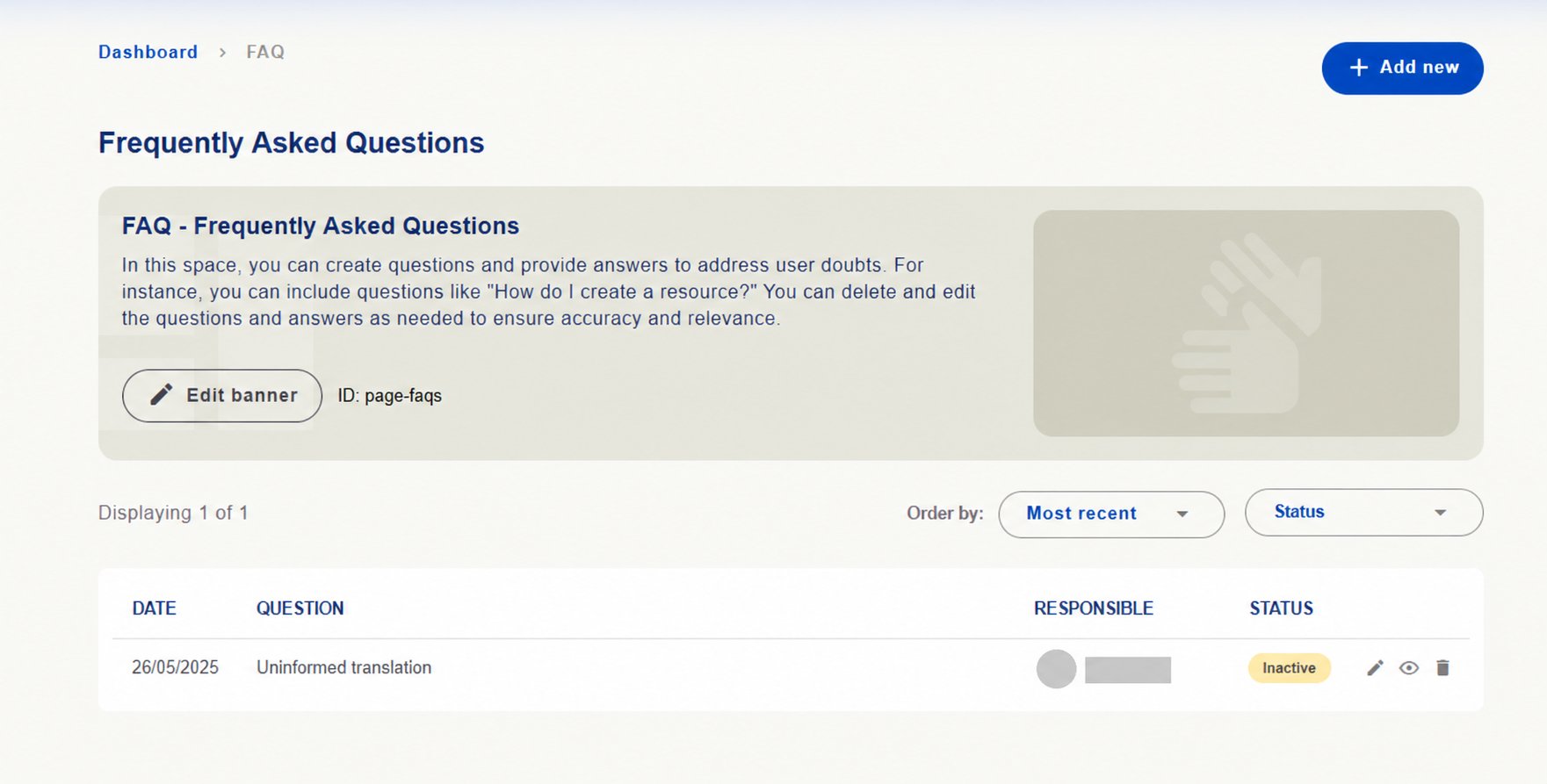
FAQ: add useful questions and answers and review existing ones to keep guidance current. The screen offers Add new, sorting, status and edit, view and delete actions.
FAQ management with list, status and actions. Responsible person hidden.
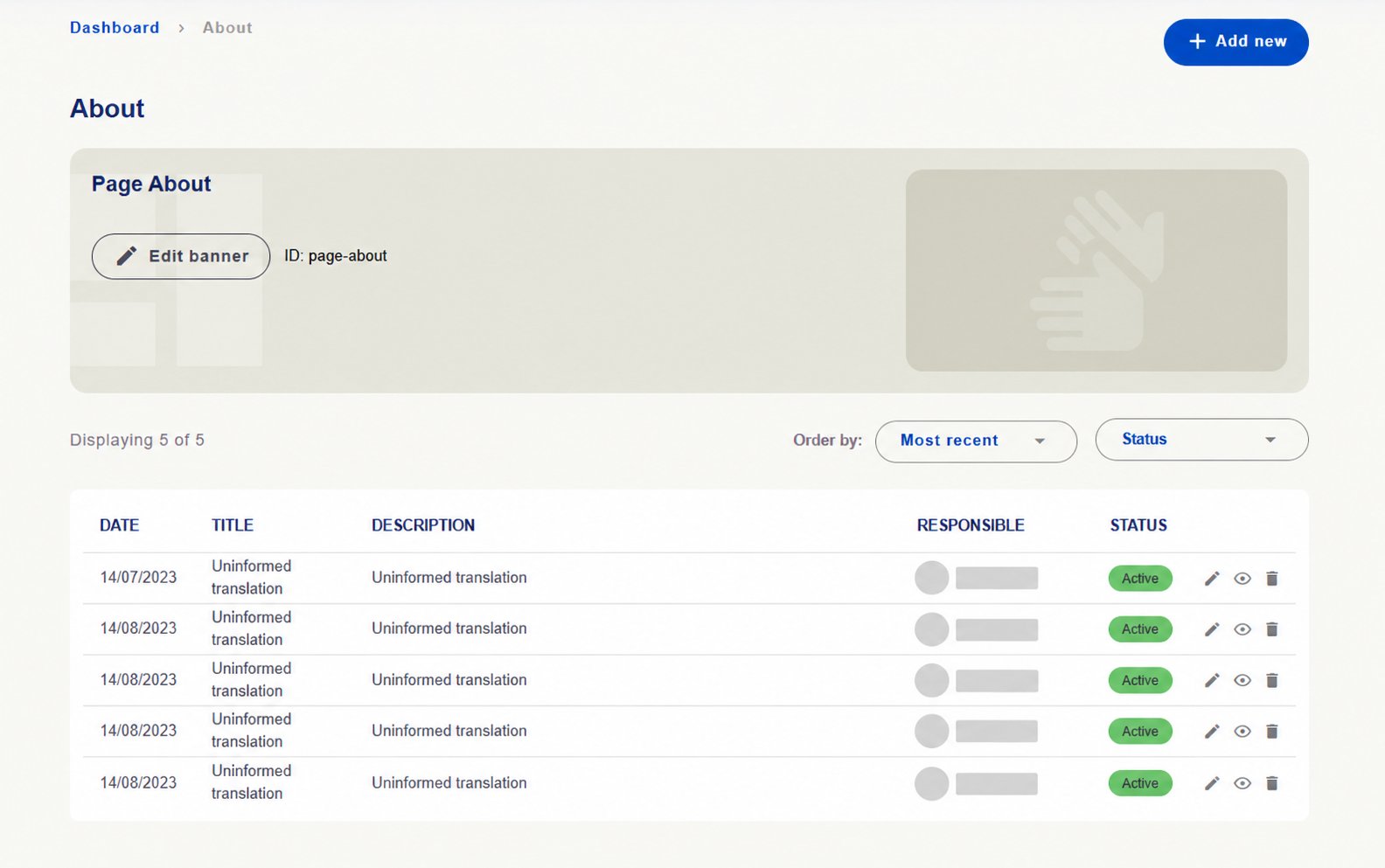
About: maintain texts introducing the platform and institution. Check titles, descriptions, status and actions.
About content management with titles, descriptions and status. Identifying details hidden.
Uninformed translation indicates a translation not yet filled in on the captured installation.
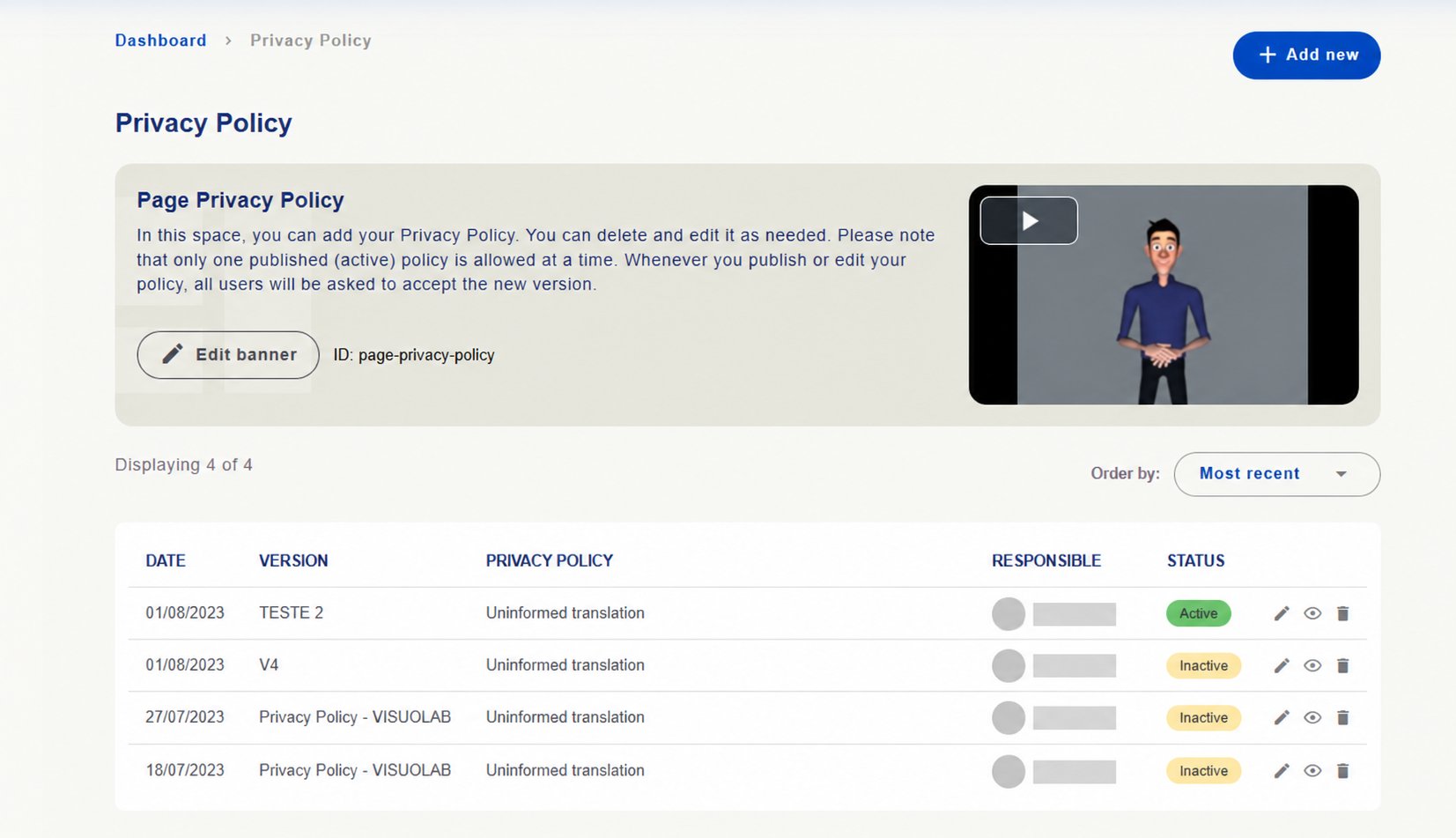
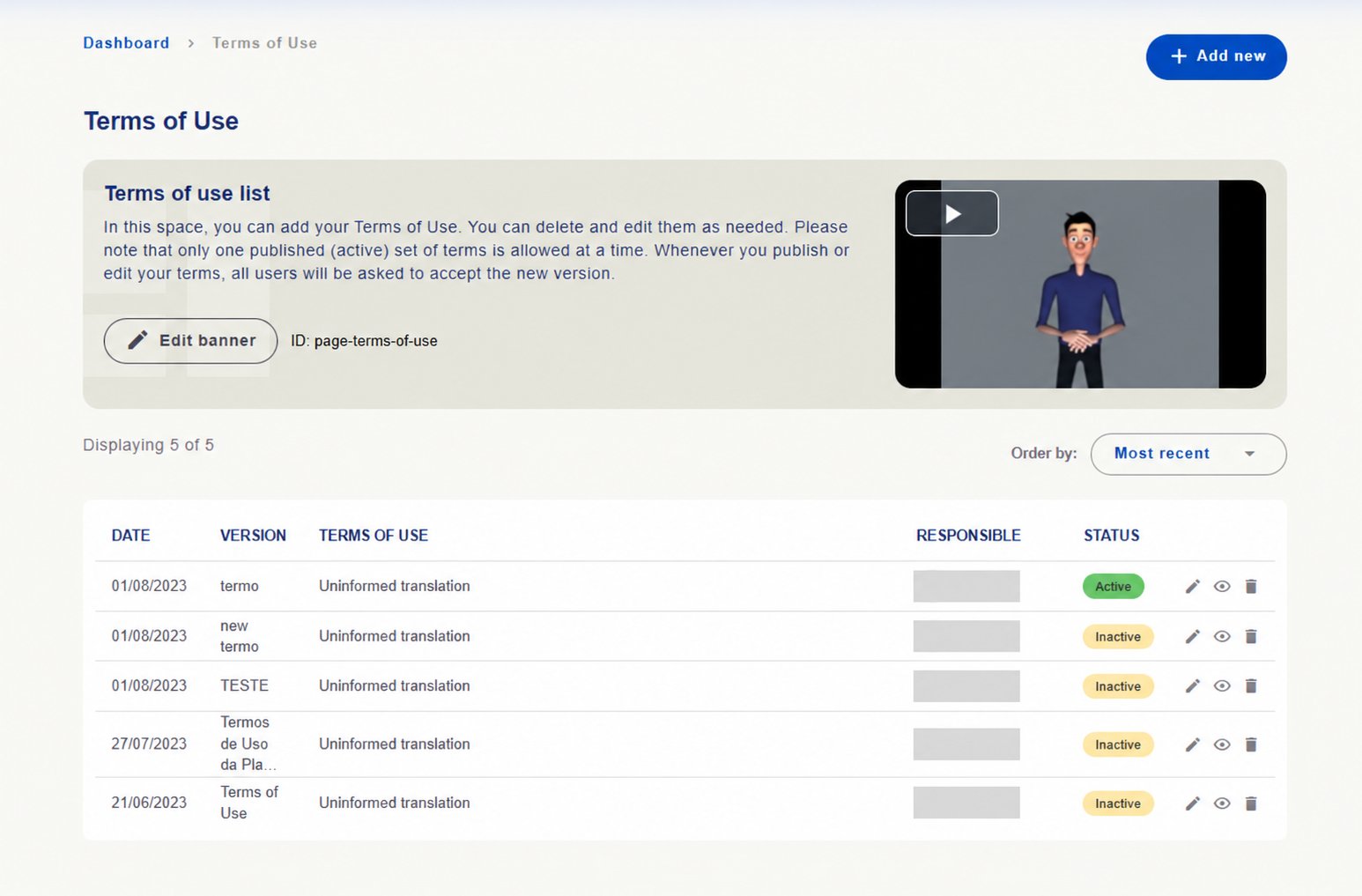
In Privacy Policy and Terms of Use, consult registered versions and options to add, edit and view documents.Screen guidance states that only one version of each document can be active at a time, and publishing or editing requests users’ acceptance of the new version.
Privacy Policy
Terms of Use
Check version identification, content, status and actions before updating.
Privacy Policy versions with Active and Inactive status. Identifying details hidden.
Consult versions and maintain the document governing installation use.
Terms of Use versions with status and management actions. Identifying details hidden.
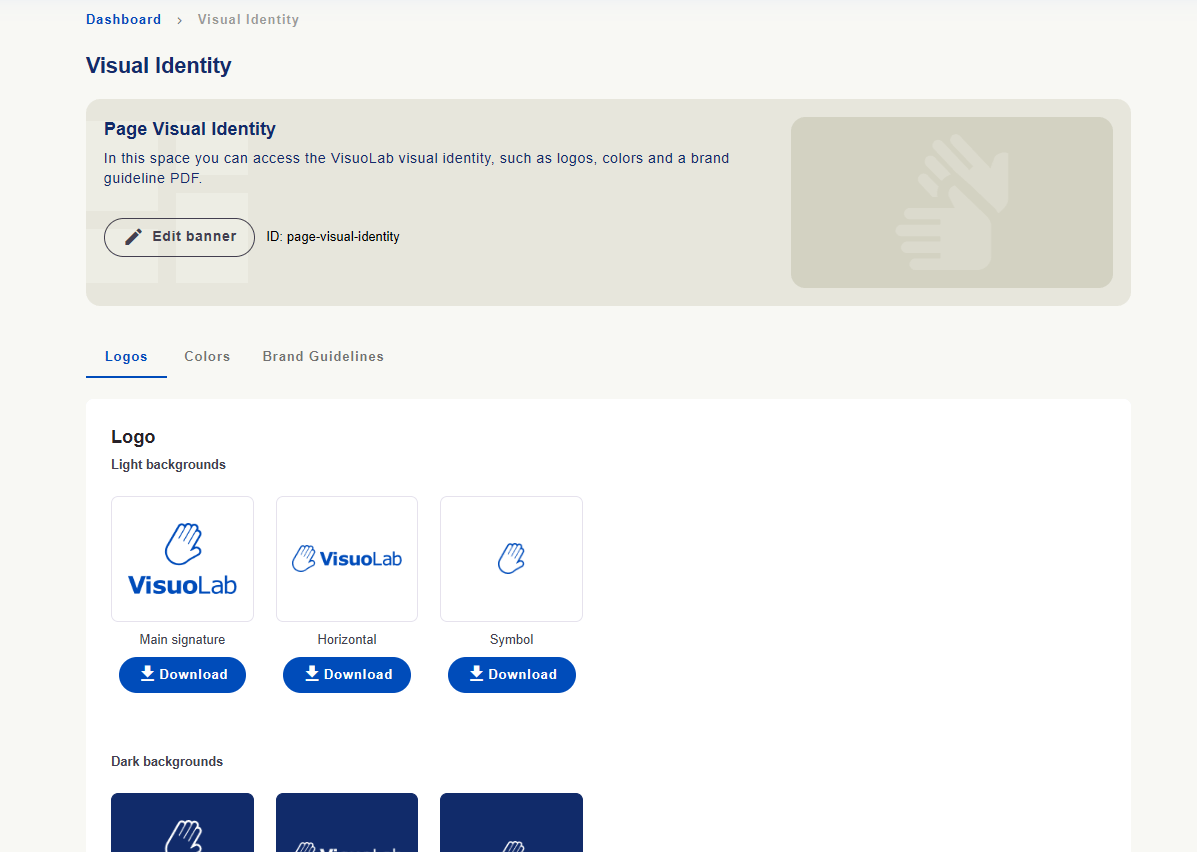
Visual IdentityThis area provides materials for consistent VisuoLab communication.
Logos
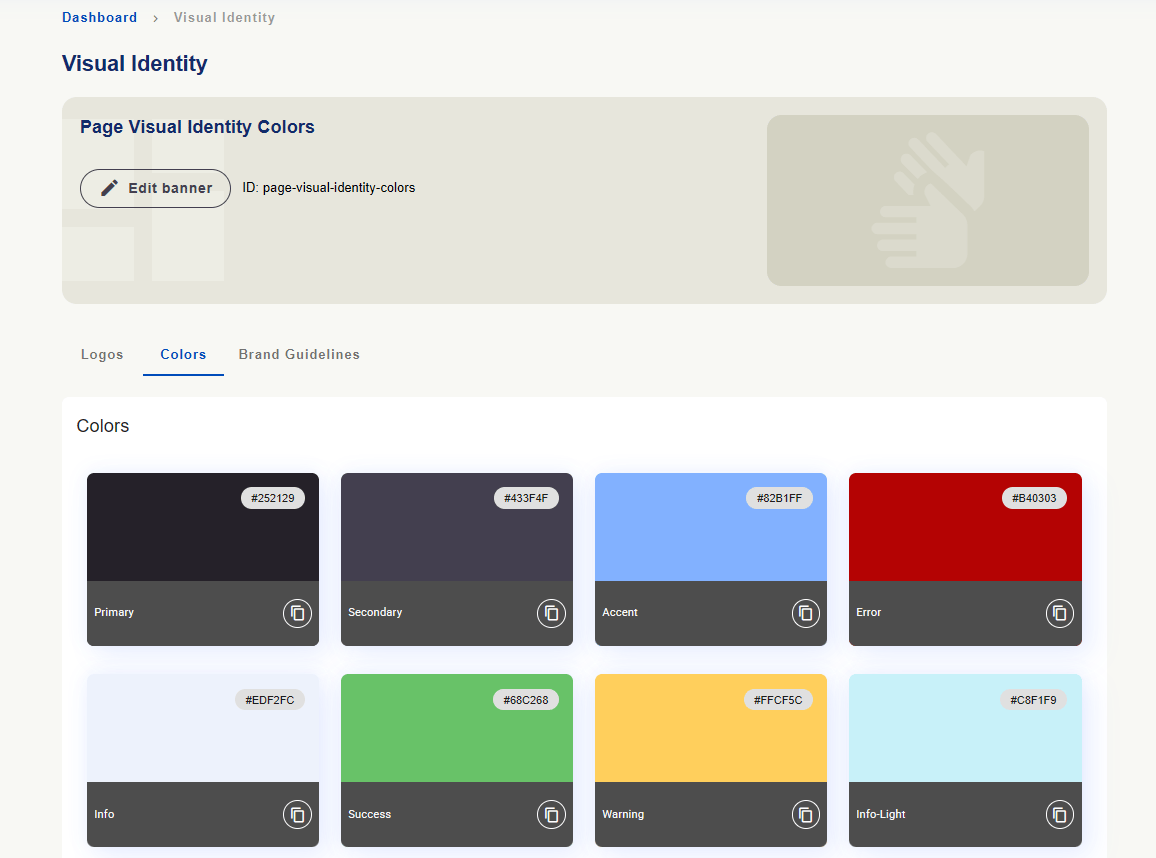
Colors
Brand guidelines
Consult brand versions for different uses and obtain available files with Download.
Logos tab with VisuoLab brand versions and download buttons.
Consult colors and codes. Copy icons help use these values in communication materials.
Colors tab with swatches, codes and copy options.
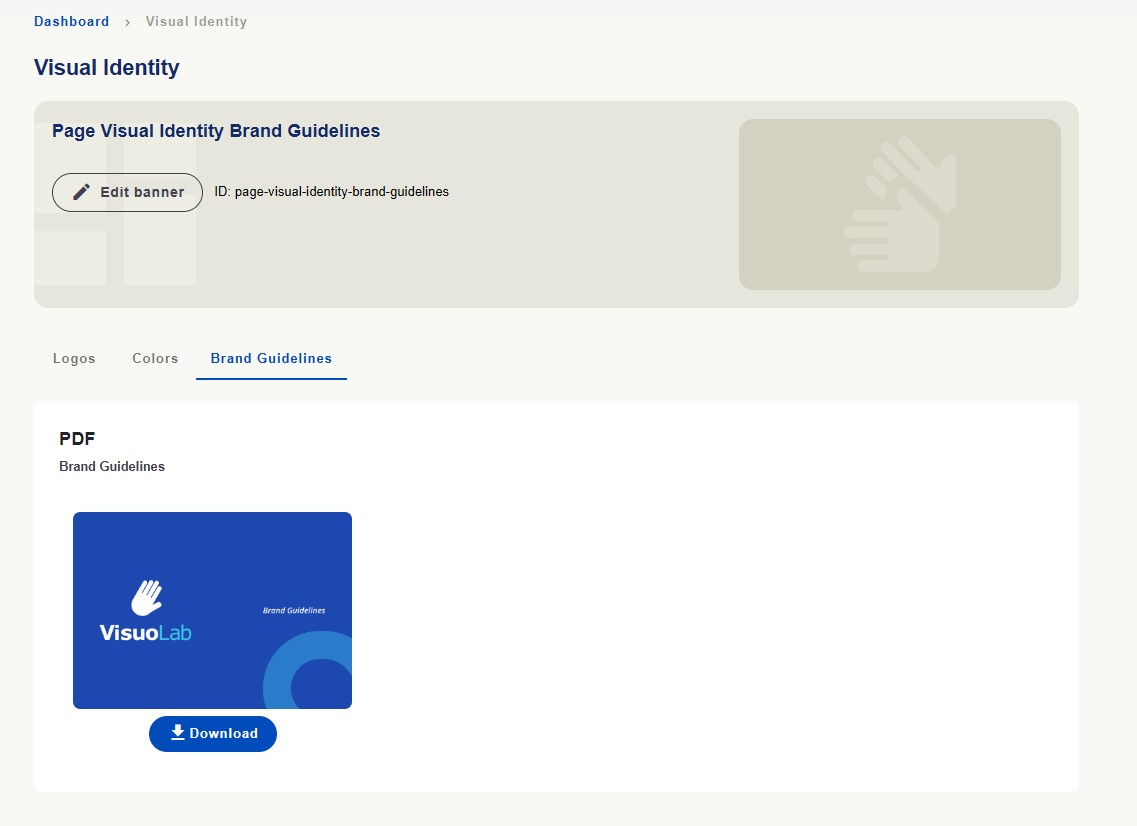
In Brand Guidelines, download the brand manual PDF using Download.
Brand Guidelines tab with the downloadable brand manual PDF.
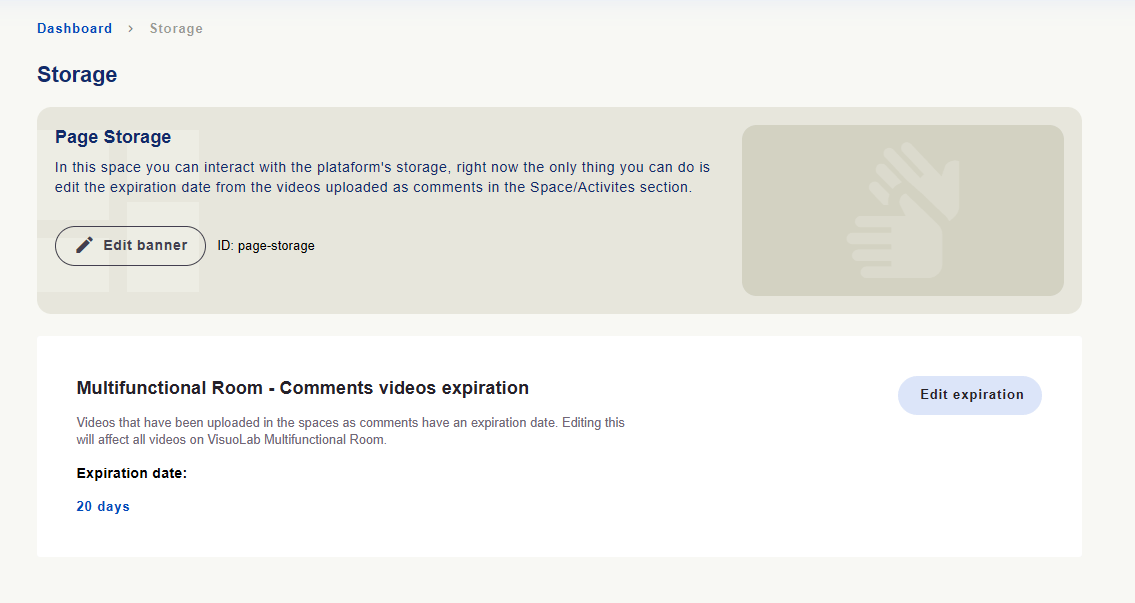
StorageIn the screen shown, Storage lets you consult and edit the expiration period of videos uploaded as comments in Multifunctional Room Spaces and activities.
Storage area with comment video expiration period and Edit expiration button.
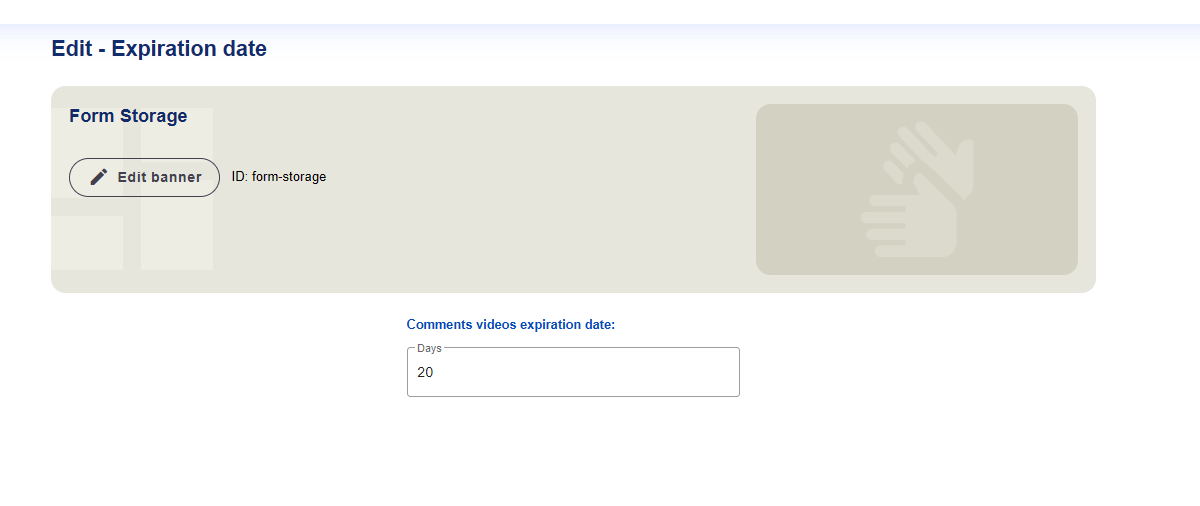
Use Edit expiration to open the period field in days. The setting applies across Multifunctional Room comment videos. Consider this scope before changing it.
Comment video expiration form, in days.
The displayed 20 days are an installation example.
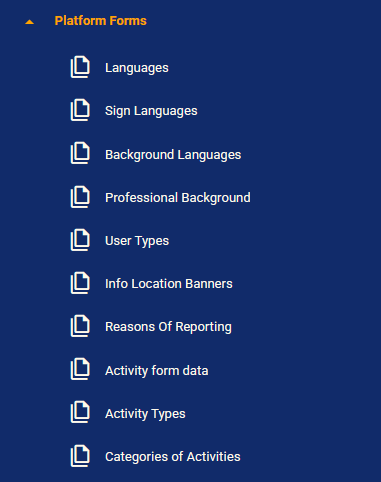
In Platform Forms, consult and edit records used in forms and platform organization within your permissions.
Platform Forms menu with language, user information, organization and activity records.
Group
Records shown
Languages
Written languages and sign languages.
User information
Linguistic background, professional background and user types.
Organization and support
Banner locations and report reasons.
Activities
Form data, activity types and categories.
Language records
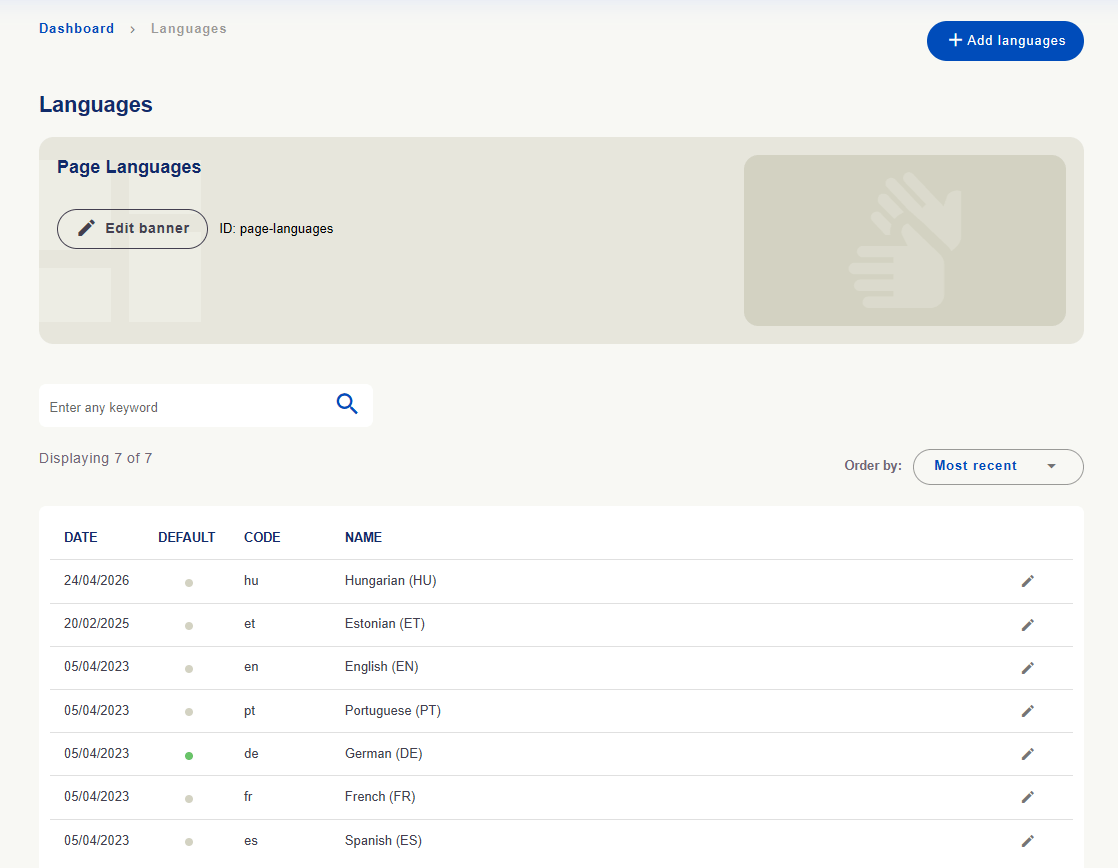
Languages lists written language records with code, name and default indication.
Written language records with codes, names and default indication.
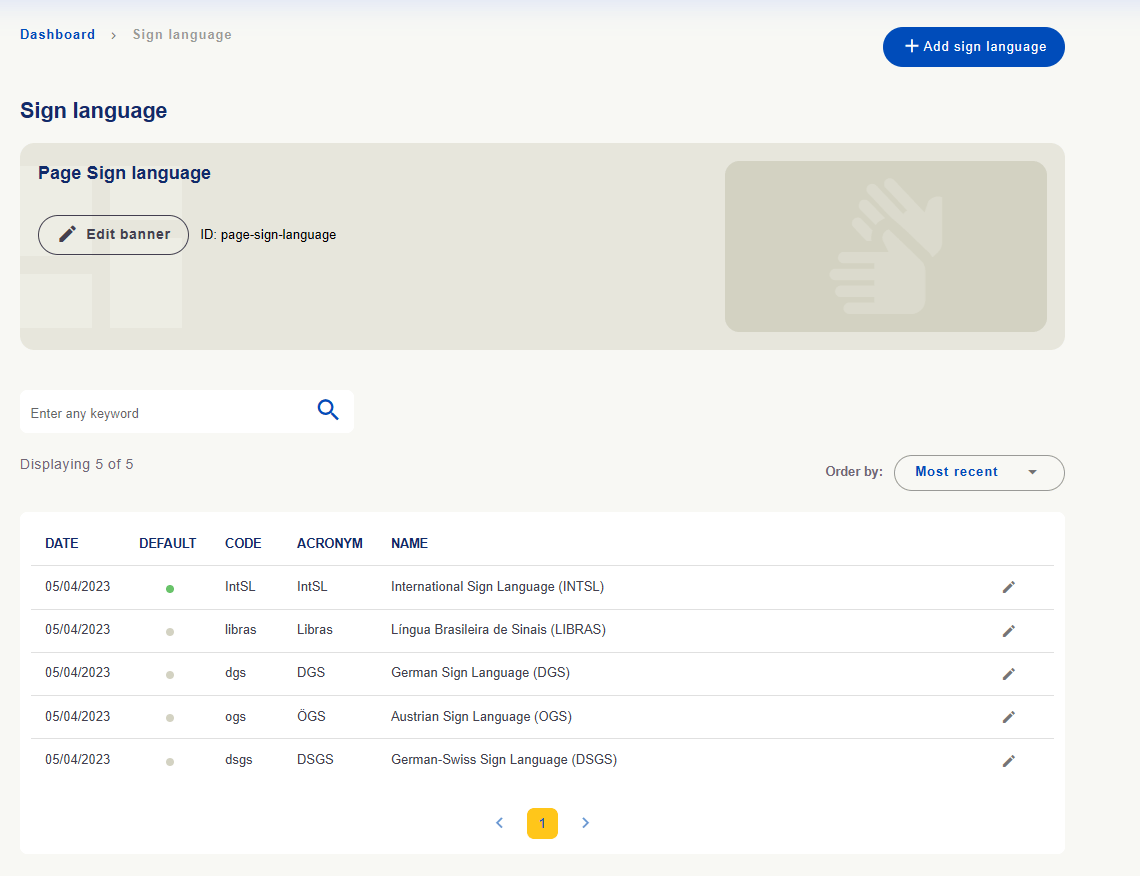
Sign Languages lists sign language records with code, acronym, name and default indication.
Sign language records with codes, acronyms and names.
Registering a language does not make all translations available. Check activation and versions in language and translation areas. Languages and defaults shown are installation examples.See how to configure languages →
User information
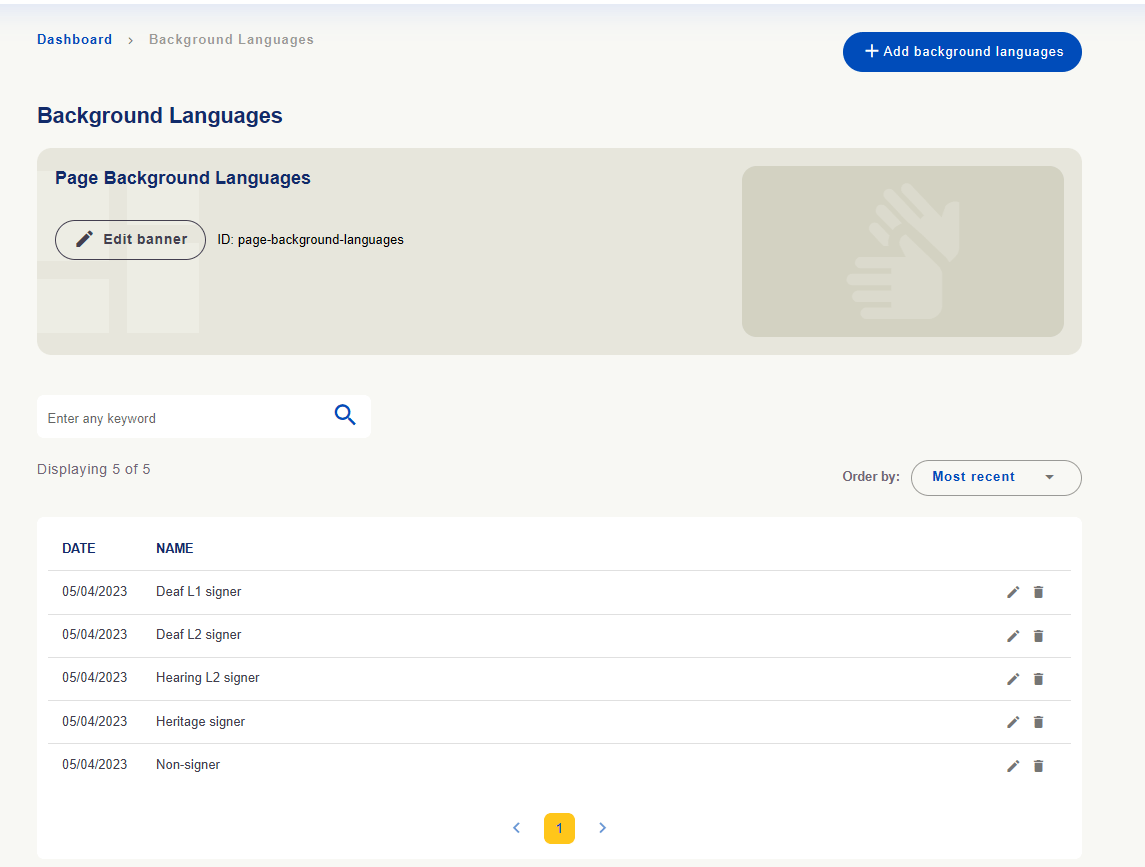
Background Languages contains linguistic background options for user registration, such as L1, L2 and heritage signers.
User linguistic background options.
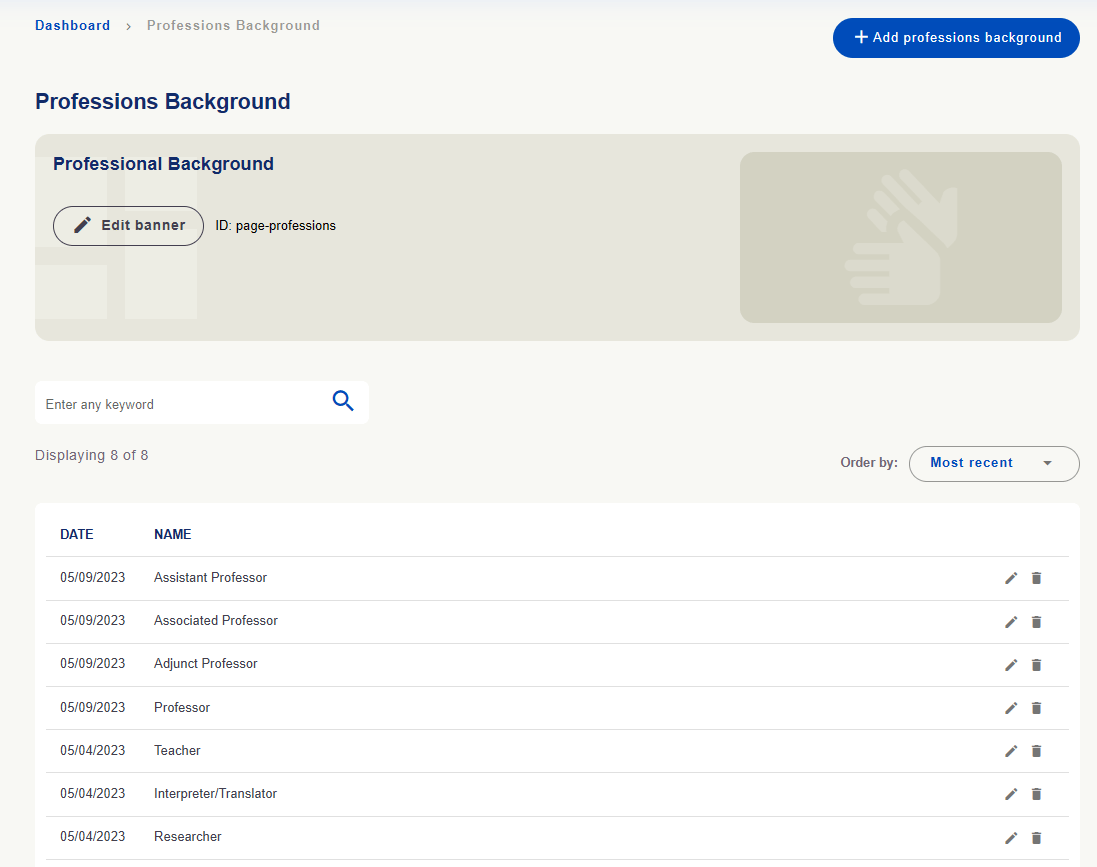
Professional Background includes education or professional roles such as teacher, translator/interpreter and researcher.
Education or professional background options.
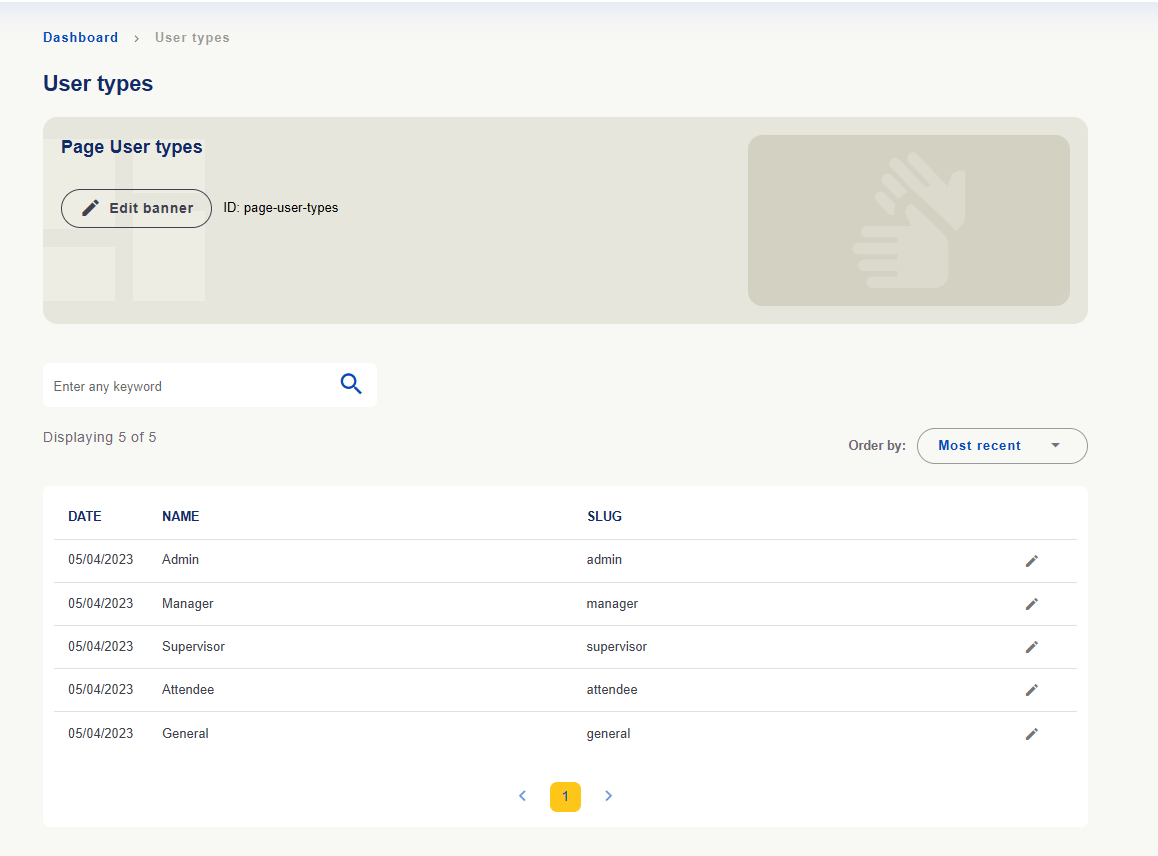
User Types shows recognized user types with names and slug identifiers.
User types with names, identifiers and editing actions.
Editing user type records does not grant permission to a person. Access is managed in Users.
Organization and support
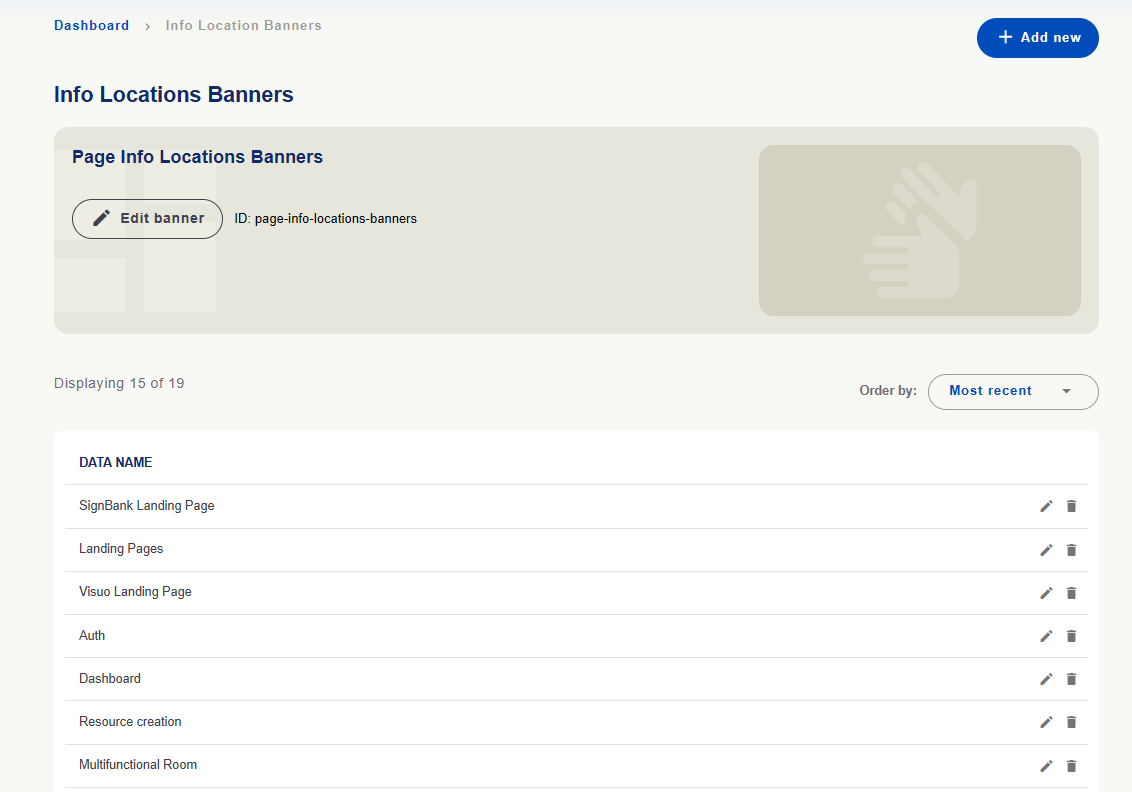
Info Location Banners maintains location records identifying where banners relate to the platform.
Banner location records.
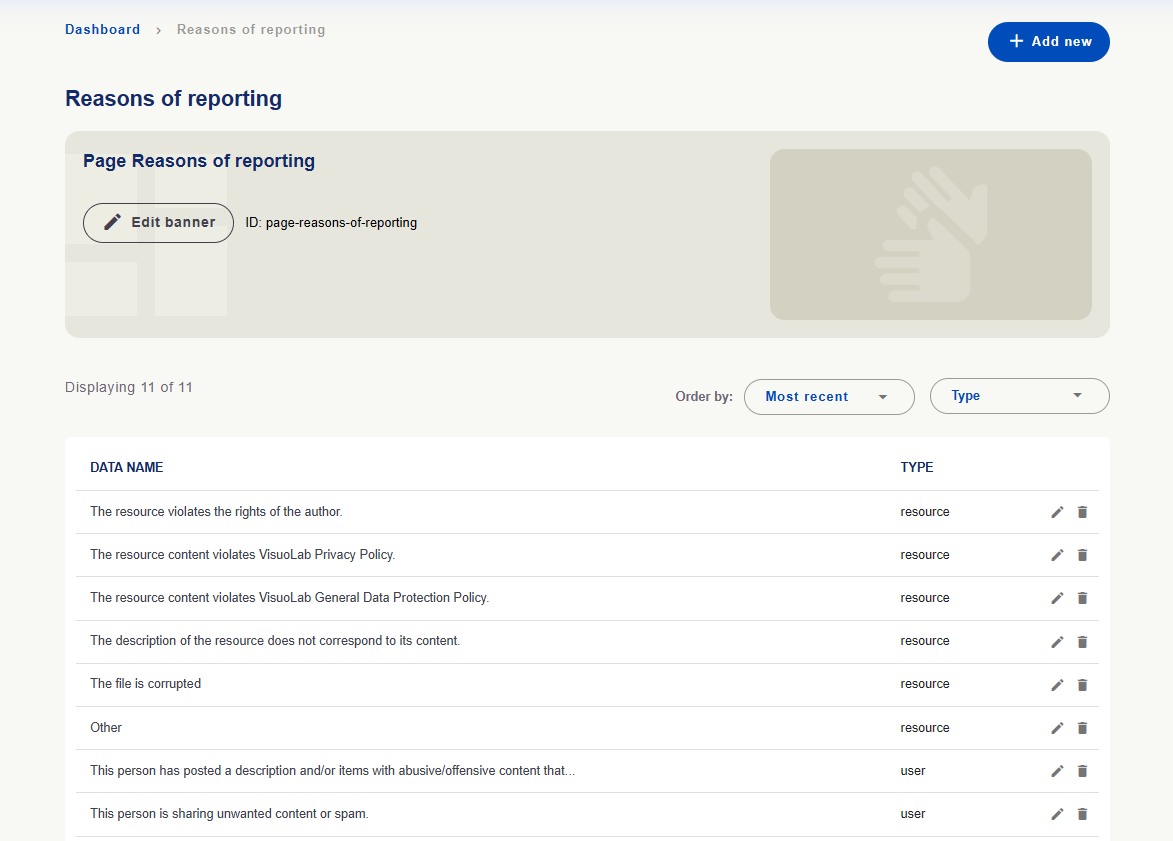
Reasons of Reporting maintains reasons available when submitting reports. Type distinguishes resource and user reasons.
Report reasons with resource or user type.
Review these options and translations for clarity so users can identify the right reason.
Activity records
These areas maintain records organizing activities and supplying form options.
Area
Purpose
Activity Types
Consult recognized types, their relationships and assessment-use indication.
Categories of Activities
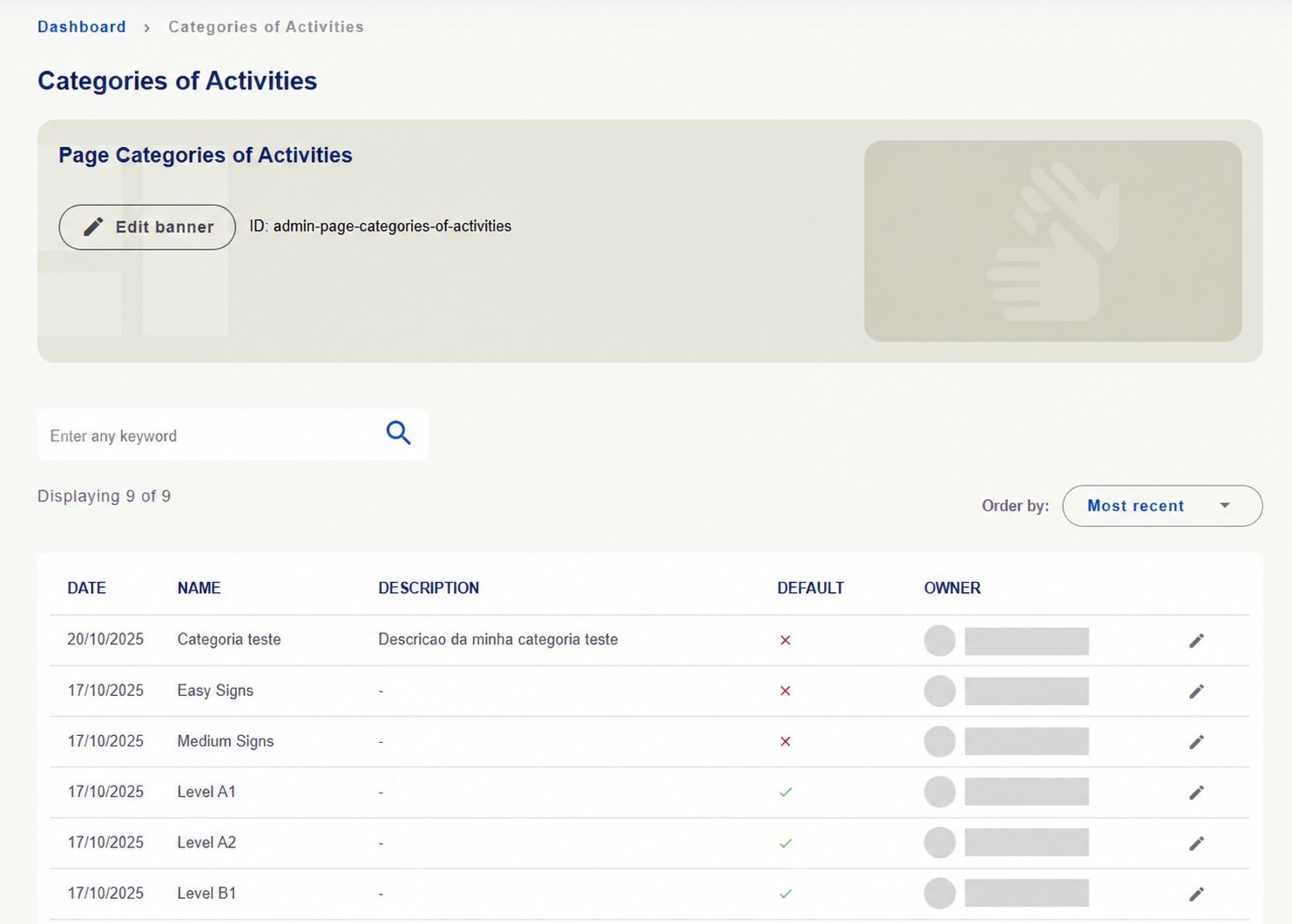
Organize activity categories, with name, description, default indication and owner when specified.
Activity form data
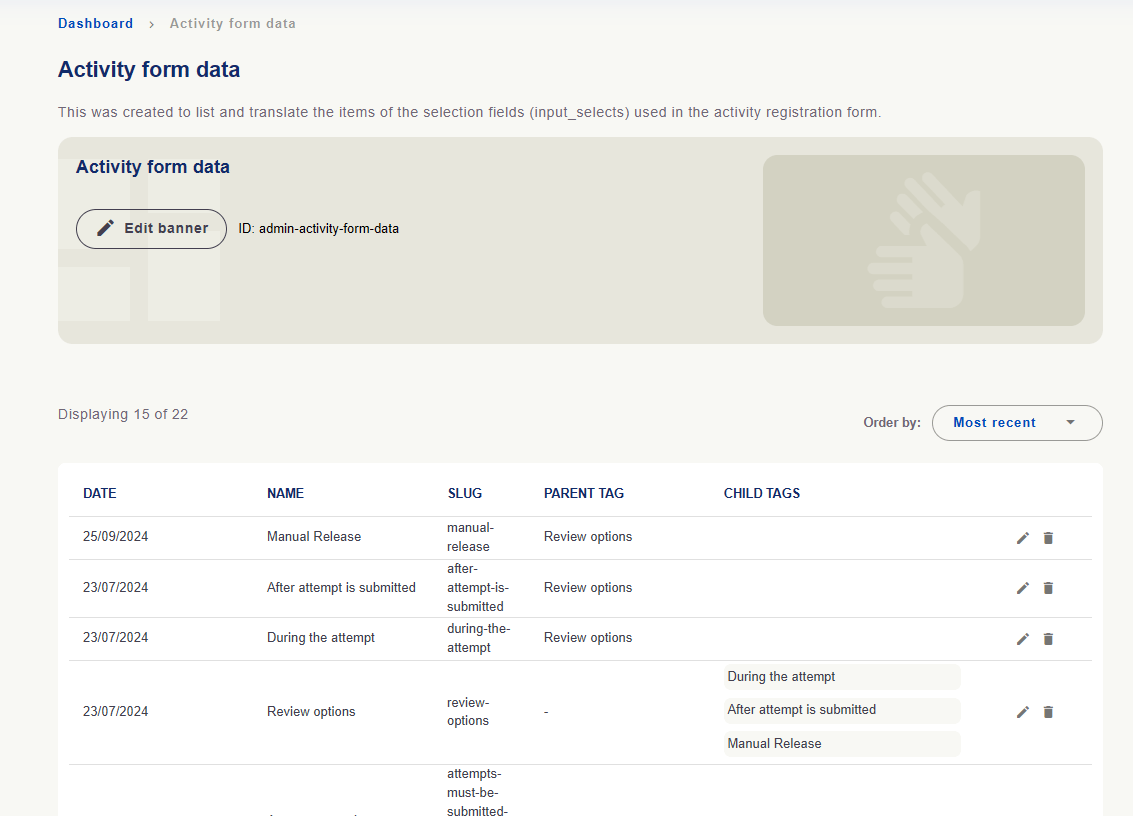
Maintain activity registration select-field items and relationships between parent and child options.
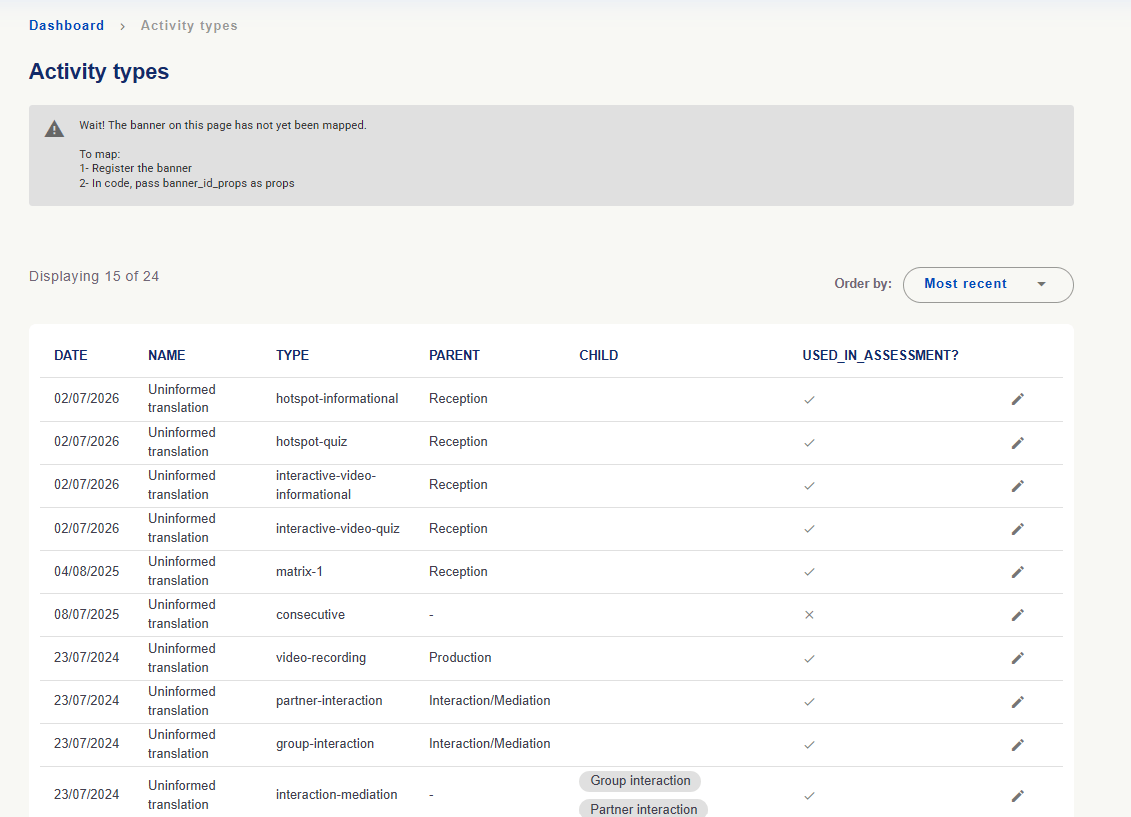
Activity Types: check Type for the type identifier, Parent and Child for relationships and Used in assessment? for assessment use. Editing concerns records; adding or changing a name does not create a new activity feature.
Activity types with relationships and assessment use. The unmapped-banner notice is technical and is not part of the table records.
Categories of Activities: consult name, description and default indication. Check installation options before editing.
Activity categories with descriptions and default indication. Owners hidden.
Activity form data: consult select-field options and their relationships. Review options includes During the attempt, After attempt is submitted and Manual Release in the example.
Activity form data with parent and child options.
These lists configure records used by activities; they are not the activities created in Spaces. To monitor those activities, use Spaces/Activities → Activities.
After changing content or records, review versions in enabled languages. Check texts in Object Texts and videos in Sign Language, where applicable, and verify the result on the platform.

 English
 Português
 Deutsch
 Eesti
Eesti