
 English
 Português
 Deutsch
 Eesti
EestiUnderstand Spaces
Spaces are teaching, learning and assessment environments in the Multifunctional Room. Like classrooms, each brings together invited participants, an introduction and Supervisor-organized activities, supporting translator and interpreter training among other uses. Find your spaces In the Multifunctional Room, cards show each space’s name, introductory image and activity and participant counts. Last seen and My spaces help find spaces available to your profile.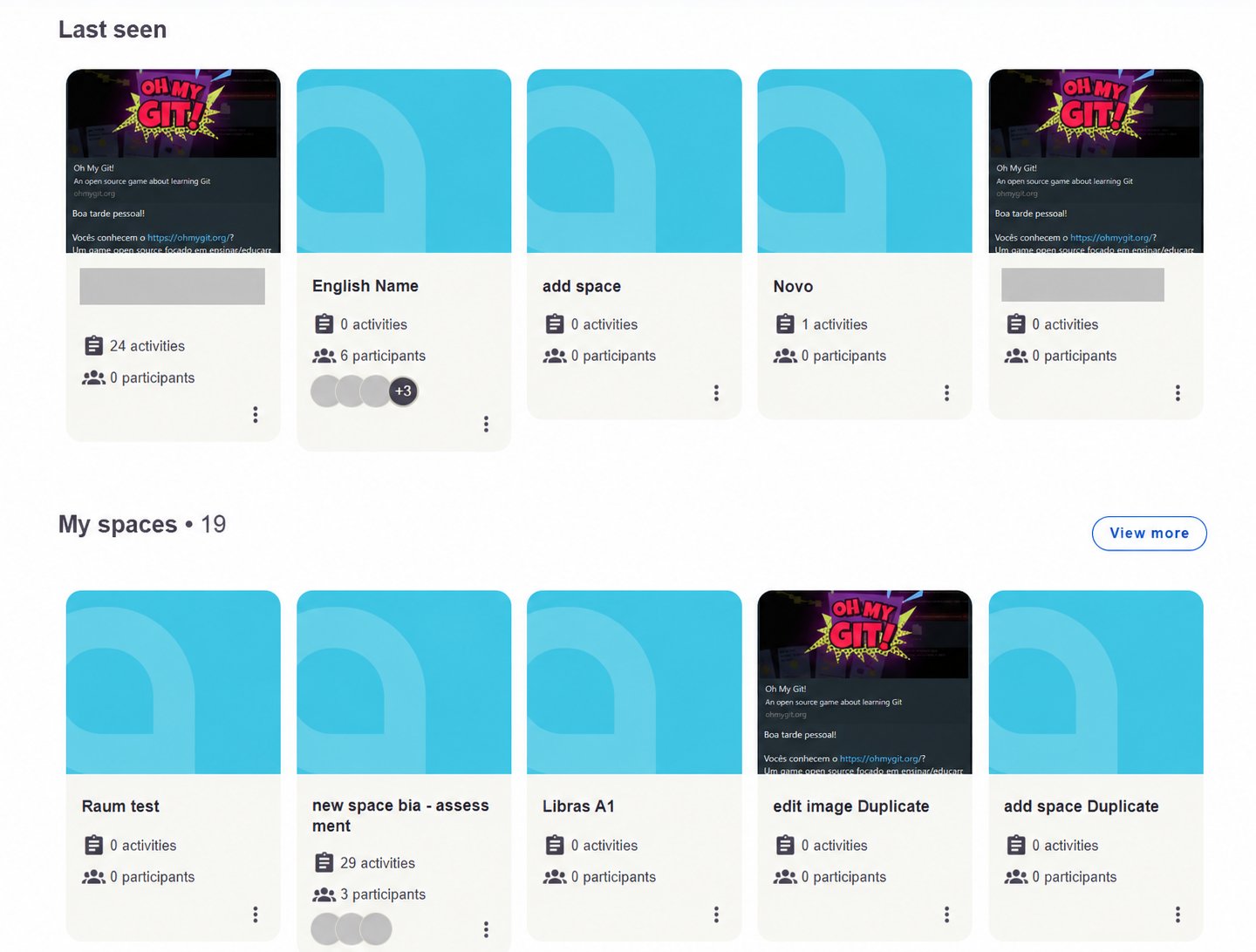
Spaces displayed as cards with activity and participant information. Identifying details hidden.
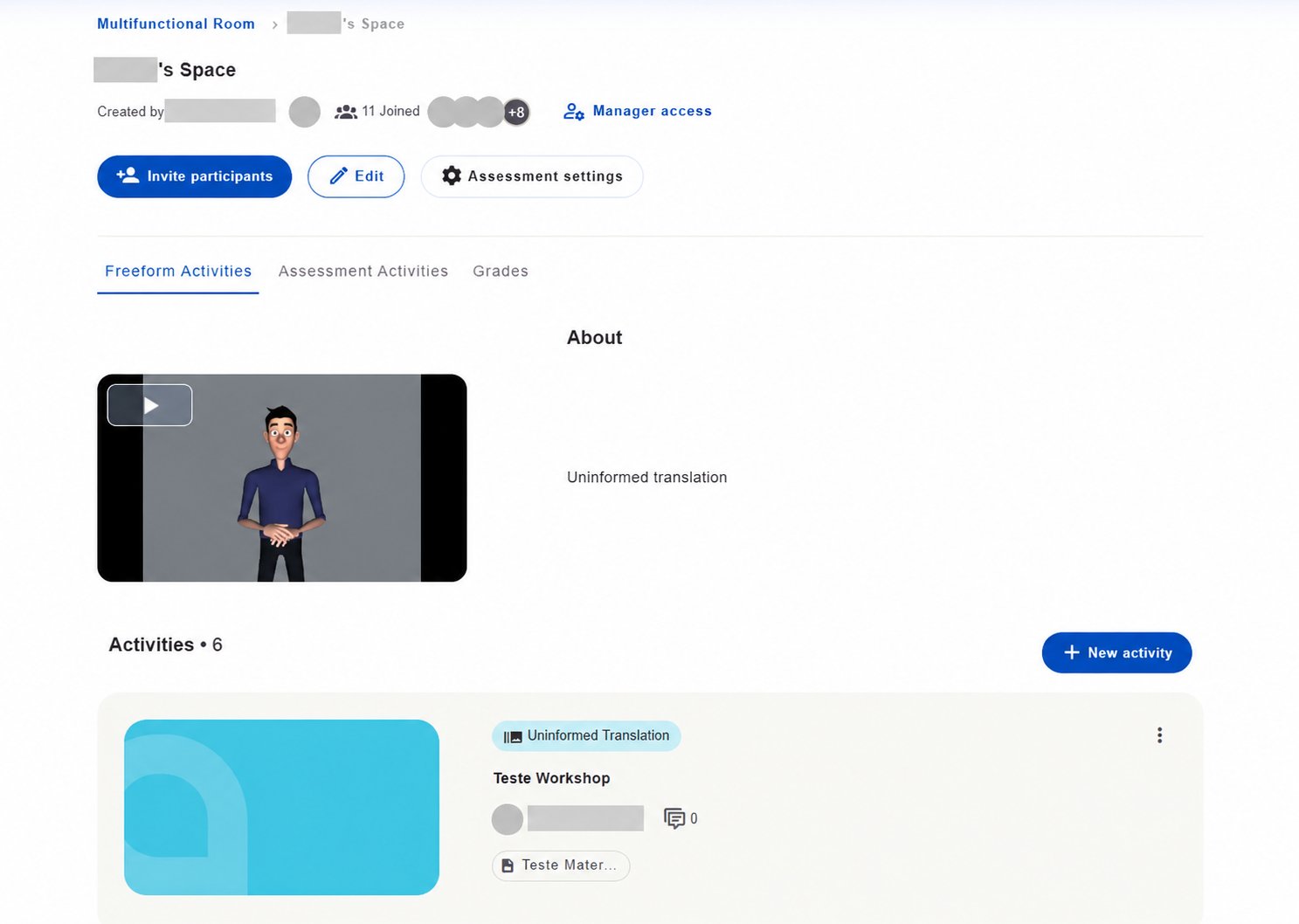
Inside a Space with introduction, activity tabs and management options. Identifying details hidden. Uninformed translation indicates a missing translation in the example installation.
Monitor spaces and activities
In Spaces/Activities, use the tabs:
Use search, Status and Order by to find records. Creation and management depend on your permissions. Add spaces starts registering a space in the screenshot.
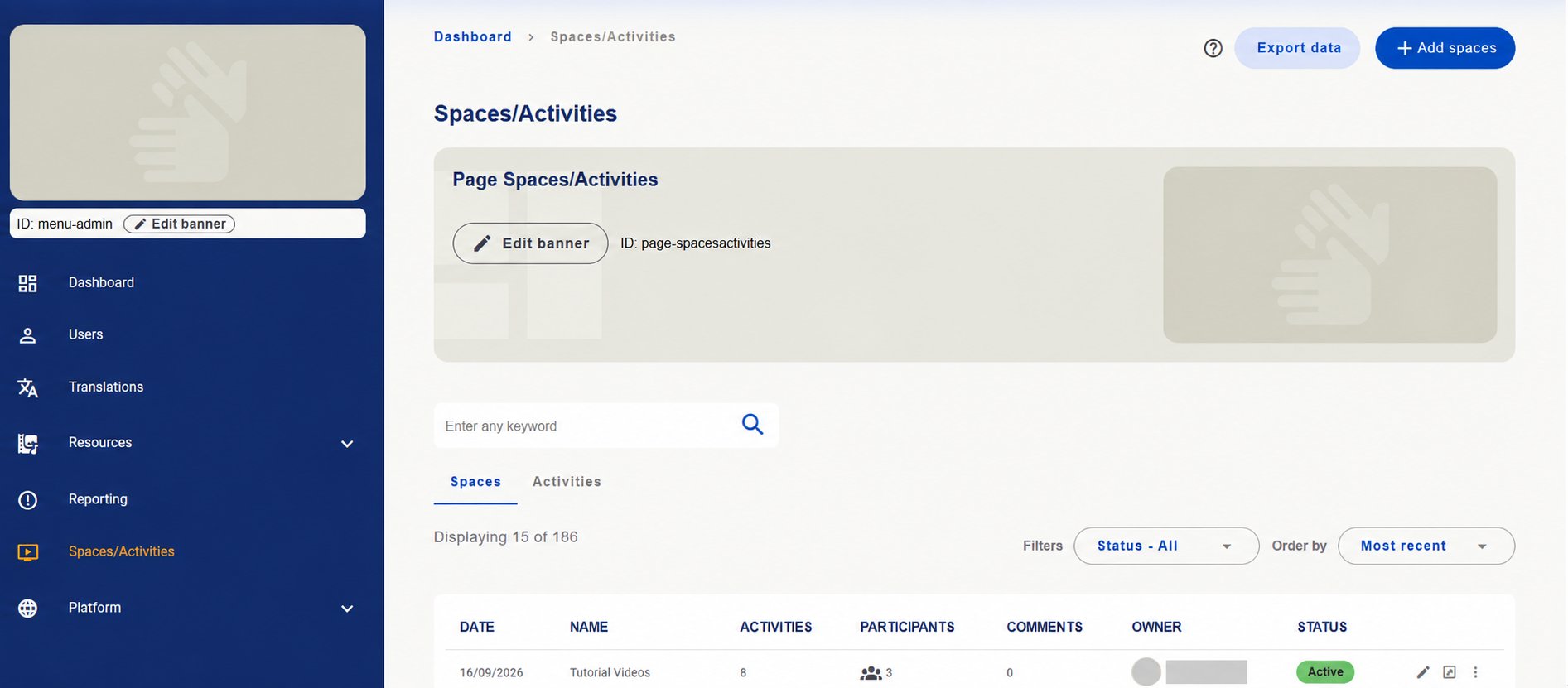
Spaces/Activities management with tabs, search, filter and space indicators. Owner identification hidden.
Introduce the space to participants
When preparing a Space, describe its purpose and participation guidance. About the space holds written information, with other language versions under Add another language?.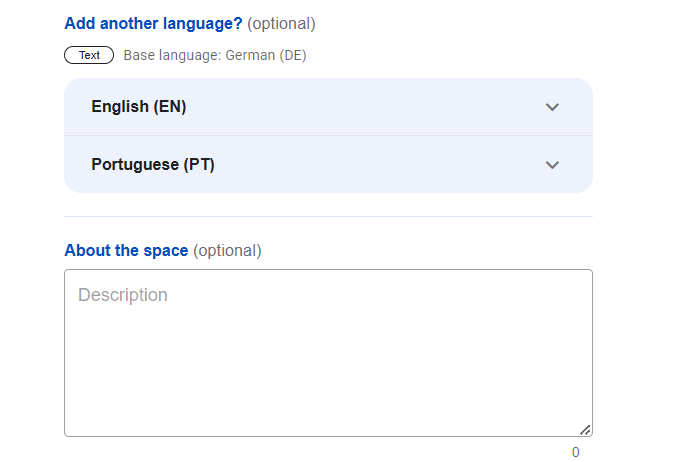
About the space field and other written language options.
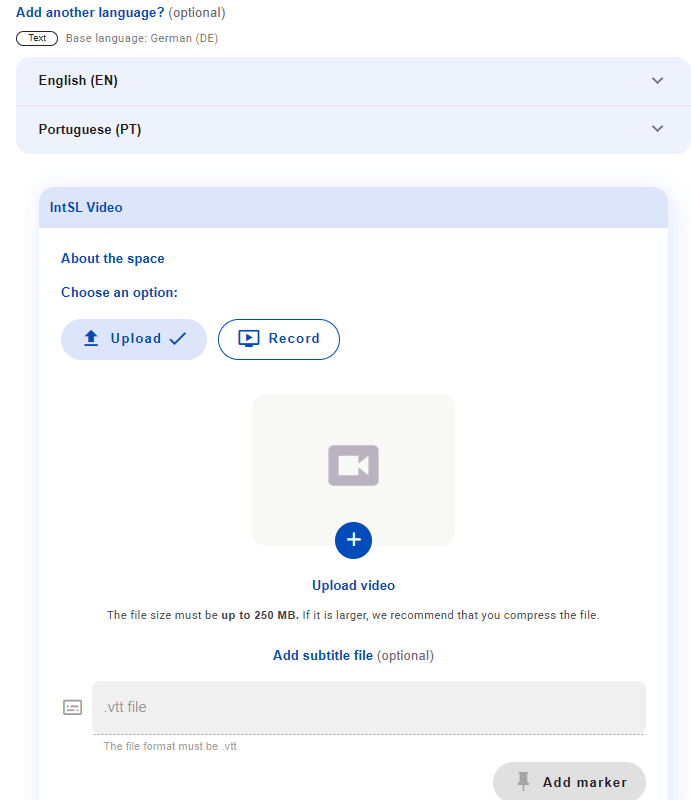
Space video introduction with Upload and Record options.
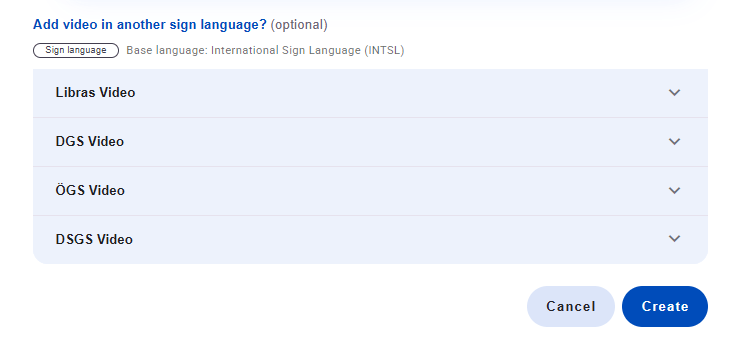
Additional sign language fields and Create button.
Understand the two activity modes
Freeform does not mean no guidance: it means the platform does not impose a fixed, structured assessment method.
Types of freeform activities
Types of freeform activities
There are five freeform activity types for discussion, submission and interpreting practice: