Daily management in VisuoLab covers users and permissions, resources and forms, reports, spaces and activities, and institutional content and settings. Browse each section for the main actions and illustrated examples.

Users and permissions

In Users, consult registered accounts and manage permissions and status within your access level. The list includes General users and people with specific Multifunctional Room roles. Accounts may be active, deactivated or removed.

Understand the two access routes

A platform account does not automatically provide access to Spaces. Users invited to a space can participate in its activities while retaining access to Portal resources.

Find users

Use the tabs to view the groups in user management: See all: combined view of registered users.
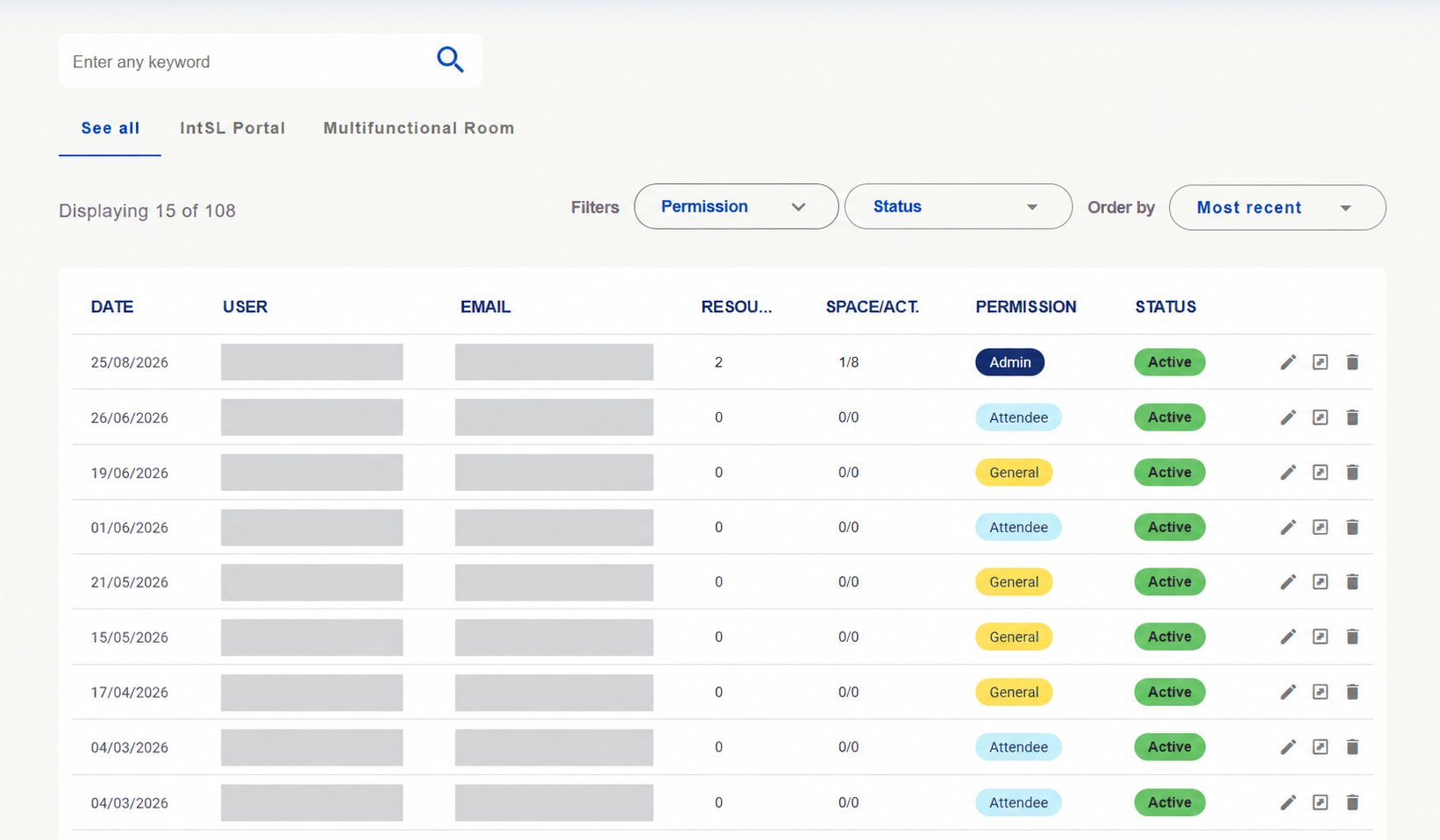
See all tab with users, permissions and status. Identifying details hidden.
See all tab with users, permissions and status. Identifying details hidden.

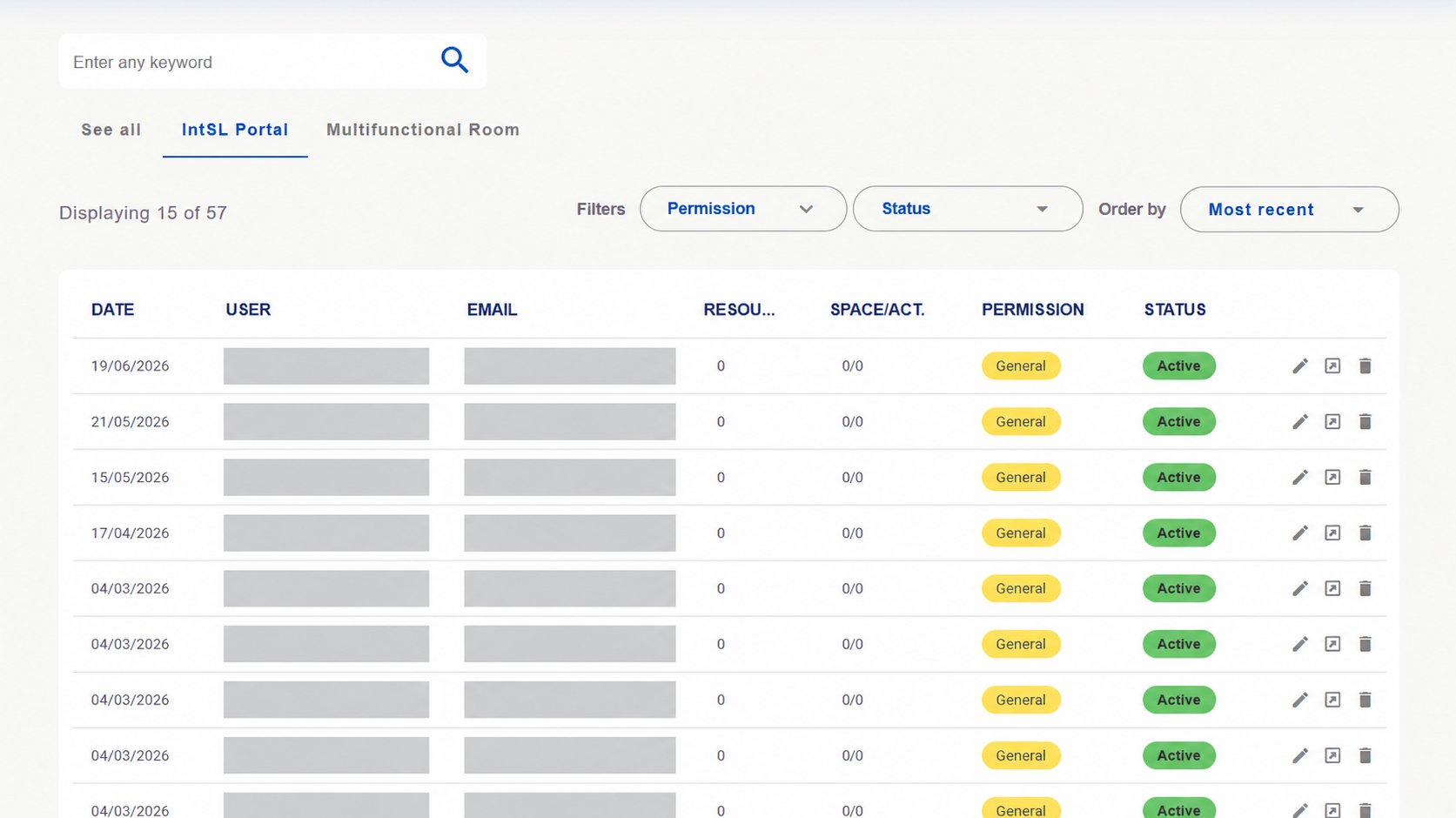
IntSL Portal: list of General Portal users. This grouping does not make the Portal exclusive to them: all users can access Portal resources.
IntSL Portal tab with General users. Names, photos and emails hidden.
IntSL Portal tab with General users. Names, photos and emails hidden.

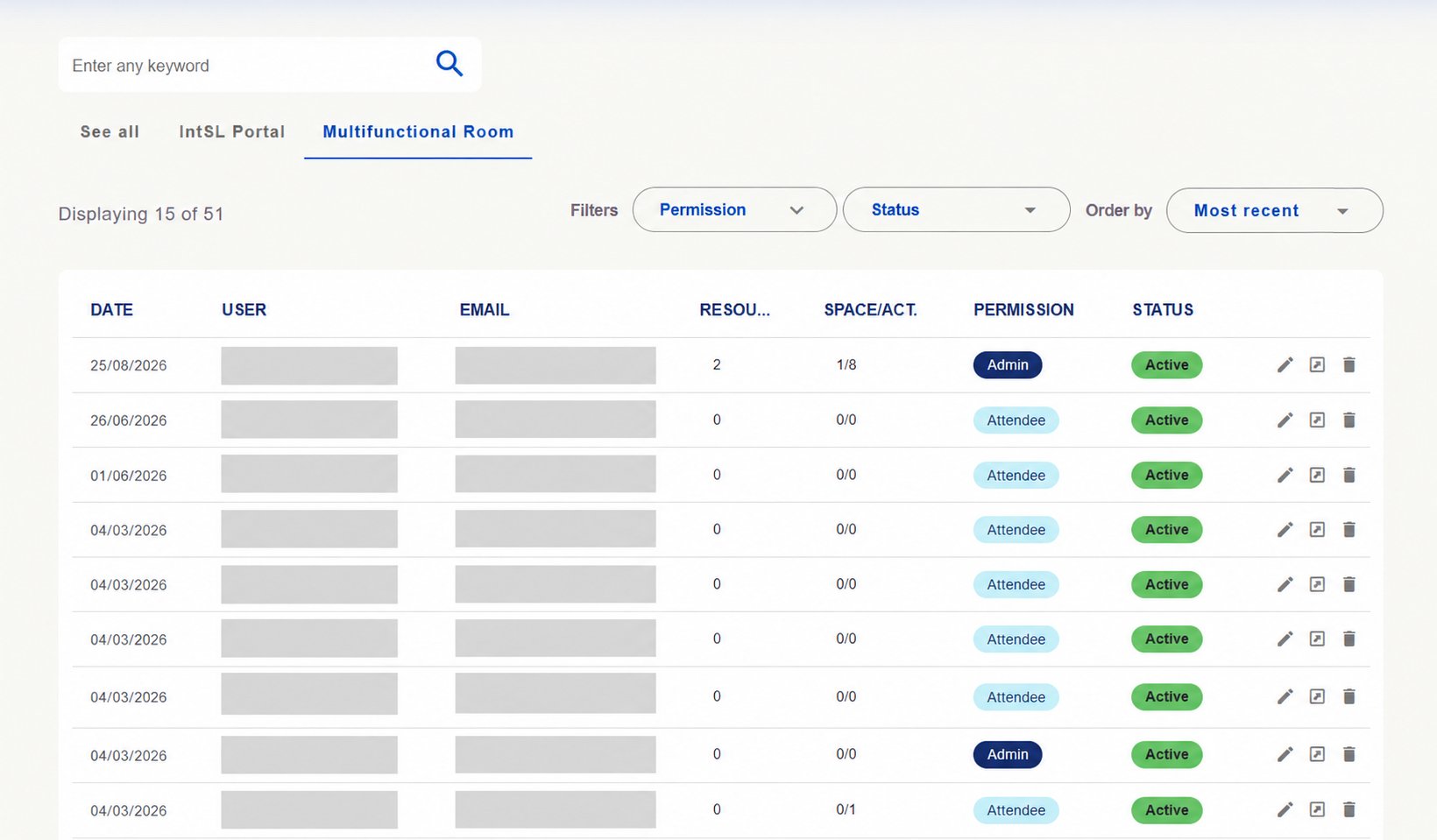
Multifunctional Room: users with specific access and roles in the Multifunctional Room. Participation depends on invitations and permissions in Spaces.
Multifunctional Room tab with permissions such as Admin and Attendee. Identifying details hidden.

Multifunctional Room tab with permissions such as Admin and Attendee. Identifying details hidden.

Use search, Permission and Status filters and Order by to find accounts. Check permissions, status and links to resources and spaces/activities in the table. Available actions depend on your access level.

Check responsibilities

The Supervisor manages the Spaces they are responsible for. Admin and Manager manage the platform according to their permissions. Within a Space, roles such as Attendee and Editor define available actions; Editor can change certain content. The images were edited to hide identifying details. Counts and records are installation examples.

Resources and forms

Resources lets managers monitor published materials, consult literary analyses and maintain records that supply form options. They can create and edit categories and other records according to their permissions.

Monitor published resources

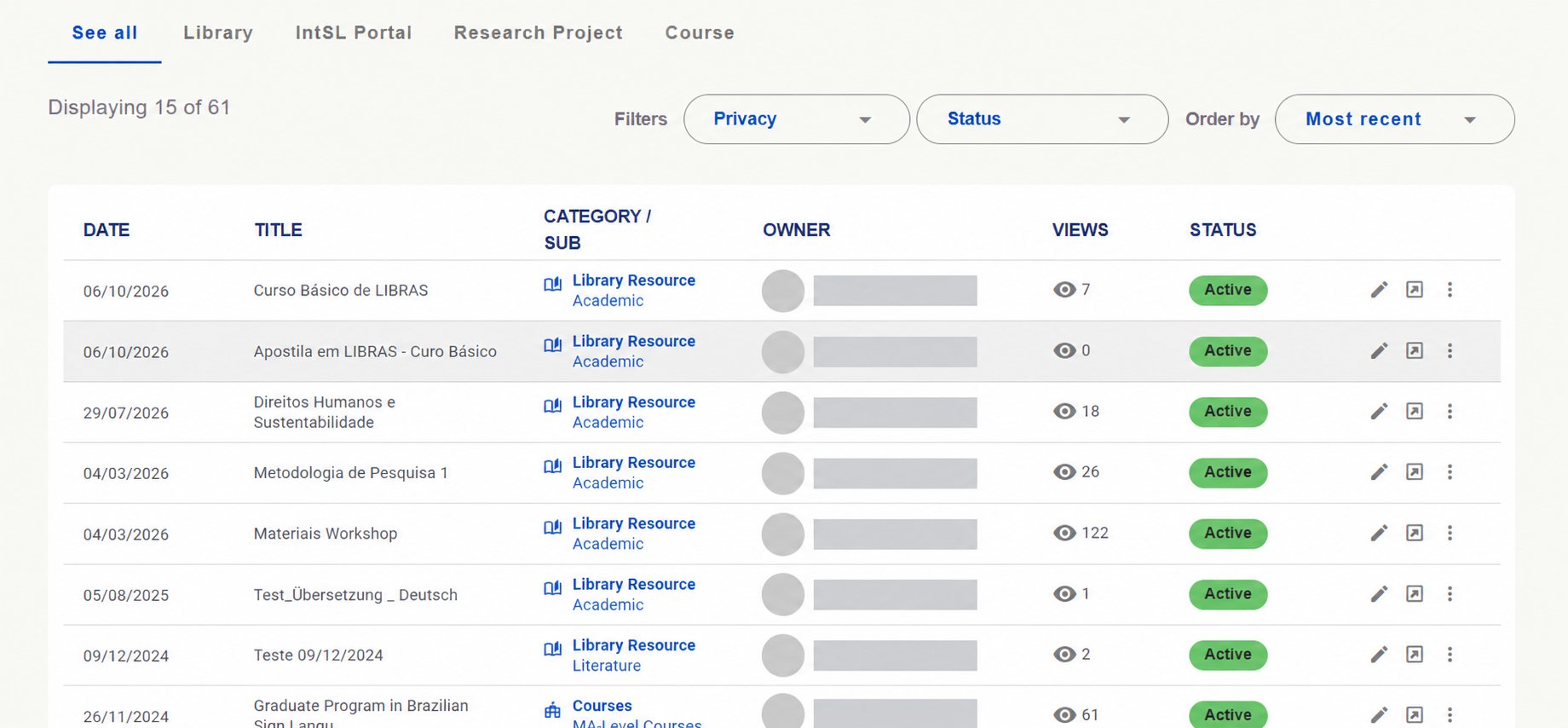
In Resources → Resources List, consult published materials and check category, subcategory, owner, views and status.
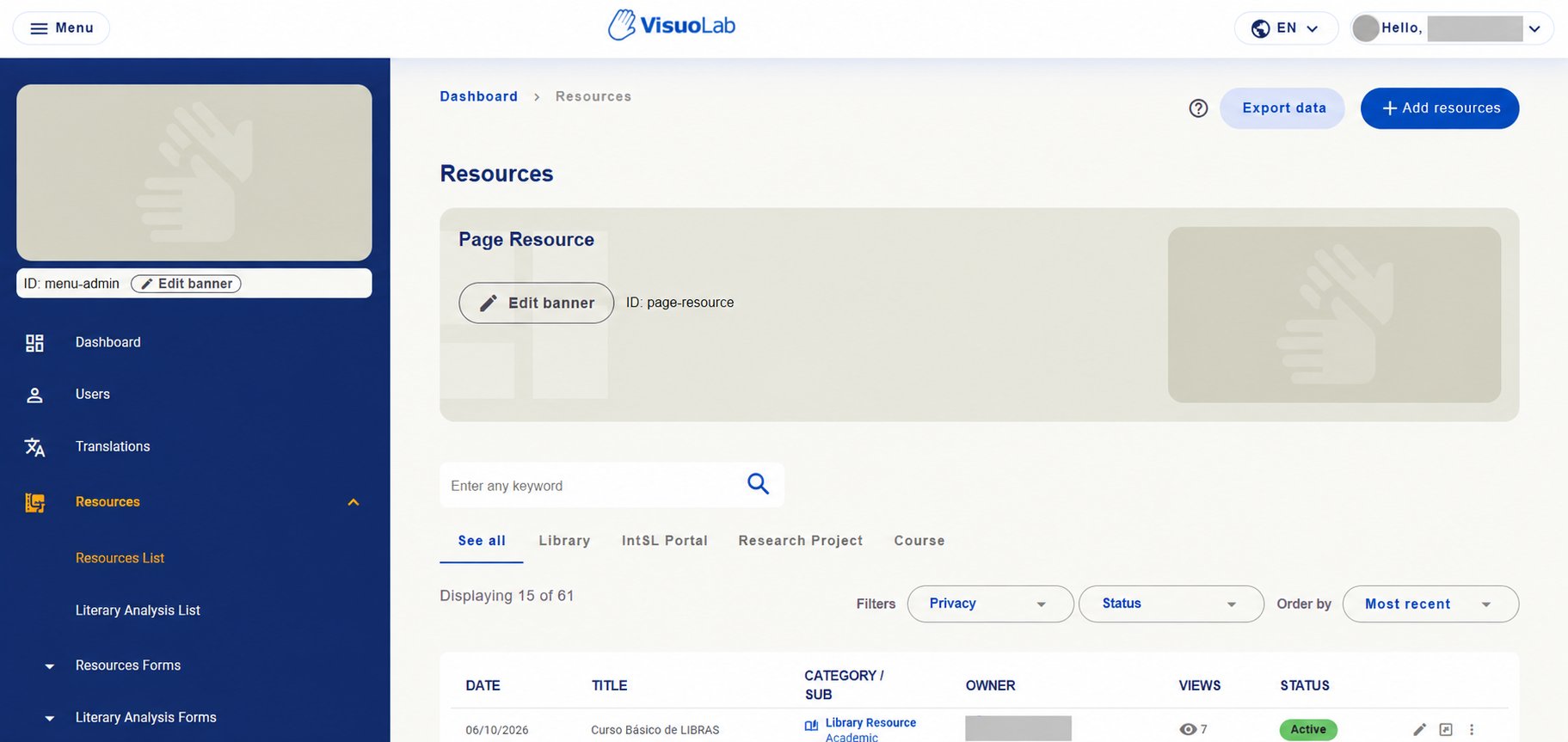
Resources area with access to resource lists, literary analyses and form records. Identifying details hidden.
Resources area with access to resource lists, literary analyses and form records. Identifying details hidden.

Use search, Privacy and Status filters and Order by to find resources. Tabs show all materials in See all, or filter by Library, IntSL Portal, Research Project and Course. Check title, category and subcategory, owner, views and status. Use the available actions to view or edit resources within your permissions.
Resource list with categories, views, status and actions. Owners' names and photos hidden.

Resource list with categories, views, status and actions. Owners' names and photos hidden.

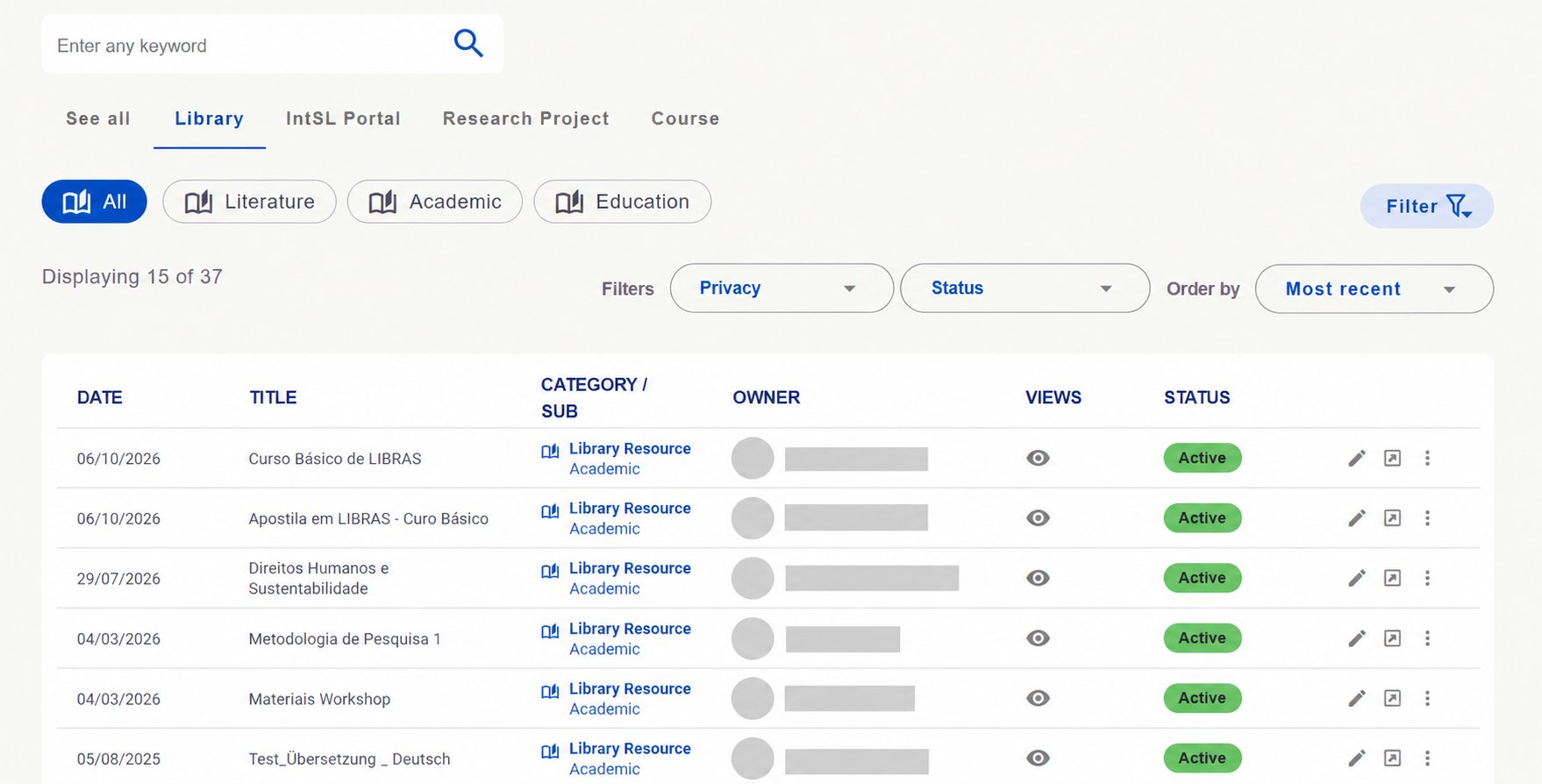
Categories may have subcategories to refine browsing. Options and counts below are installation examples.Library: this example includes Literature, Academic and Education subcategories.
Library view with subcategory options and privacy and status filters. Identifying details hidden.

Library view with subcategory options and privacy and status filters. Identifying details hidden.
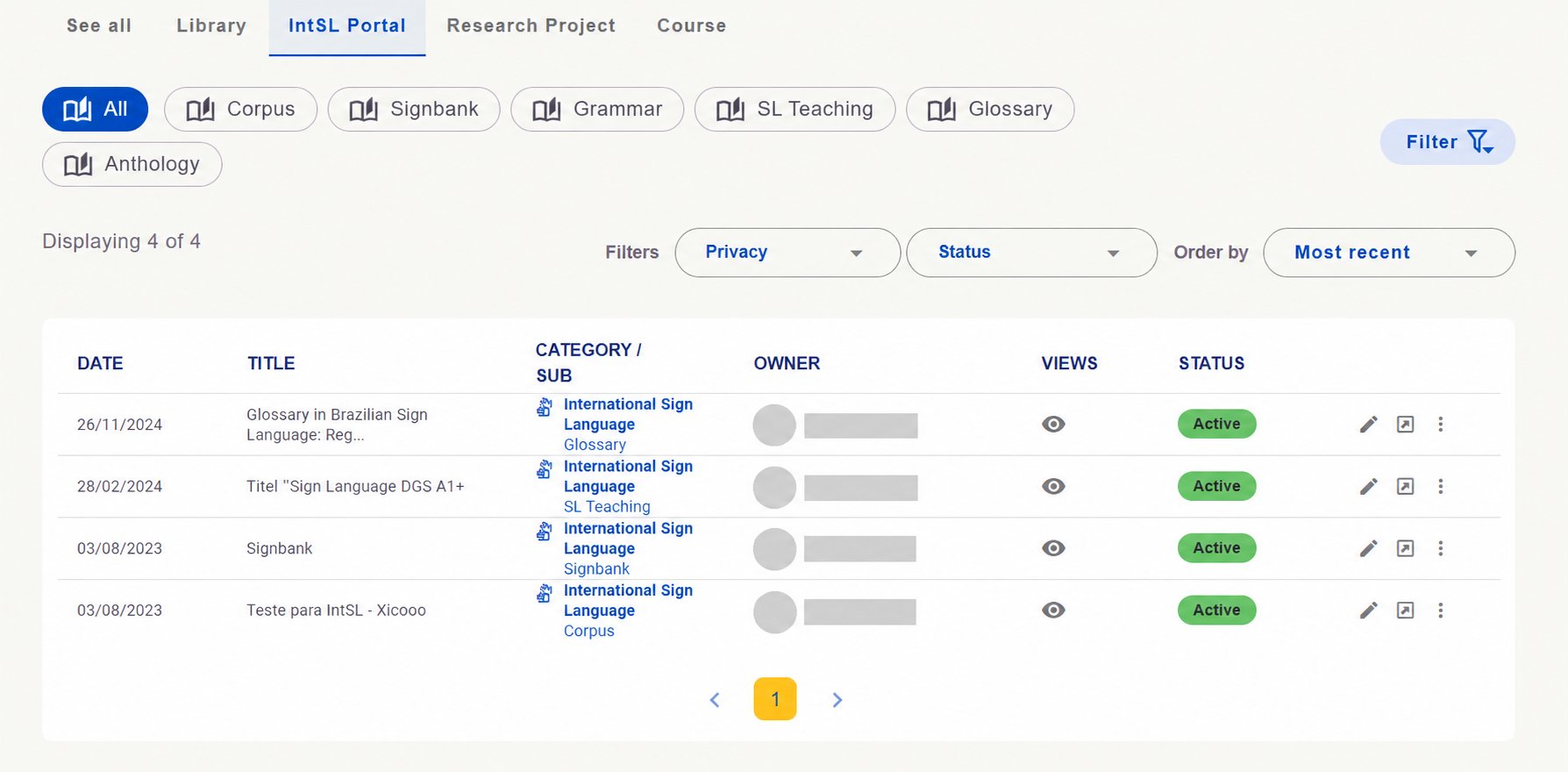
IntSL Portal: example options include corpus, Signbank, grammar, sign language teaching, glossary and anthology.
IntSL Portal category and its subcategories. Identifying details hidden.

IntSL Portal category and its subcategories. Identifying details hidden.
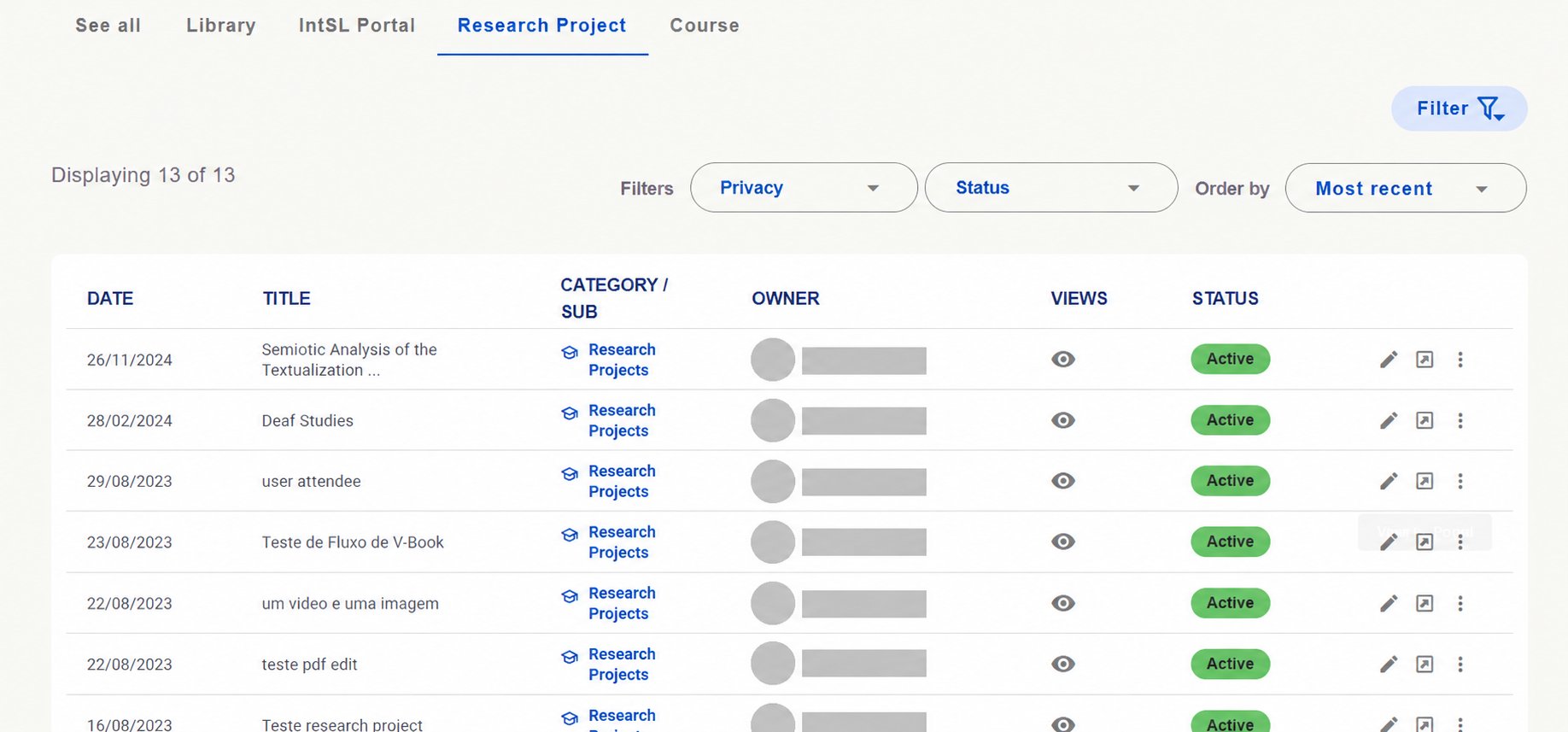
Research Project: view resources classified in this category.
Research Project resource list. Identifying details hidden.
Research Project resource list. Identifying details hidden.

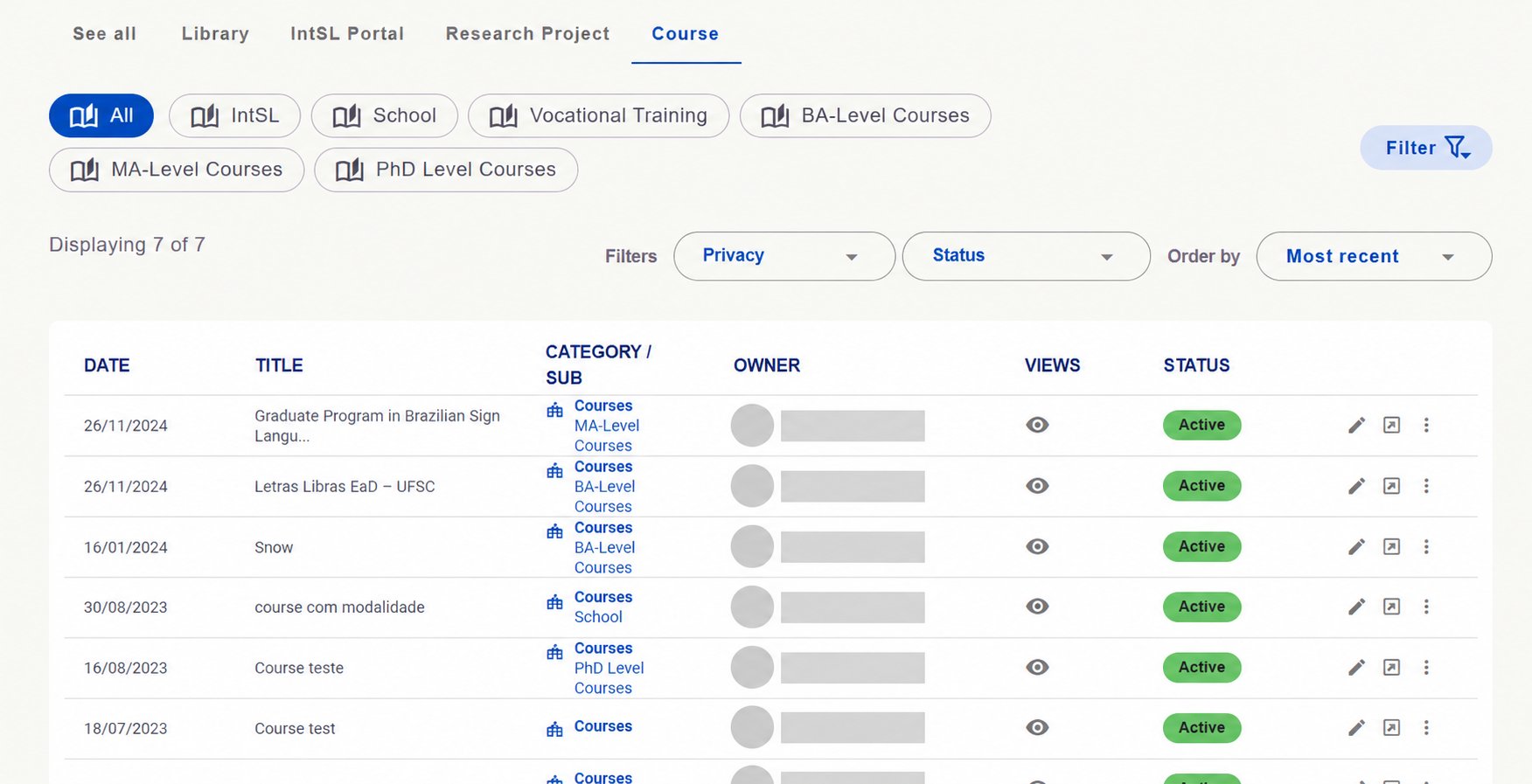
Course: example subdivisions relate to education and training, such as School, Vocational Training, BA-Level Courses, MA-Level Courses and PhD Level Courses.
Course category with subdivisions and resource list. Identifying details hidden.

Course category with subdivisions and resource list. Identifying details hidden.

Configure categories and form options

In Resources Forms, managers can create and edit records supplying resource form options. These help users classify and describe materials.
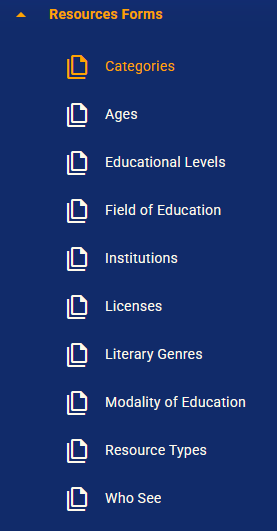
Resources Forms menu with records used in resource forms.
Resources Forms menu with records used in resource forms.

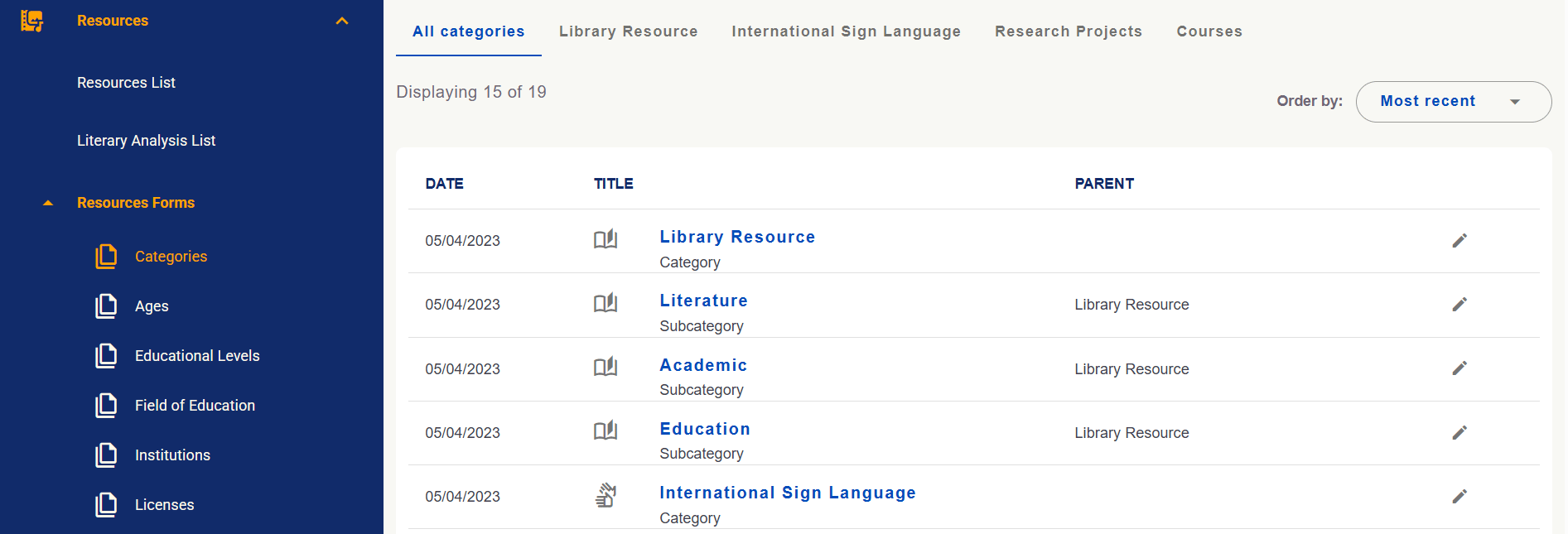
In Categories, check each subcategory’s main category in Parent. In the example, Literature, Academic and Education belong to Library Resource. Use editing actions within your permissions.
Category and subcategory management with Parent identifying the main category.

Category and subcategory management with Parent identifying the main category.

Consult literary analyses and configure their forms

In Literary Analysis List, consult registered analyses. In Literary Analysis Forms, maintain their form options, including Metaphorical Style, Features and Objectives and Linguist Styles.
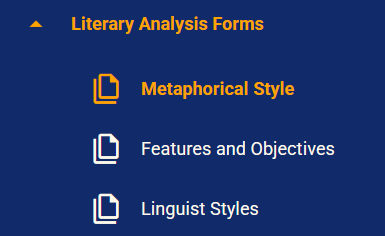
Literary Analysis Forms menu with analysis configuration areas.
Literary Analysis Forms menu with analysis configuration areas.

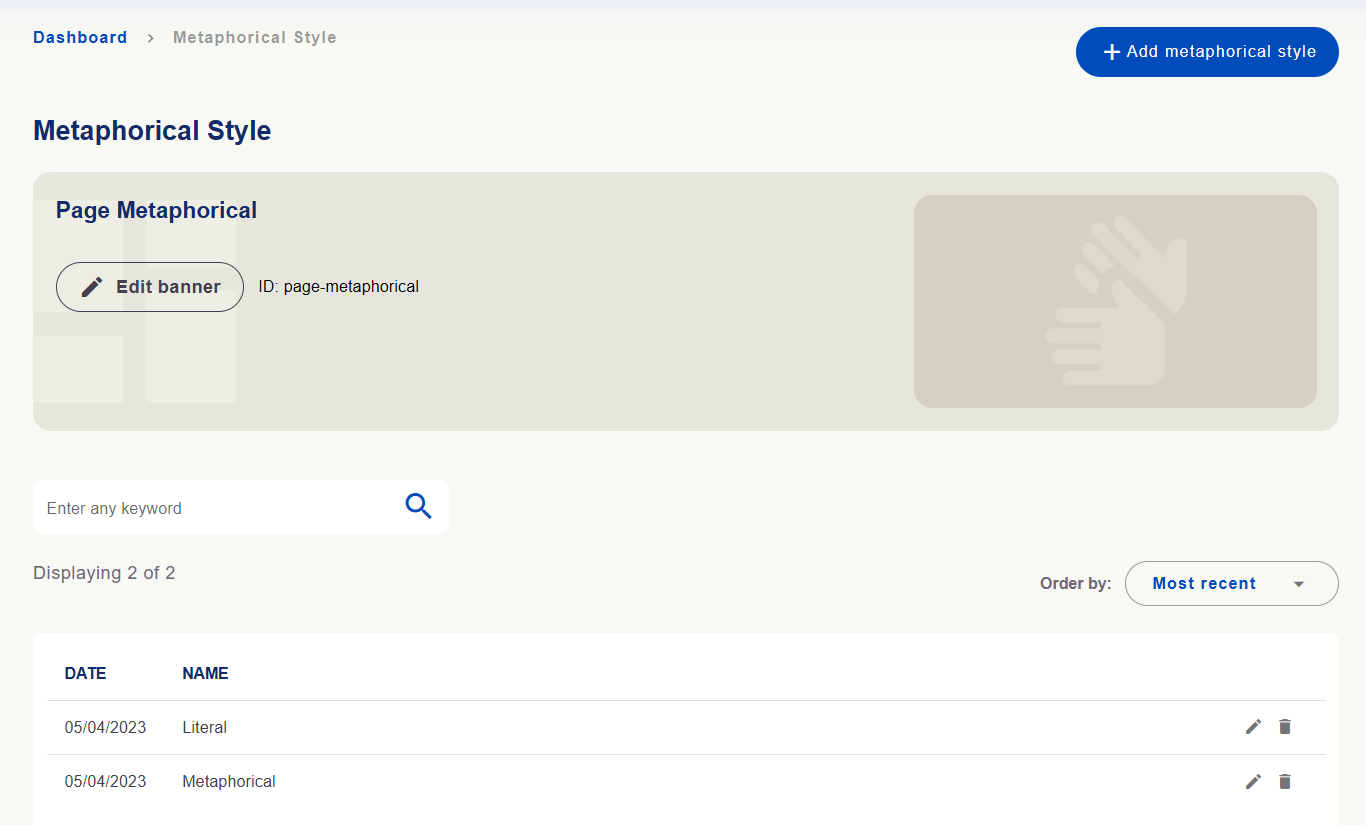
Registration screens let you add options and edit existing ones within your permissions. Metaphorical Style illustrates a list with search, sorting, an add button and editing actions.
Metaphorical style options with list, search and Add metaphorical style button.
Metaphorical style options with list, search and Add metaphorical style button.

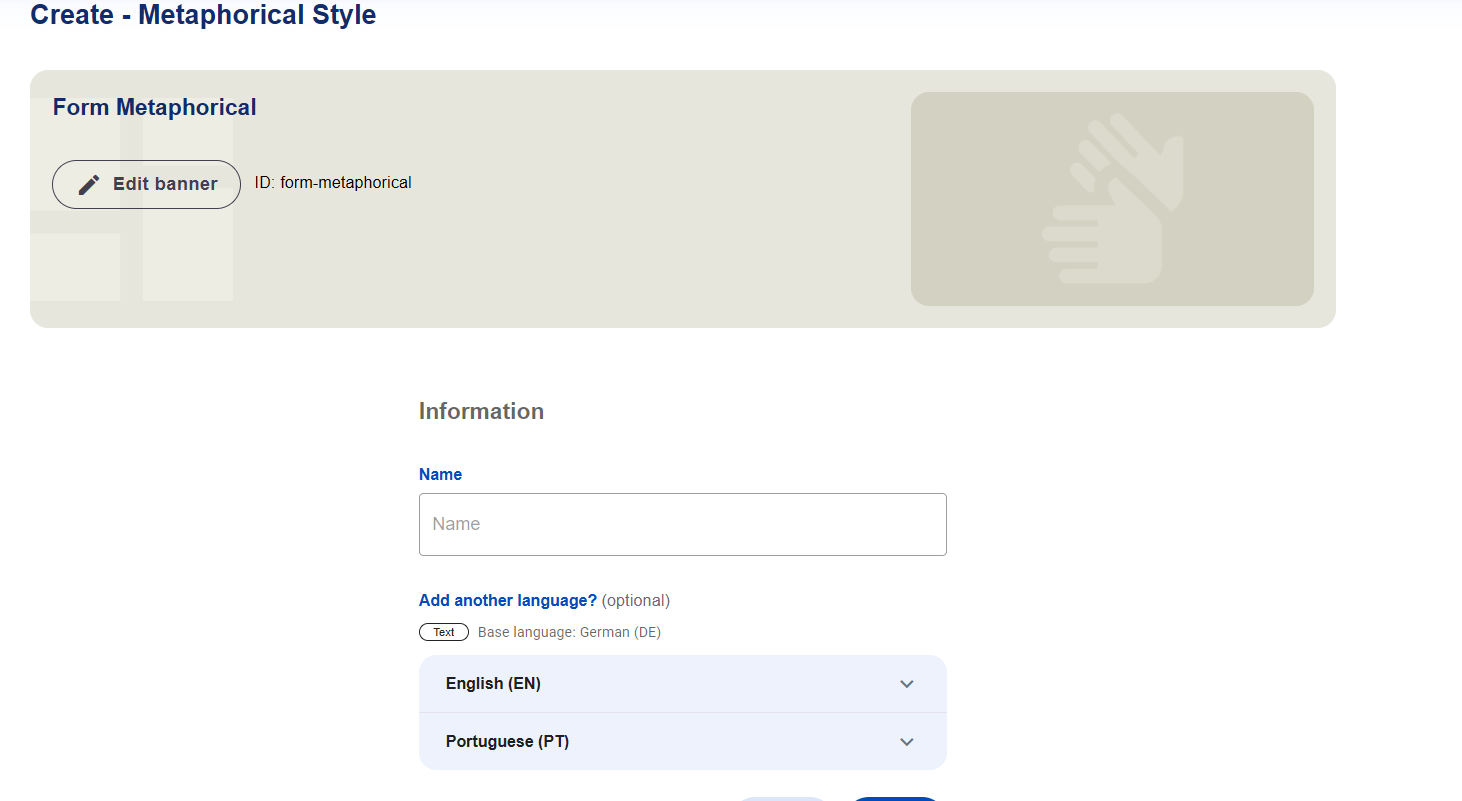
Enter the option’s Name in the form. Add another language? allows versions in other written languages within the same record. Check the source language and available versions before saving.
Metaphorical style form with Name and options for other languages.

Metaphorical style form with Name and options for other languages.

Maintaining records and translating them are different tasks. Creating or editing a category or option changes the record used in forms. Then review its versions in Translations and check the display in enabled languages.
See how to translate form records →

Reporting

Reporting brings together reports about platform users and resources. Managers can find cases, examine information, assign responsibility and choose an outcome within their permissions.

Find reports

Use search and See all, Users and Resources tabs to find cases. The screen also offers sorting, Attribution and Status options. The list shows date, Reported by, Reason, Type and status. Open a record using the row action to view details.
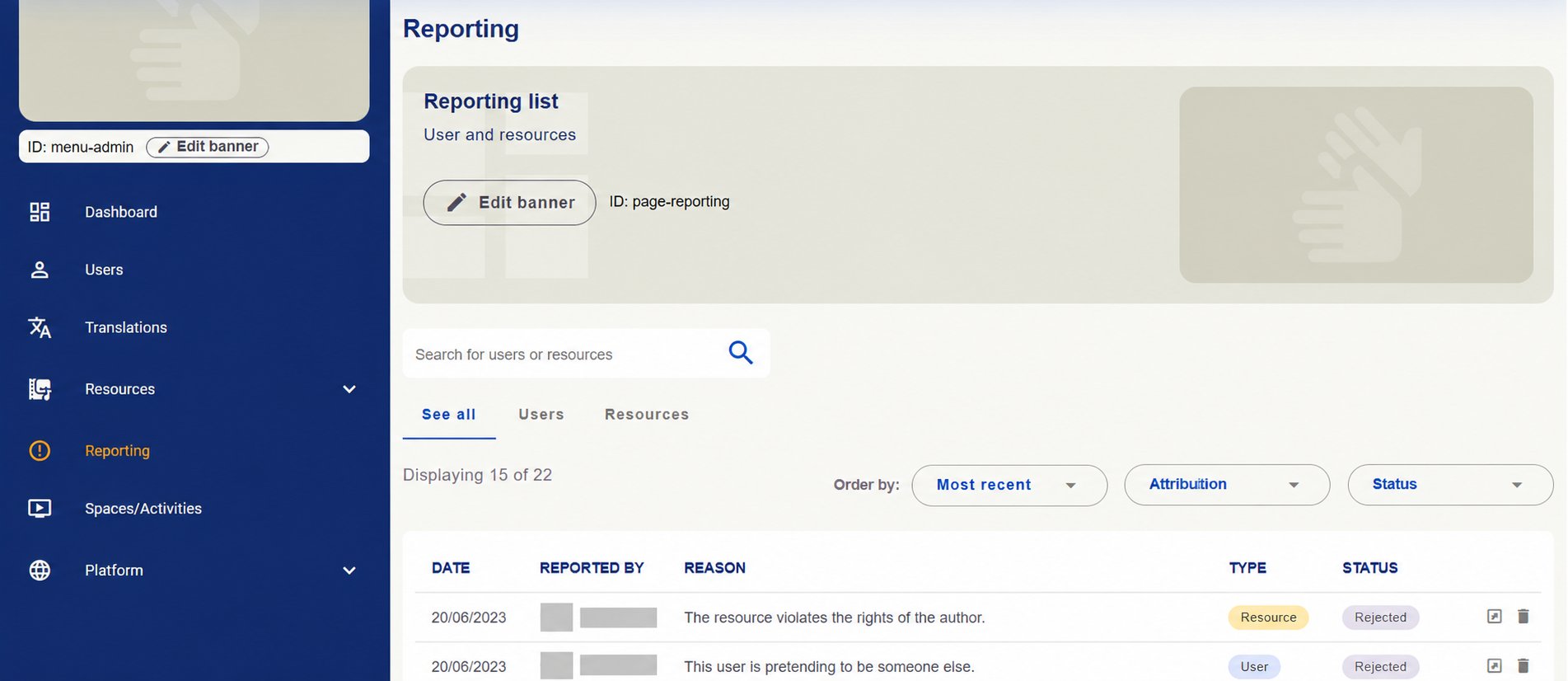
Reporting area with search, user and resource tabs and report list. Identifying details hidden.

Reporting area with search, user and resource tabs and report list. Identifying details hidden.

Check information and responsibility

Before deciding, read Stated infringement, Additional information and Report status. Consult the related user or resource to understand the context. The resource report example shows the material, its owner, who reported it and the date. Open case indicates an open case in the screenshot.
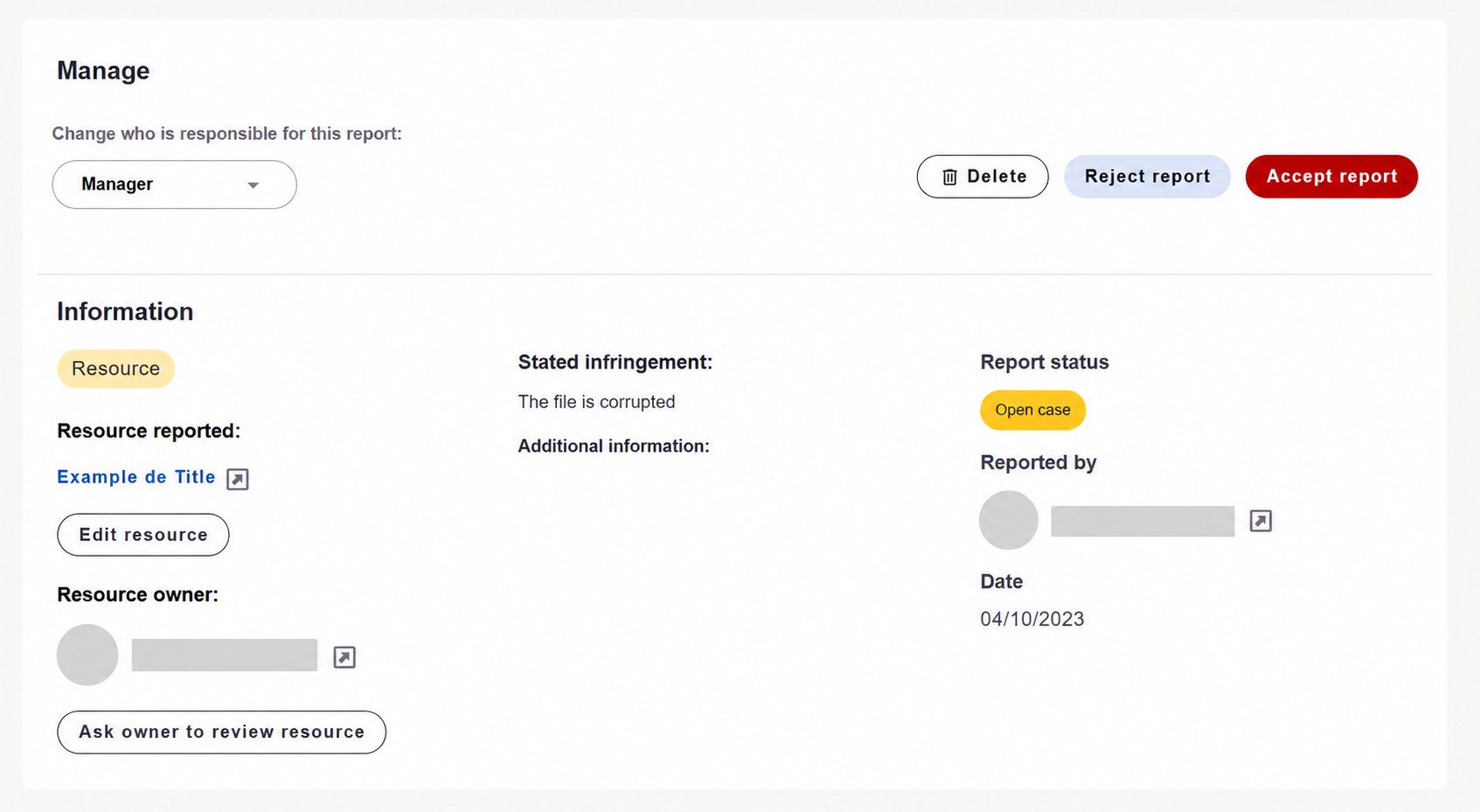
Resource report details with reason, status and management options. Identifying details hidden.
Resource report details with reason, status and management options. Identifying details hidden.

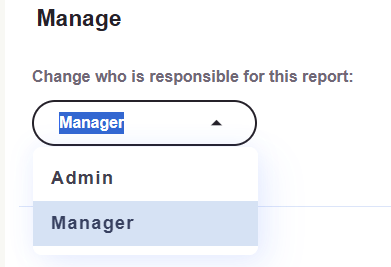
In Manage, Change who is responsible for this report lets you choose responsibility from available options such as Admin and Manager.
Report responsibility selector with Admin and Manager options.

Report responsibility selector with Admin and Manager options.

Request a resource review

When a case concerns a resource and its owner needs guidance on a correction, use Ask owner to review resource. In the modal, write a clear message explaining:
  • What problem needs checking.
  • Where it appears in the material.
  • What correction or clarification is needed.
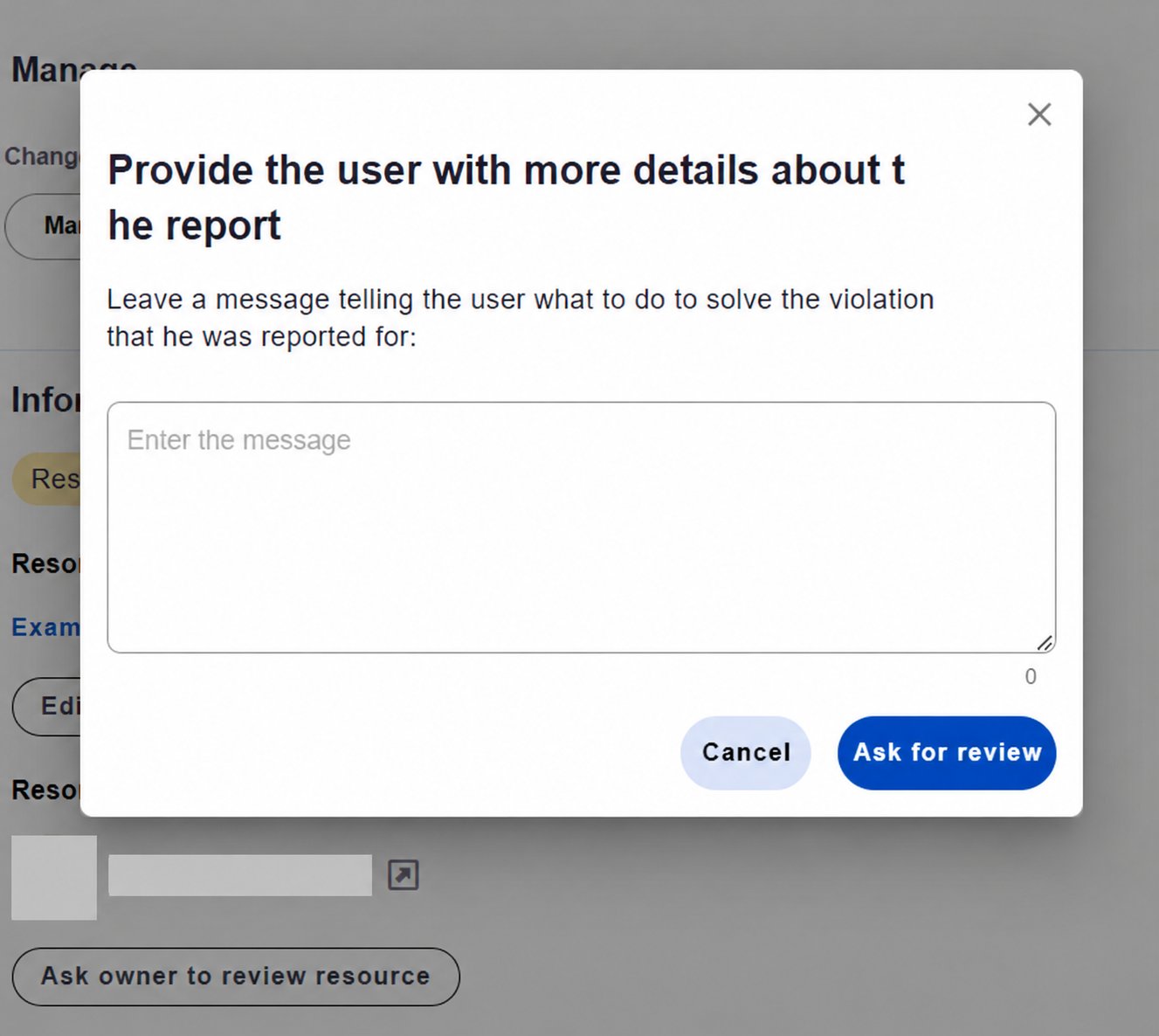
Click Ask for review to submit the request, or Cancel to cancel. The details screen also offers Edit resource, depending on the reviewer’s permissions.
Modal for guidance to the resource owner and submission through Ask for review. Identifying details hidden.

Modal for guidance to the resource owner and submission through Ask for review. Identifying details hidden.

Choose an outcome

After examining the case, use the appropriate action:

Delete, Reject report and Accept report buttons.

Delete, Reject report and Accept report buttons.

Reports need examination in context. Submission alone does not confirm wrongdoing. Check the information before deciding and provide clear guidance when requesting a review.
These screenshots illustrate cases from an example installation. Names and photos have been hidden.

Spaces and activities

Understand Spaces

Spaces are teaching, learning and assessment environments in the Multifunctional Room. Like classrooms, each brings together invited participants, an introduction and Supervisor-organized activities, supporting translator and interpreter training among other uses. Find your spaces In the Multifunctional Room, cards show each space’s name, introductory image and activity and participant counts. Last seen and My spaces help find spaces available to your profile.
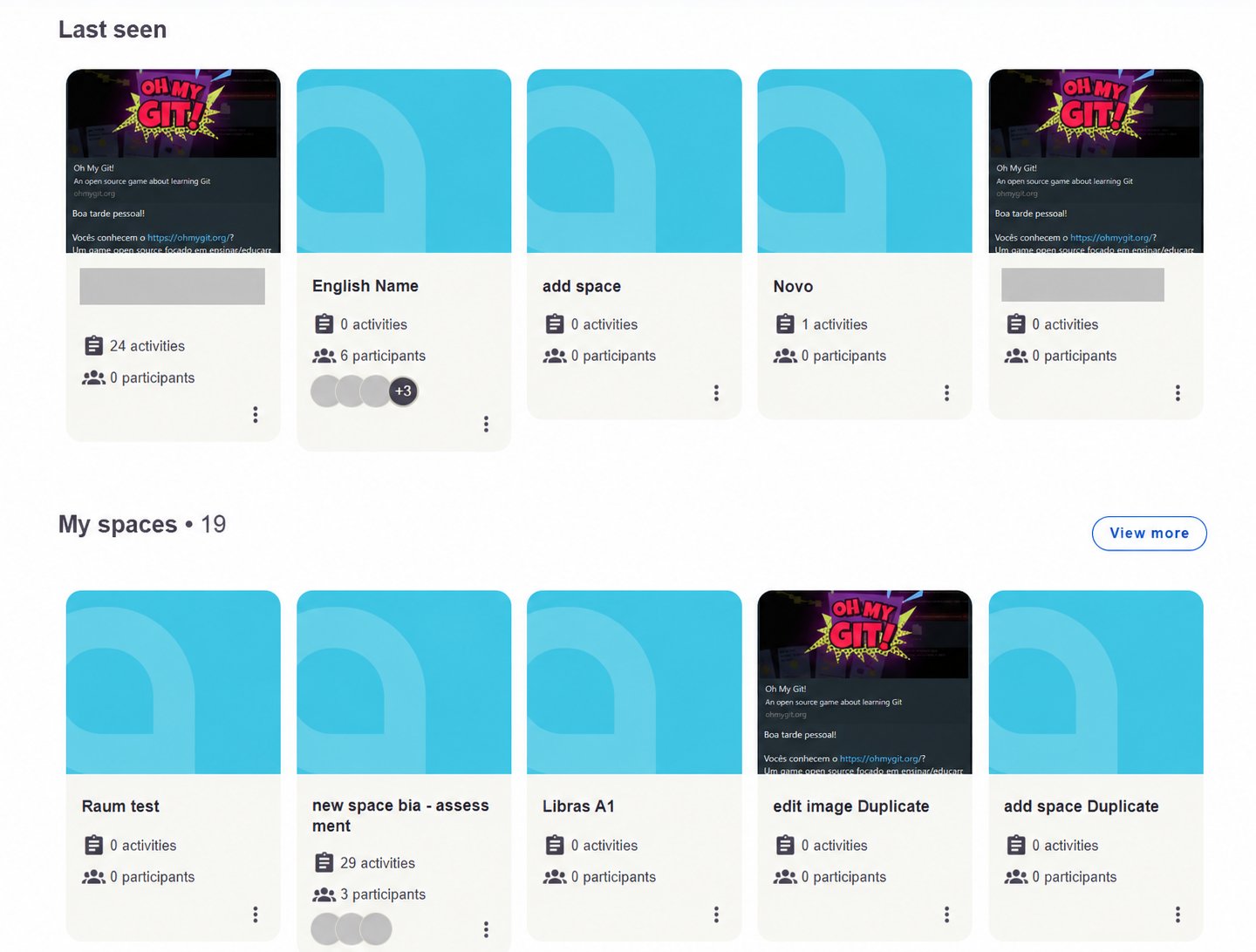
Space cards in Last seen and My spaces with activity and participant counts.

Spaces displayed as cards with activity and participant information. Identifying details hidden.
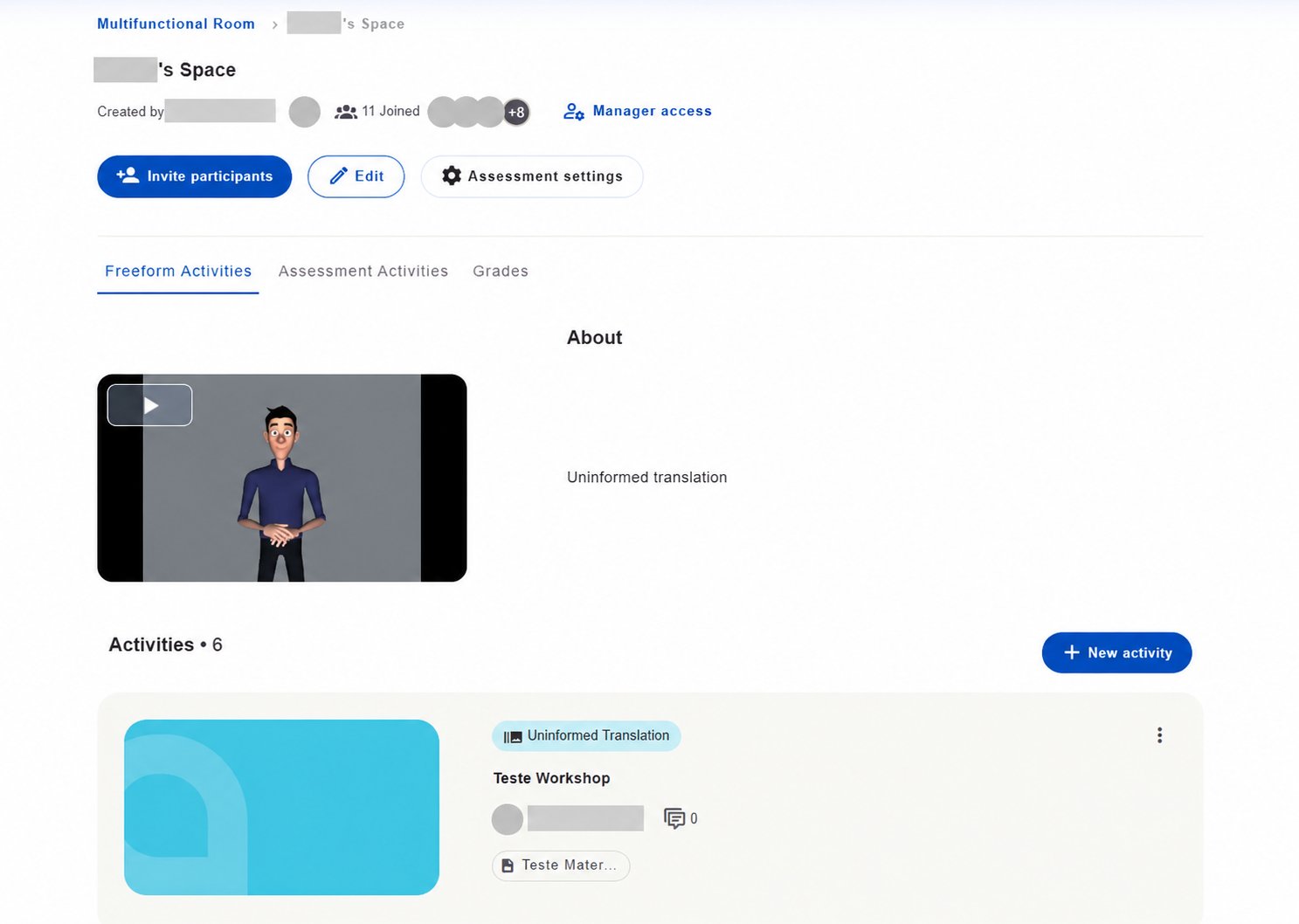
Explore a space Open a Space to find its introduction and activities under Freeform Activities and Assessment Activities. The screen also has a Grades tab. The introduction can combine text and sign language video to explain the space’s purpose. Spaces can host discussions, submissions, live meetings and interpreting practice.
Open Space with introductory video, Freeform Activities, Assessment Activities and Grades tabs, and management actions.

Inside a Space with introduction, activity tabs and management options. Identifying details hidden. Uninformed translation indicates a missing translation in the example installation.

Participants access a space by invitation. Depending on permissions, the responsible person can Invite participants, Edit the Space, configure Assessment settings and create a New activity.

Monitor spaces and activities

In Spaces/Activities, use the tabs: Use search, Status and Order by to find records. Creation and management depend on your permissions. Add spaces starts registering a space in the screenshot.
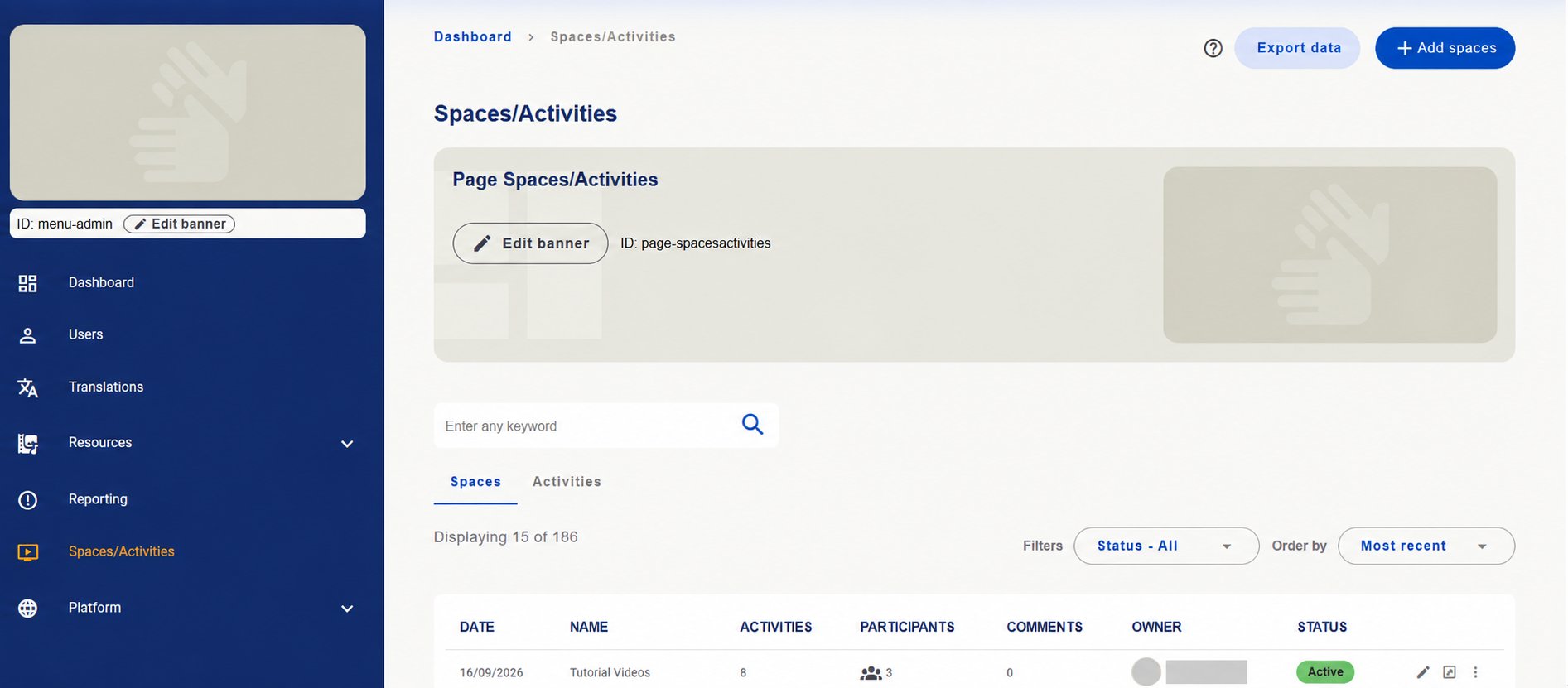
Spaces/Activities management with tabs, search, filter and space indicators. Owner identification hidden.

Spaces/Activities management with tabs, search, filter and space indicators. Owner identification hidden.

Introduce the space to participants

When preparing a Space, describe its purpose and participation guidance. About the space holds written information, with other language versions under Add another language?.
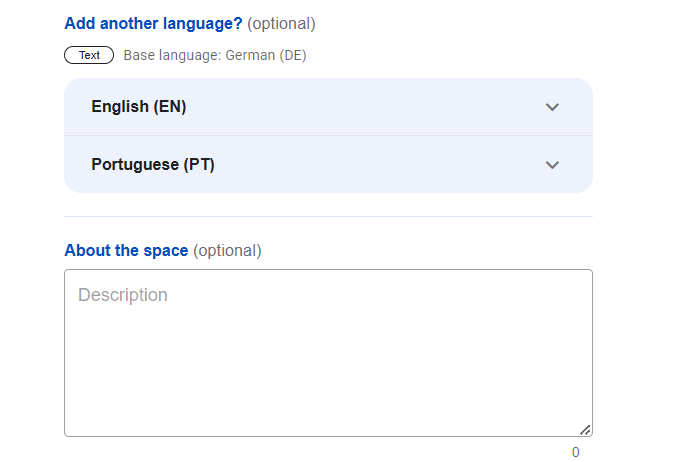
About the space field and other written language options.
About the space field and other written language options.

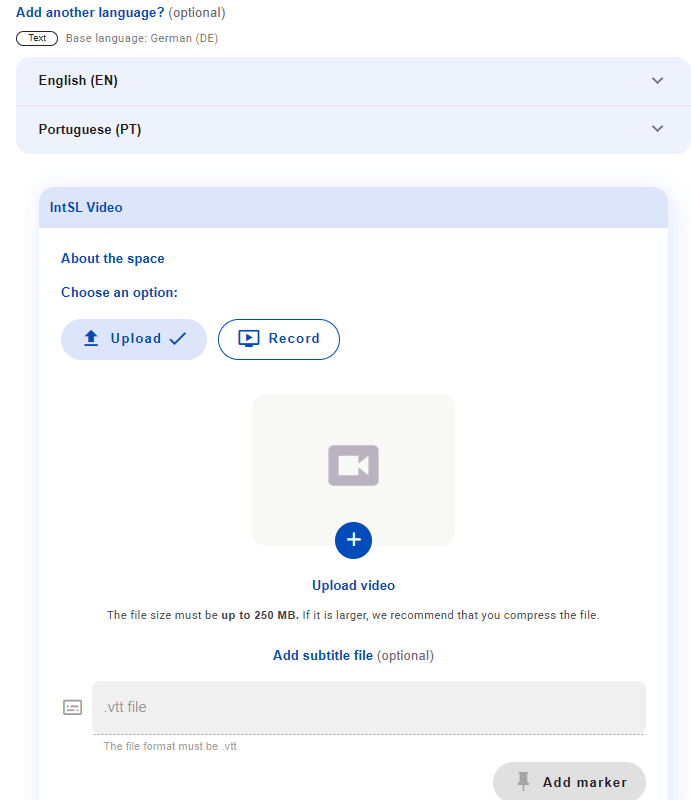
This introduction can also use sign language video, helping participants understand the space’s context and purpose. Screens show Upload and platform Record options.
Space video introduction with Upload and Record options.
Space video introduction with Upload and Record options.

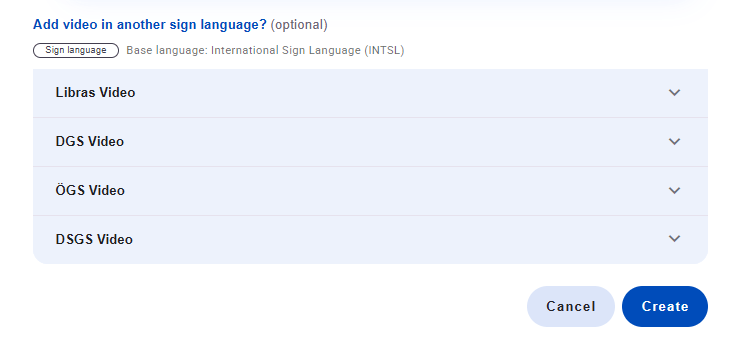
Add video in another sign language? provides other sign language versions. Check each field’s language and written versions before completing registration with Create.
Additional sign language fields and Create button.

Additional sign language fields and Create button.

Written language and video sign language are separate choices. Languages in the screenshots are installation examples.

Understand the two activity modes

Freeform does not mean no guidance: it means the platform does not impose a fixed, structured assessment method.
There are five freeform activity types for discussion, submission and interpreting practice:
This section provides an overview. Activity creation, completion and assessment will be detailed in the dedicated activities section.

Institutional content and settings

Platform brings together content introducing and explaining VisuoLab, institutional documents, visual identity materials and operational settings. It also lets you maintain form and other platform records within your permissions.

Maintain institutional content

In Platform → Settings, locate the area to consult or update.
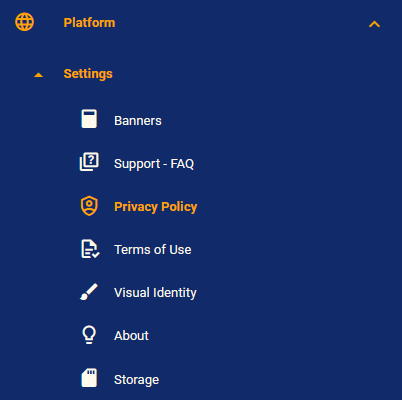
Platform and Settings menu with content, documents, visual identity and storage.
Platform and Settings menu with content, documents, visual identity and storage.

Use each screen’s search, filters and actions. Check the record and its location before editing.
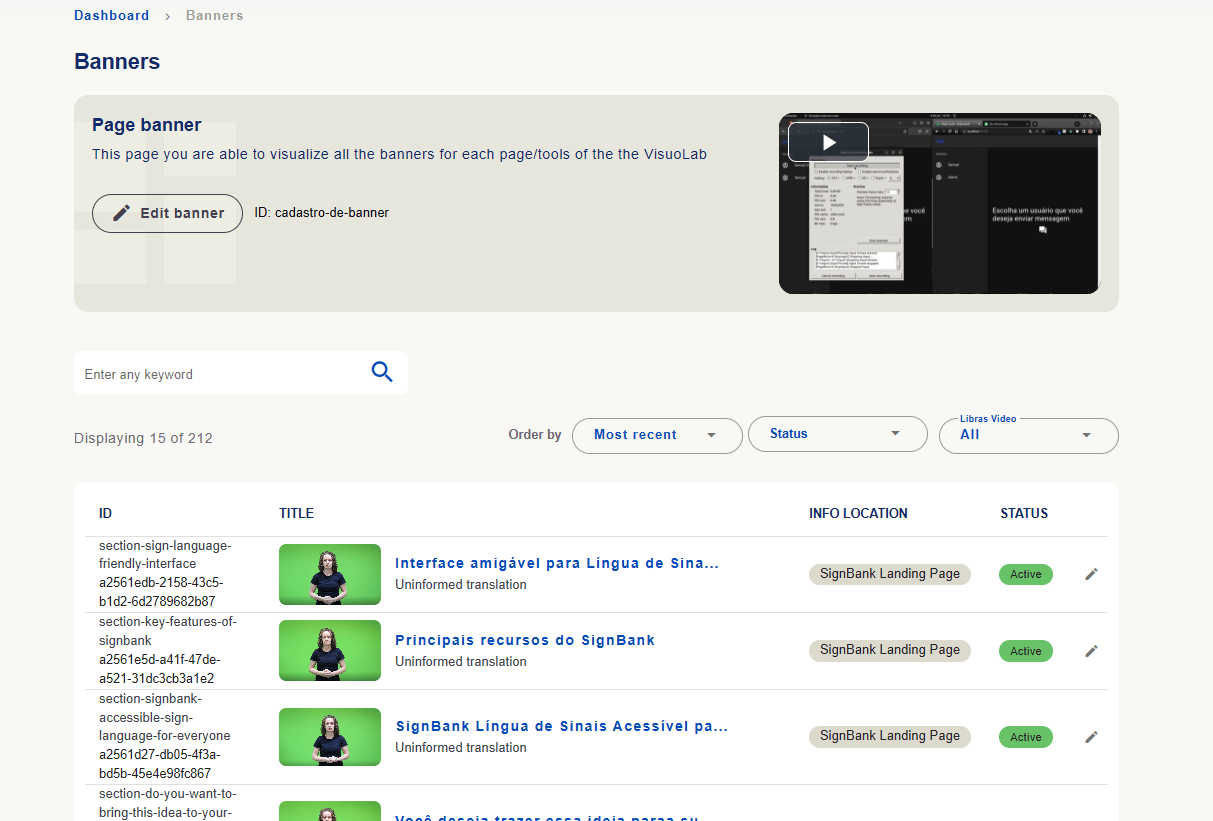
Banners: the list shows ID, title, Info location and status. Search, sorting and filters help find the banner. Locations and counts are installation examples.
Banner management with identification, title, location, status and editing action.
Banner management with identification, title, location, status and editing action.

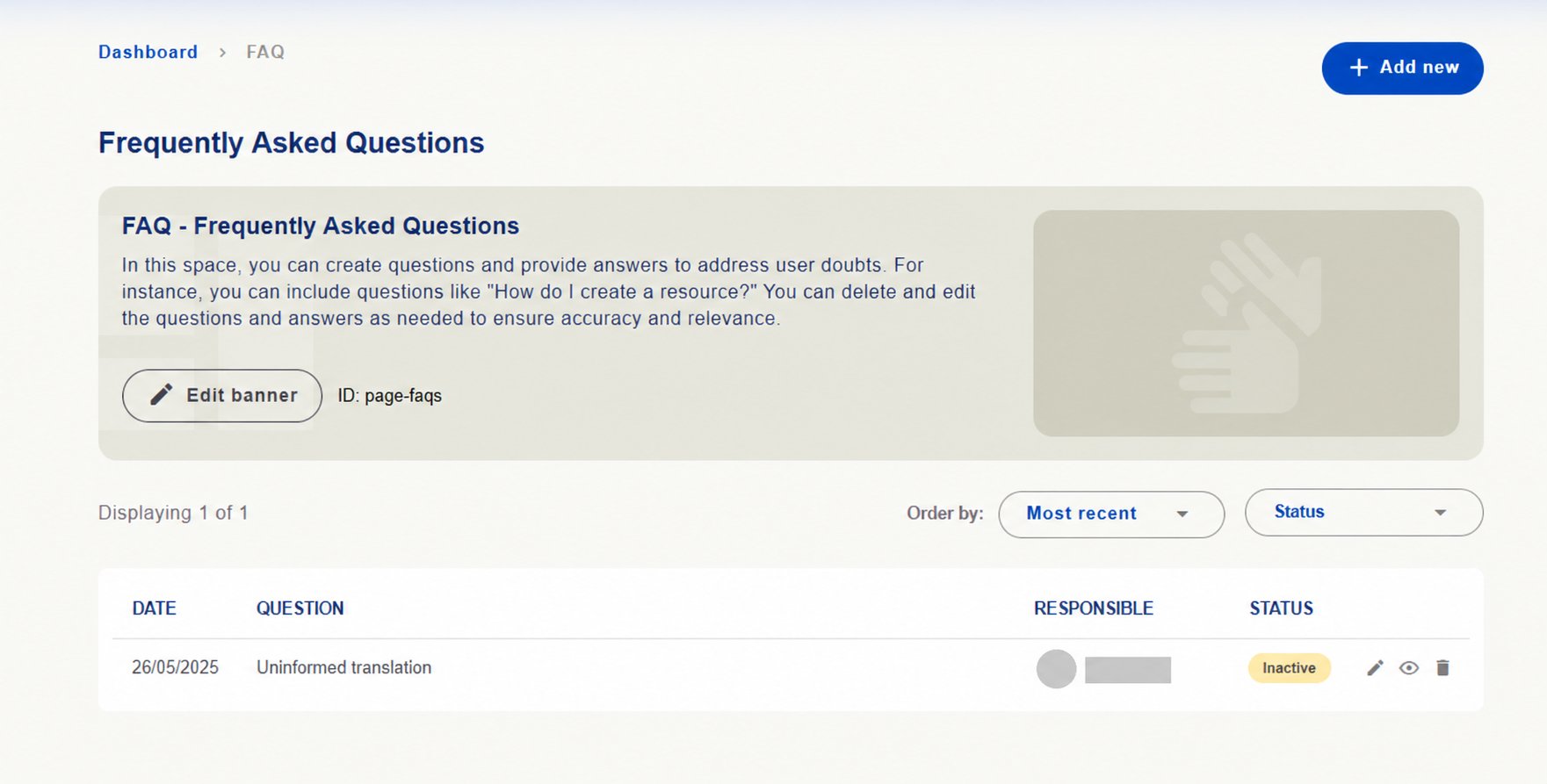
FAQ: add useful questions and answers and review existing ones to keep guidance current. The screen offers Add new, sorting, status and edit, view and delete actions.
FAQ management with list, status and actions. Responsible person hidden.
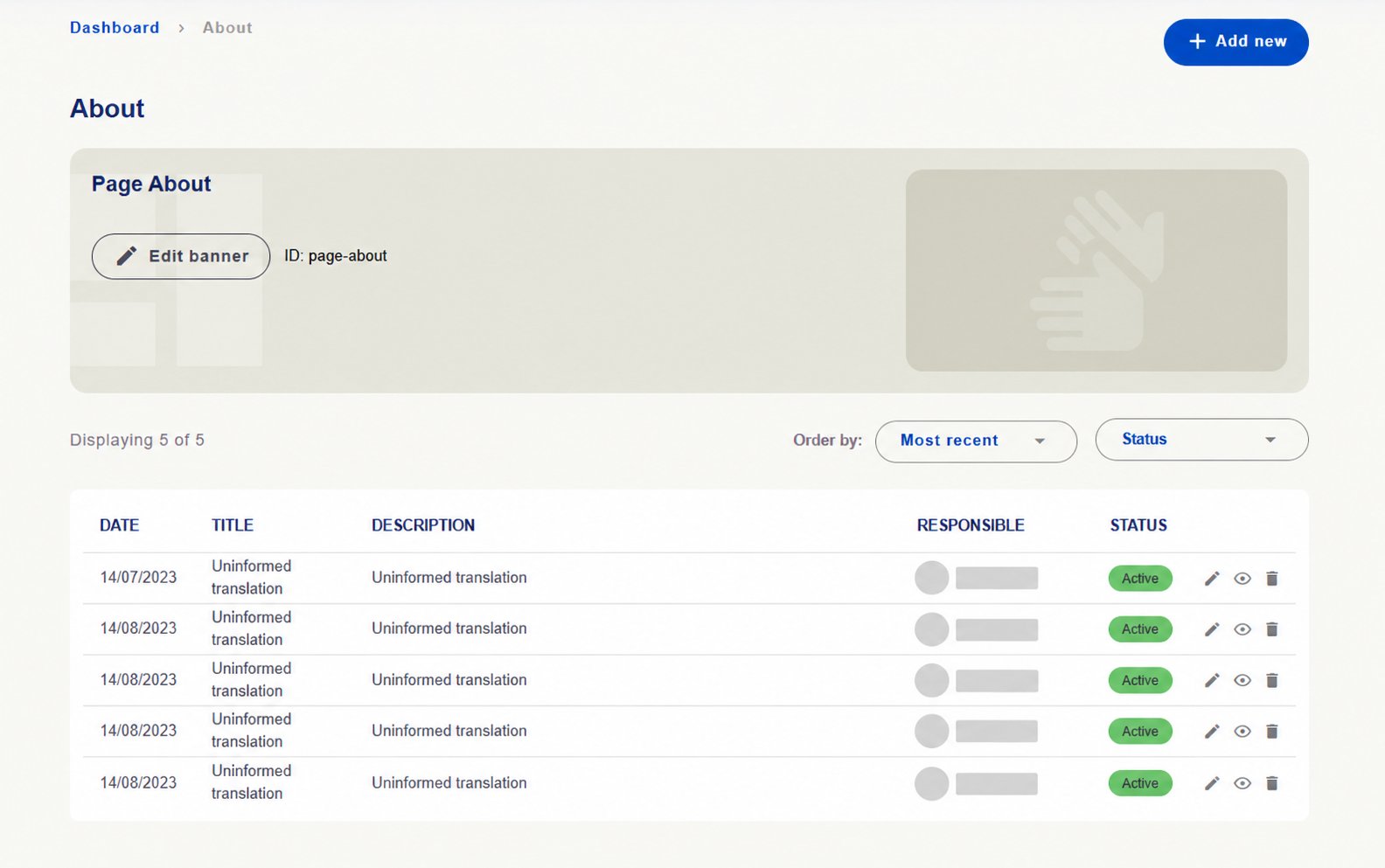
FAQ management with list, status and actions. Responsible person hidden.

About: maintain texts introducing the platform and institution. Check titles, descriptions, status and actions.
About content management with titles, descriptions and status. Identifying details hidden.

About content management with titles, descriptions and status. Identifying details hidden.

Uninformed translation indicates a translation not yet filled in on the captured installation.
Banner videos help explain areas’ context and operation. See how to locate and add sign language videos →

Manage platform use documents

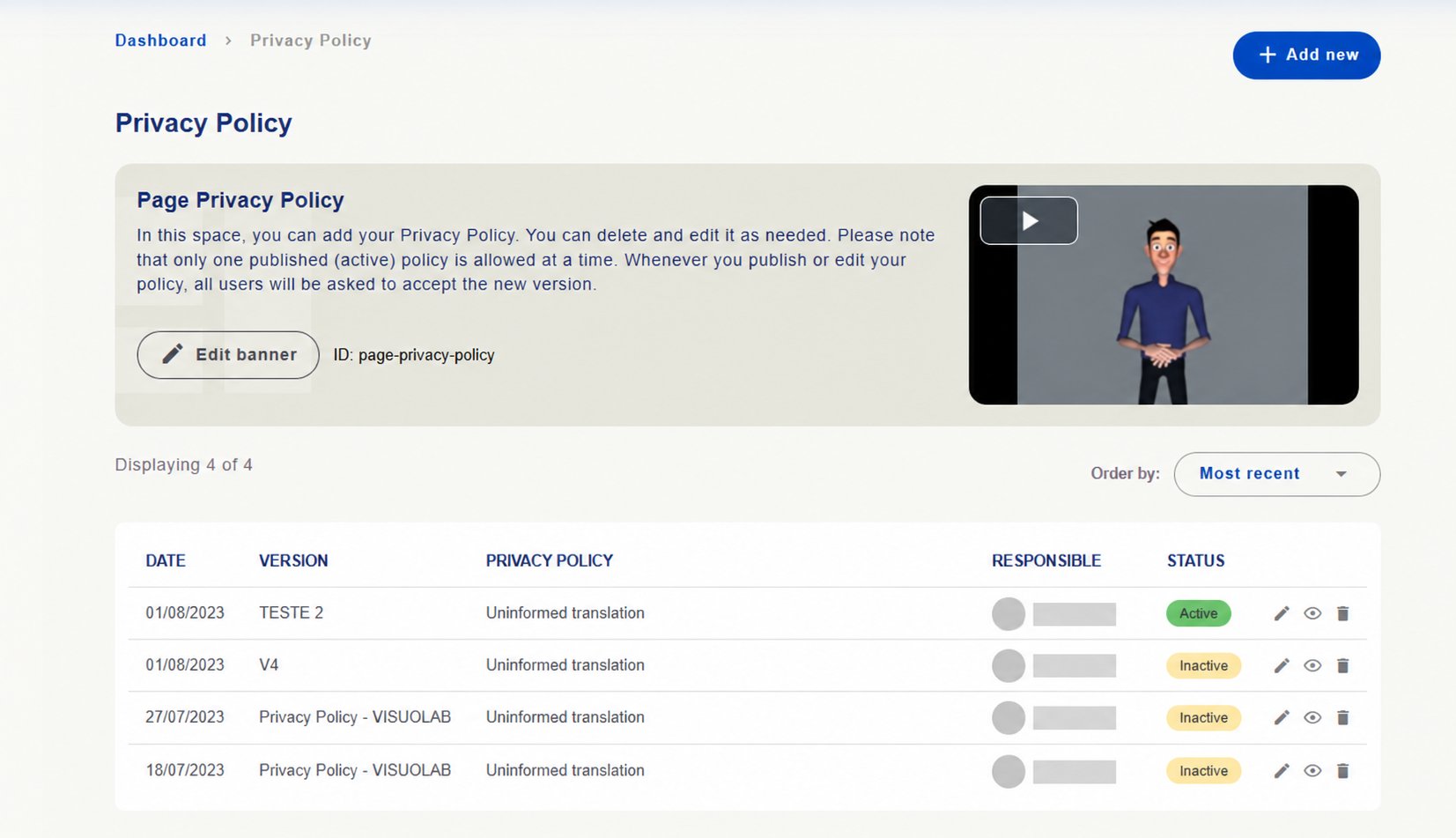
In Privacy Policy and Terms of Use, consult registered versions and options to add, edit and view documents. Screen guidance states that only one version of each document can be active at a time, and publishing or editing requests users’ acceptance of the new version.
Check version identification, content, status and actions before updating.
Privacy Policy versions with Active and Inactive status. Identifying details hidden.
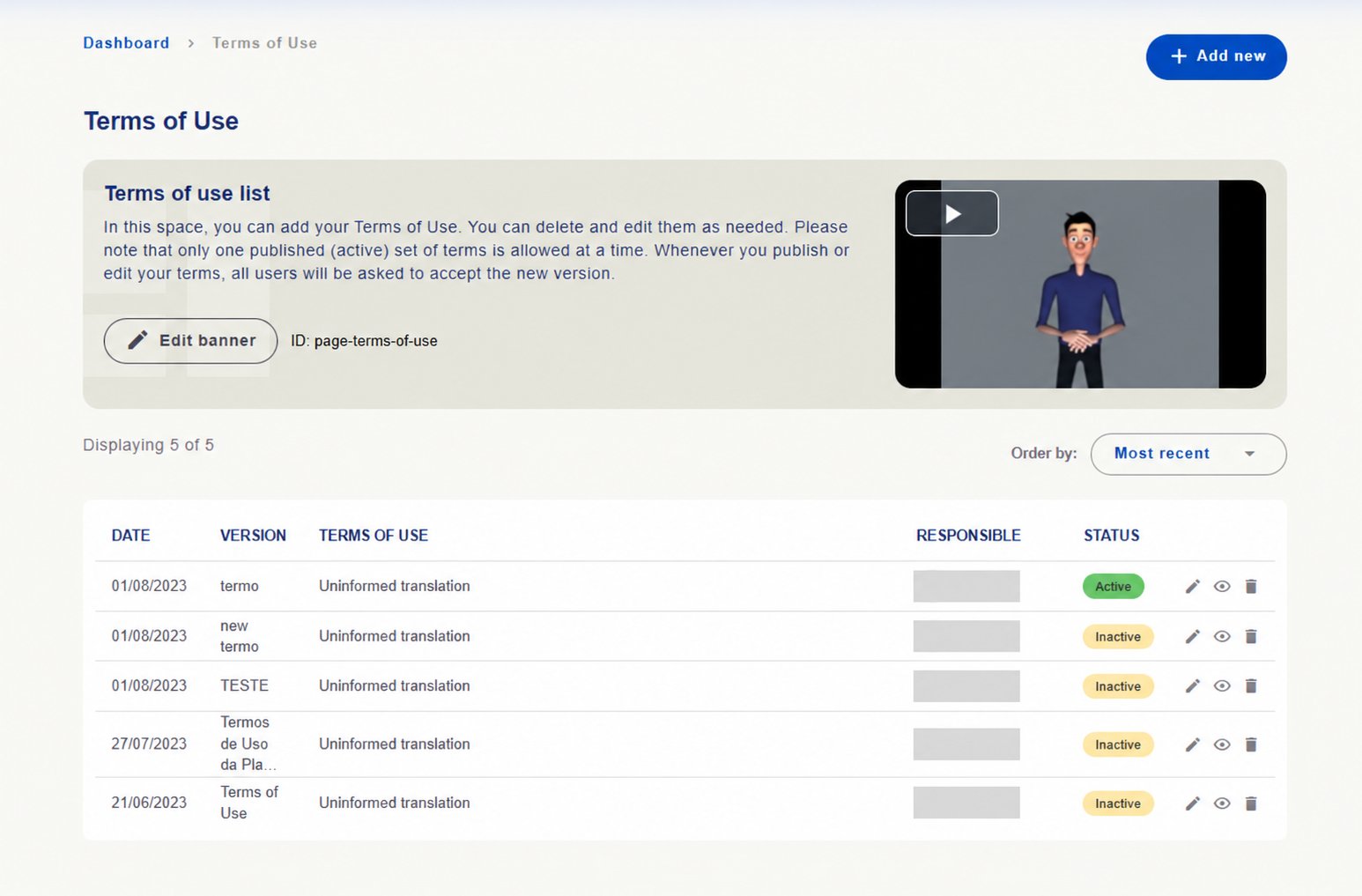
Privacy Policy versions with Active and Inactive status. Identifying details hidden.

Consult visual identity and storage

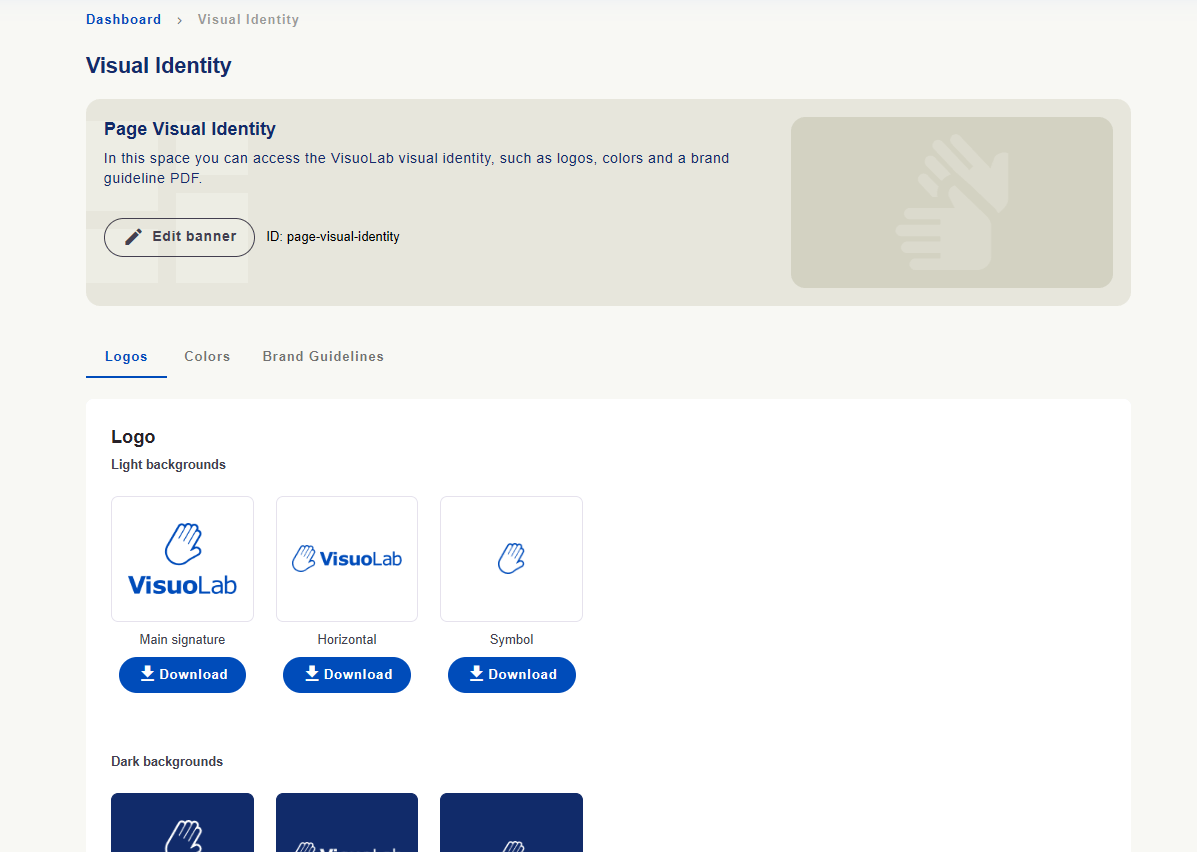
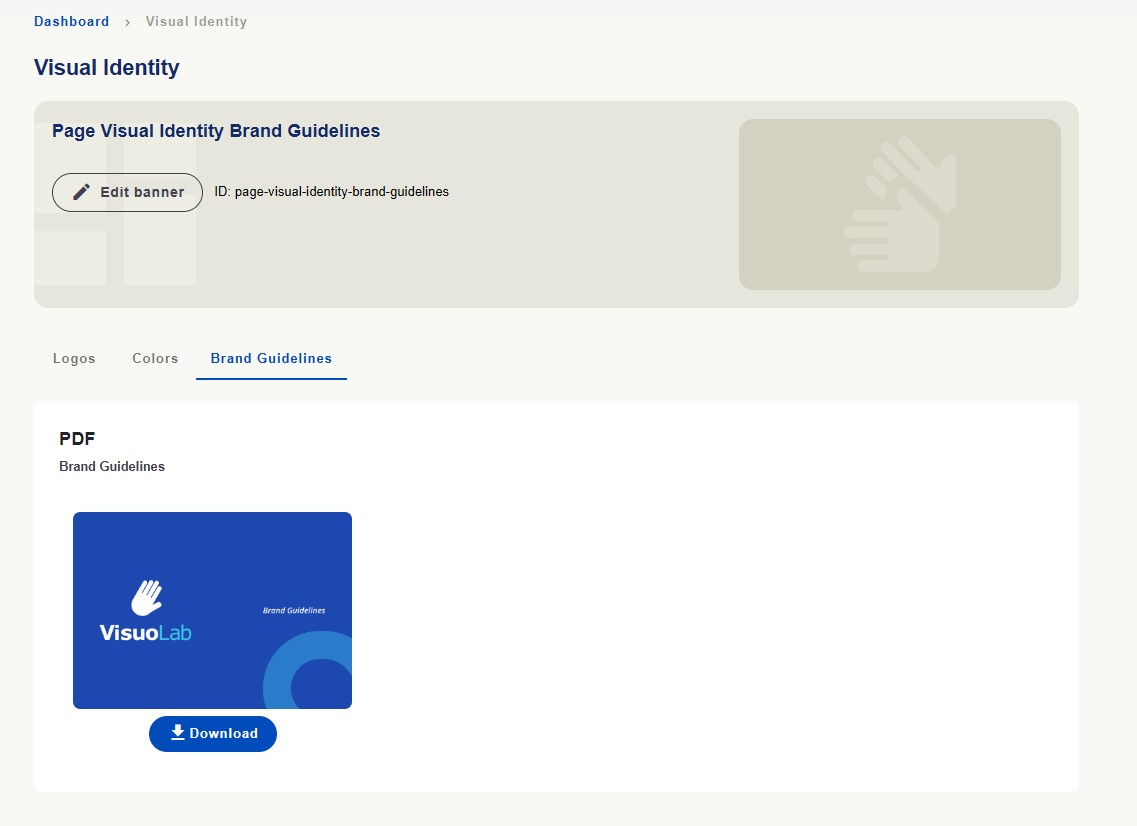
Visual Identity This area provides materials for consistent VisuoLab communication.
Consult brand versions for different uses and obtain available files with Download.
Logos tab with VisuoLab brand versions and download buttons.
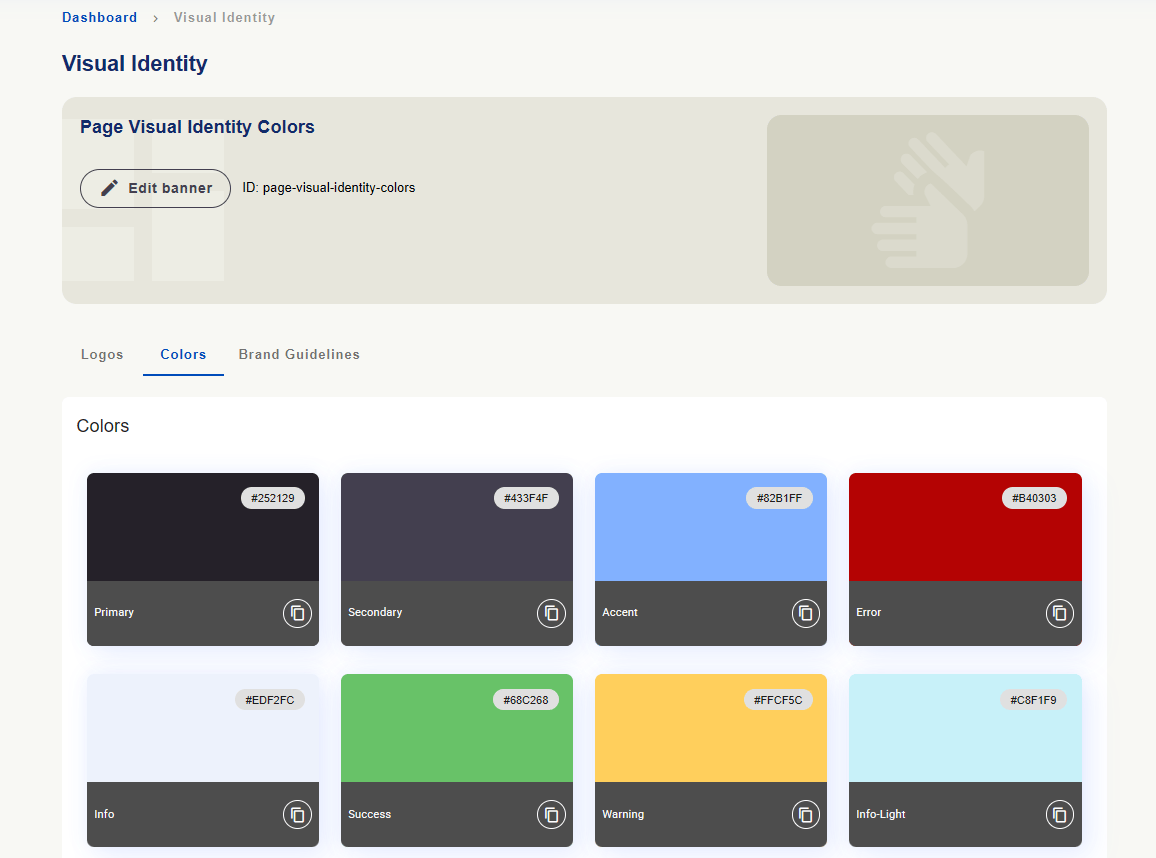
Logos tab with VisuoLab brand versions and download buttons.
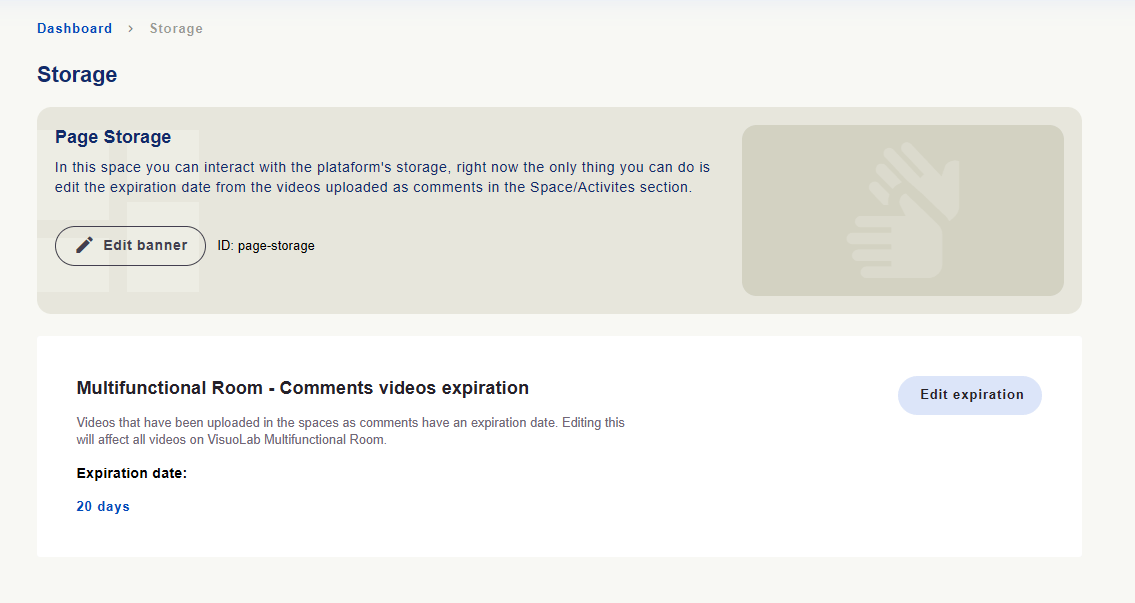
Storage In the screen shown, Storage lets you consult and edit the expiration period of videos uploaded as comments in Multifunctional Room Spaces and activities.
Storage area with comment video expiration period and Edit expiration button.
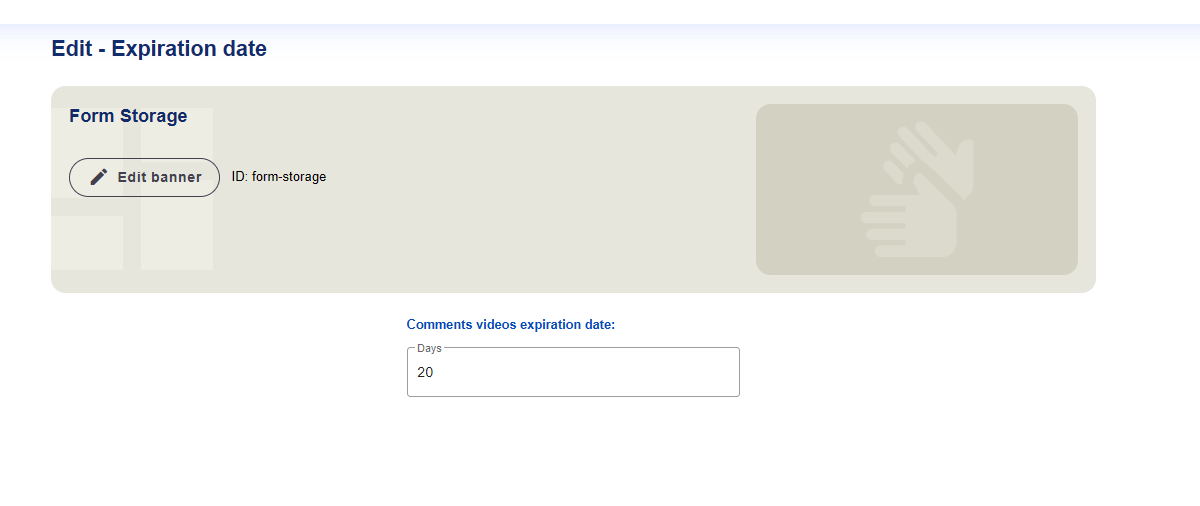
Storage area with comment video expiration period and Edit expiration button.

Use Edit expiration to open the period field in days. The setting applies across Multifunctional Room comment videos. Consider this scope before changing it.
Comment video expiration form, in days.

Comment video expiration form, in days.

The displayed 20 days are an installation example.

Maintain platform records

In Platform Forms, consult and edit records used in forms and platform organization within your permissions.
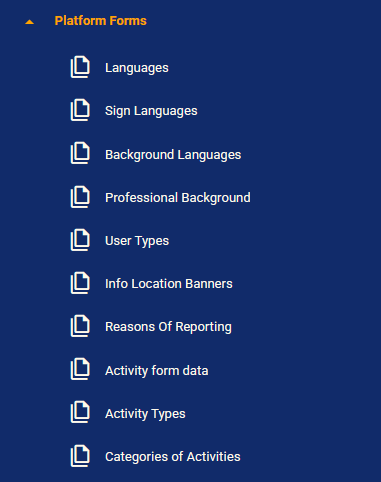
Platform Forms menu with language, user information, organization and activity records.

Platform Forms menu with language, user information, organization and activity records.

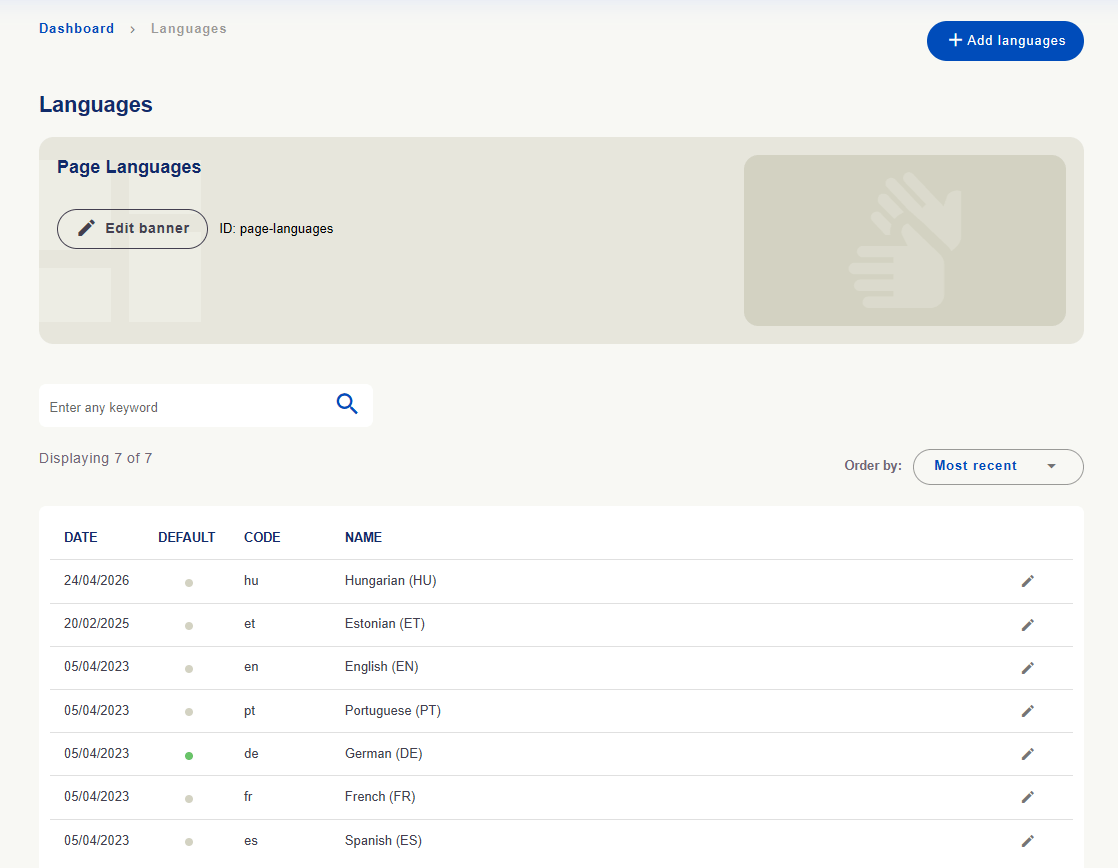
Languages lists written language records with code, name and default indication.
Written language records with codes, names and default indication.
Written language records with codes, names and default indication.

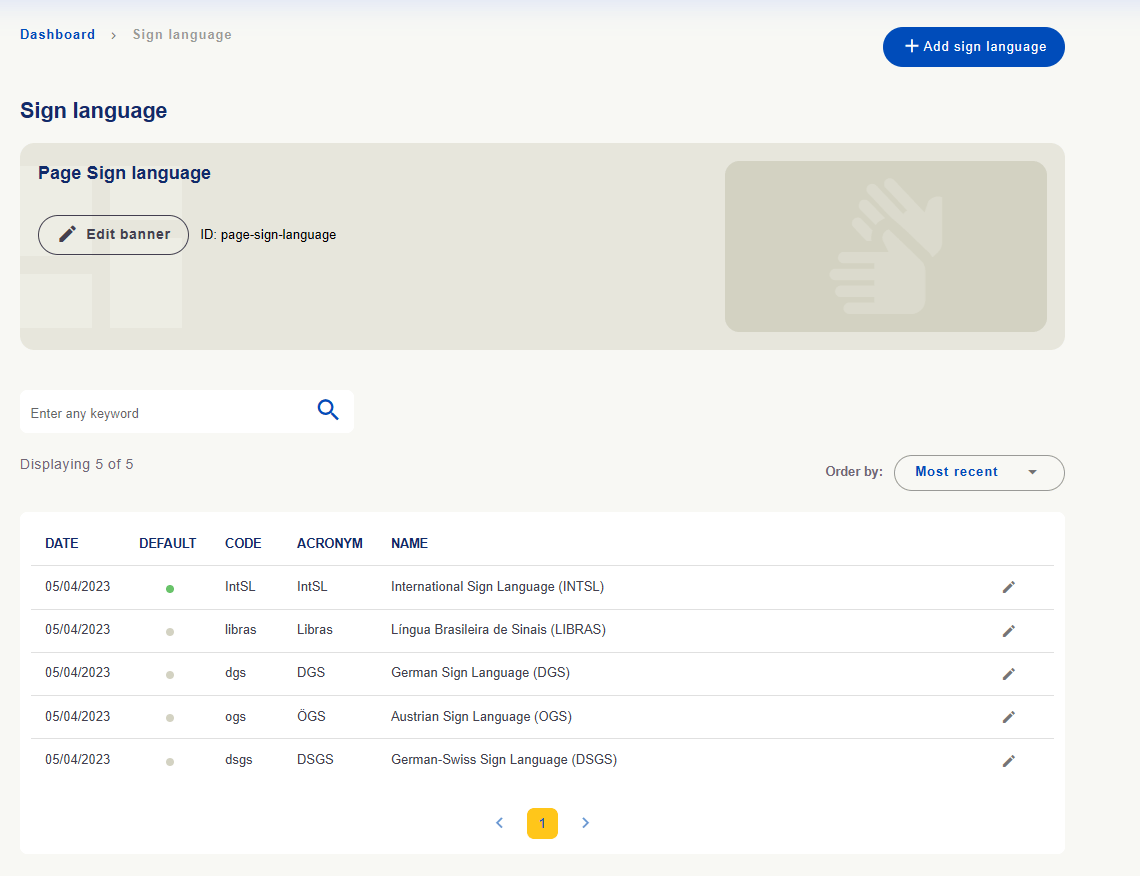
Sign Languages lists sign language records with code, acronym, name and default indication.
Sign language records with codes, acronyms and names.

Sign language records with codes, acronyms and names.

Registering a language does not make all translations available. Check activation and versions in language and translation areas. Languages and defaults shown are installation examples.See how to configure languages →
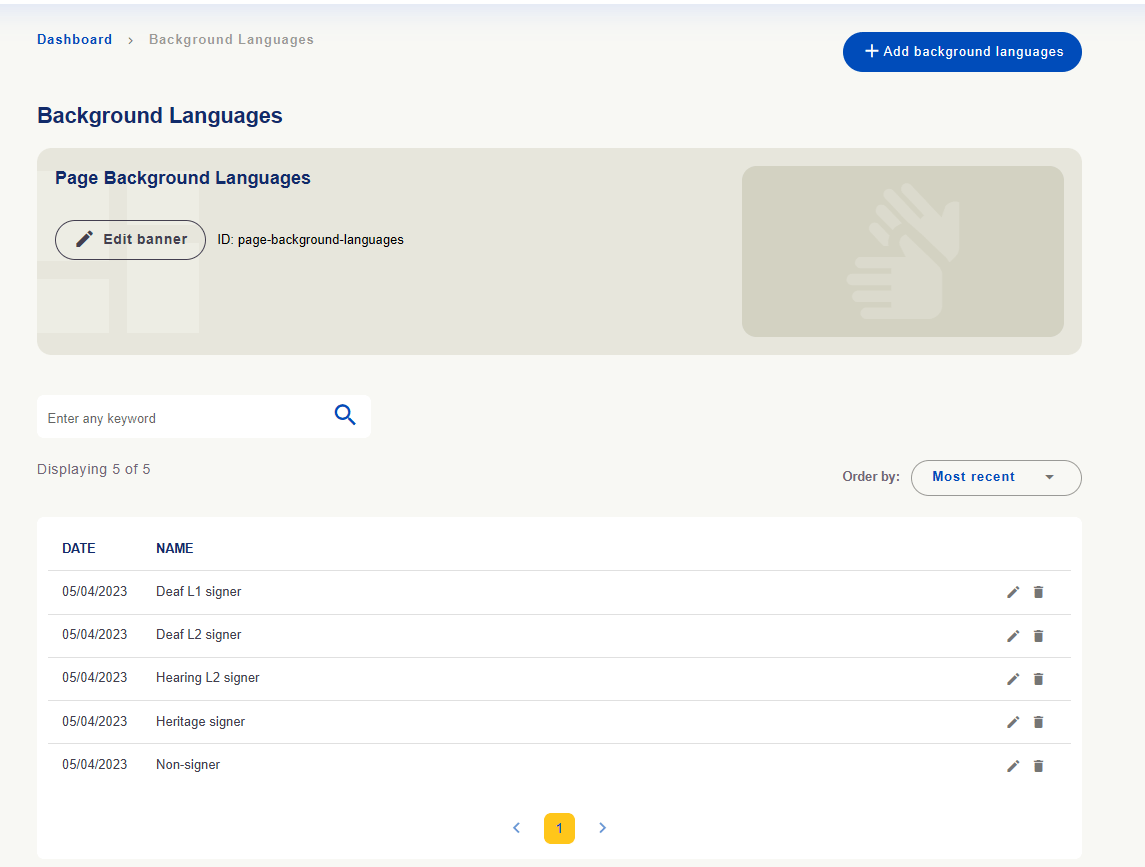
Background Languages contains linguistic background options for user registration, such as L1, L2 and heritage signers.
User linguistic background options.

User linguistic background options.

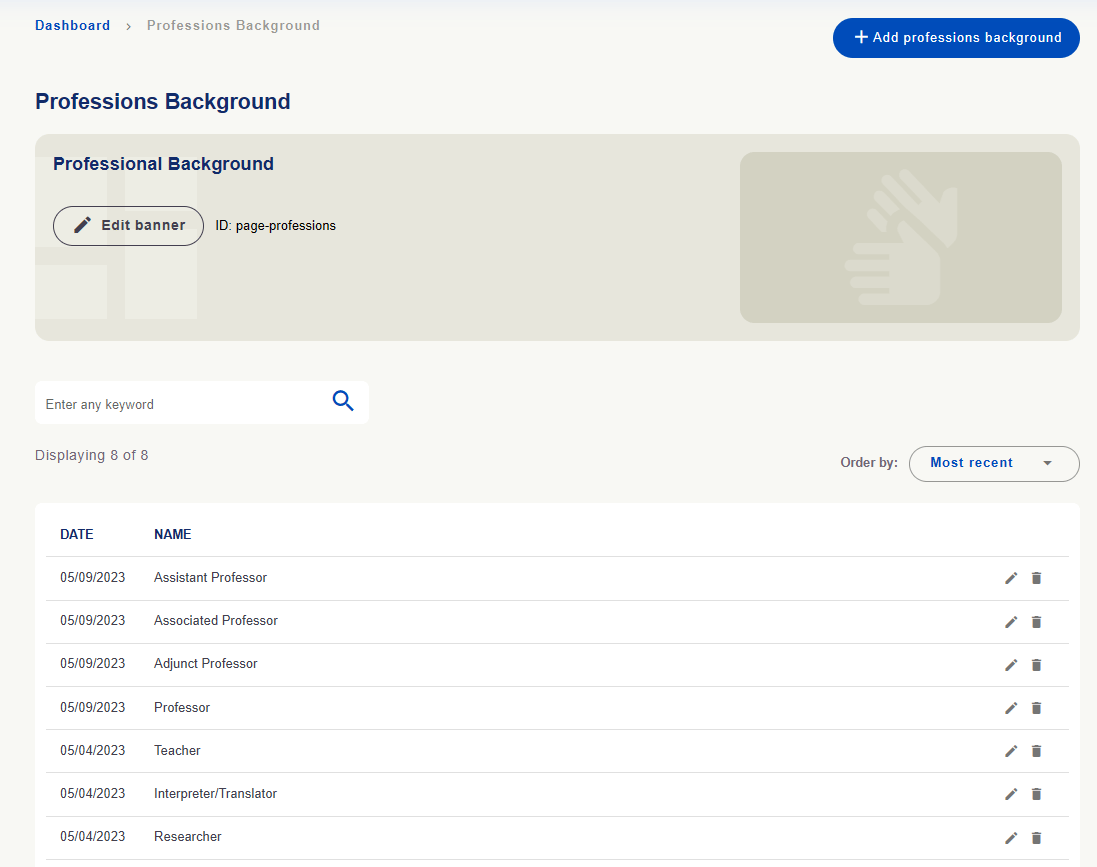
Professional Background includes education or professional roles such as teacher, translator/interpreter and researcher.
Education or professional background options.
Education or professional background options.

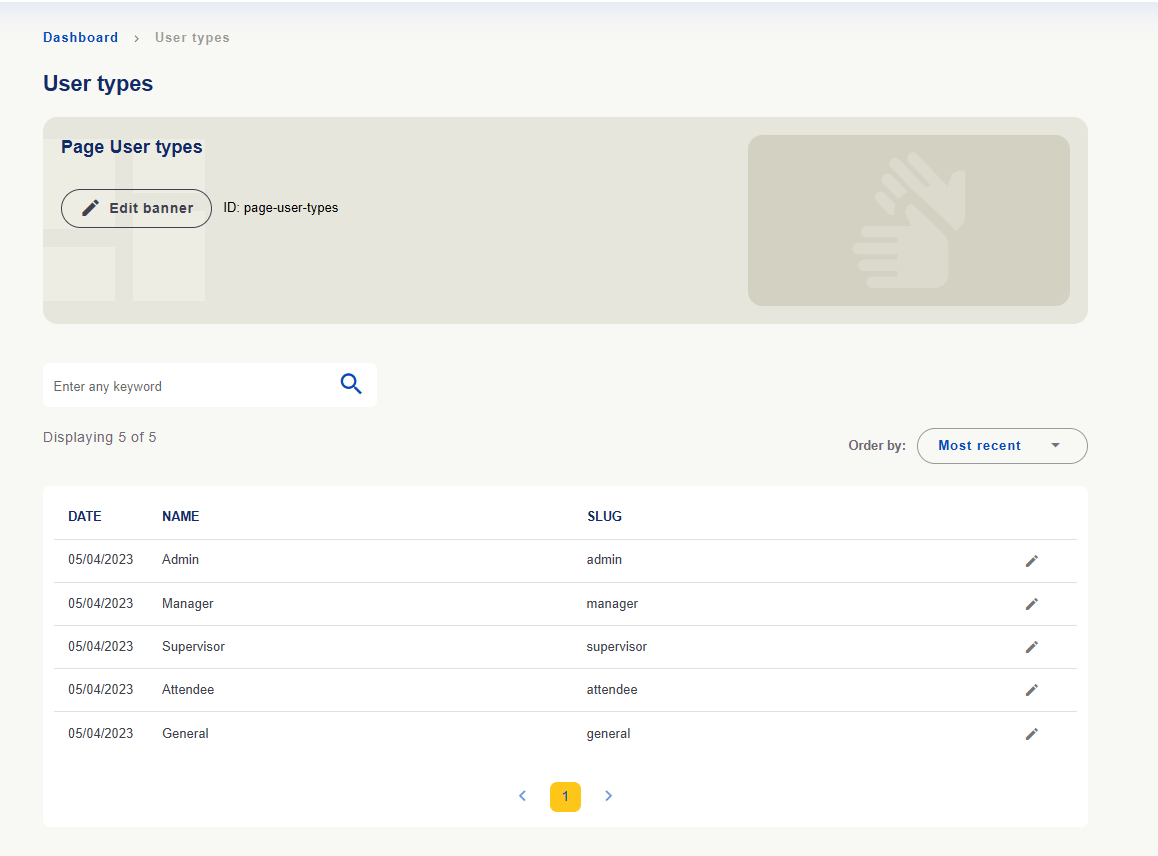
User Types shows recognized user types with names and slug identifiers.
User types with names, identifiers and editing actions.

User types with names, identifiers and editing actions.

Editing user type records does not grant permission to a person. Access is managed in Users.
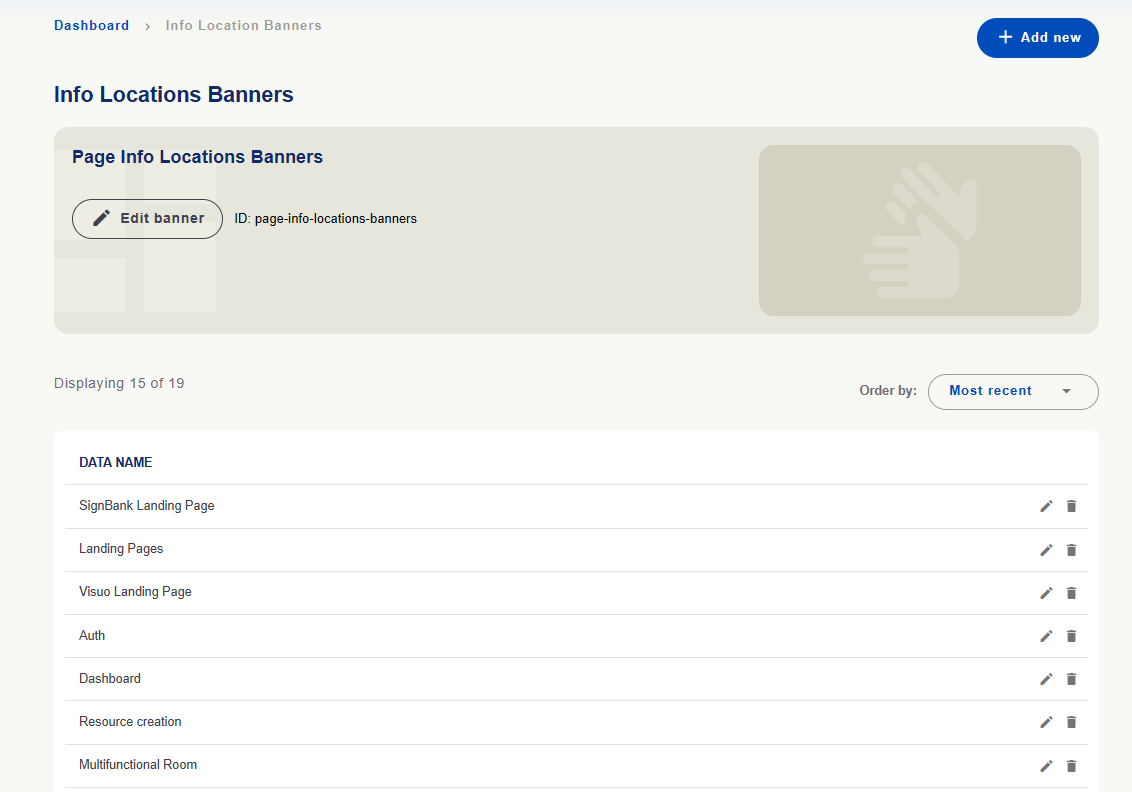
Info Location Banners maintains location records identifying where banners relate to the platform.
Banner location records.

Banner location records.

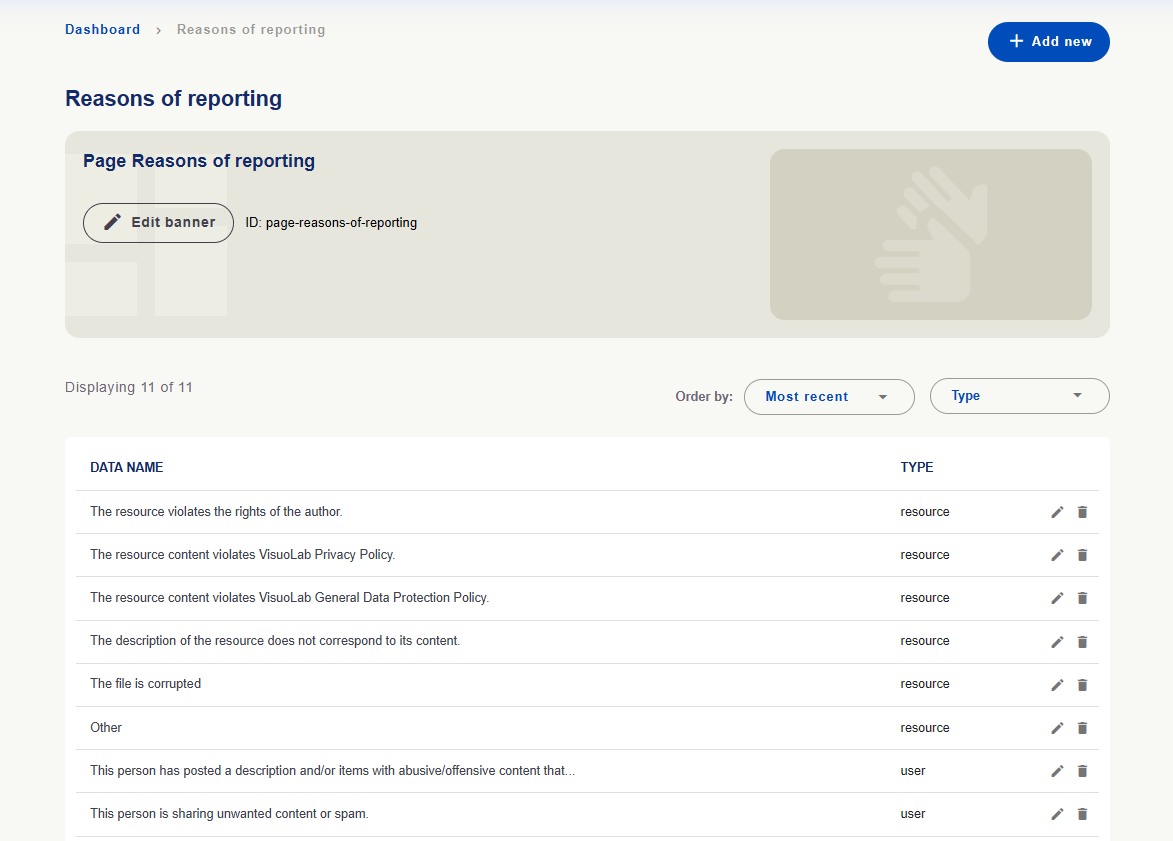
Reasons of Reporting maintains reasons available when submitting reports. Type distinguishes resource and user reasons.
Report reasons with resource or user type.

Report reasons with resource or user type.

Review these options and translations for clarity so users can identify the right reason.
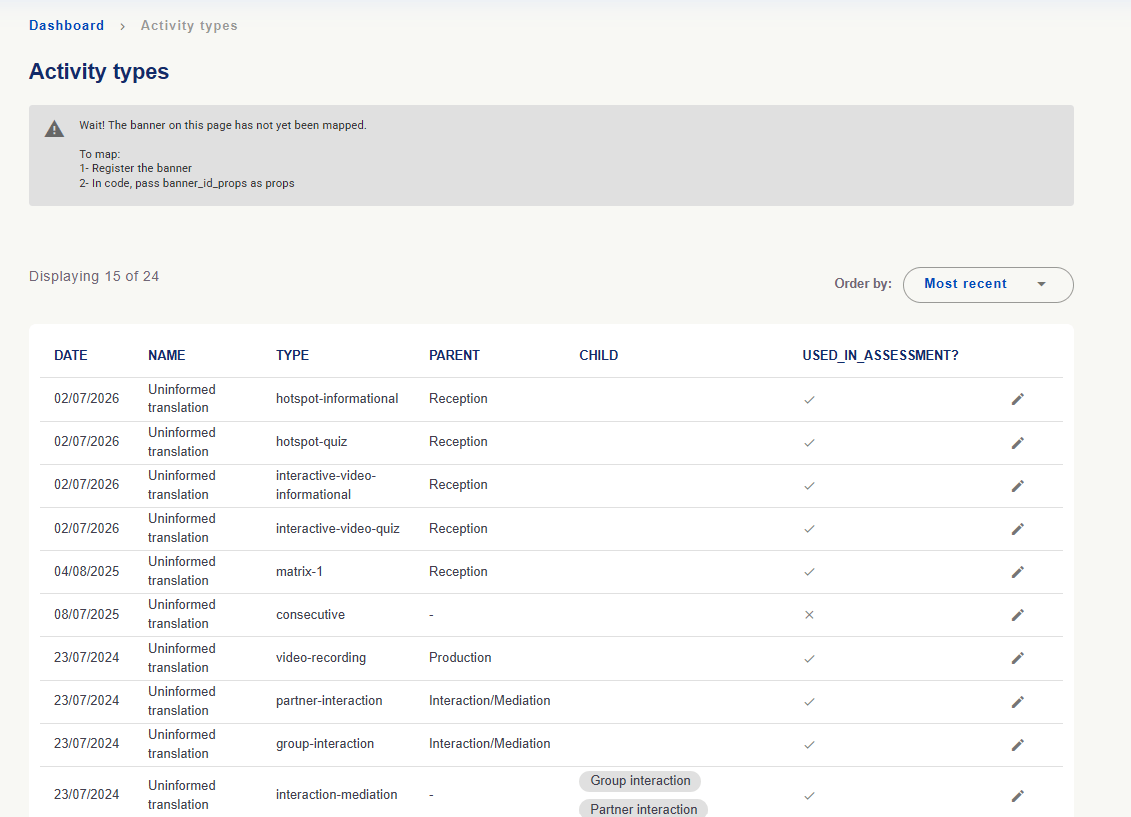
These areas maintain records organizing activities and supplying form options.Activity Types: check Type for the type identifier, Parent and Child for relationships and Used in assessment? for assessment use. Editing concerns records; adding or changing a name does not create a new activity feature.
Activity types with relationships and assessment use. The unmapped-banner notice is technical and is not part of the table records.
Activity types with relationships and assessment use. The unmapped-banner notice is technical and is not part of the table records.

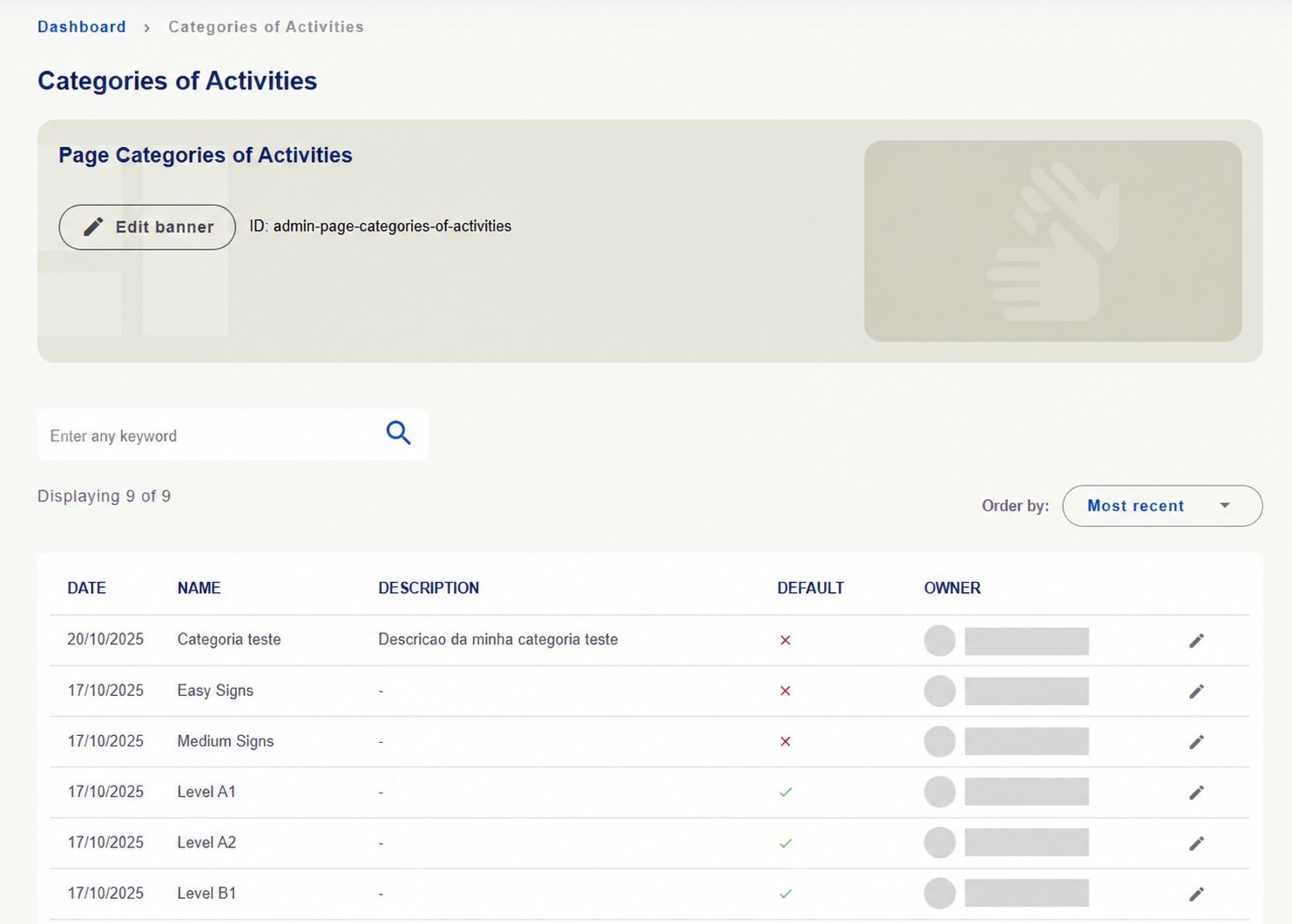
Categories of Activities: consult name, description and default indication. Check installation options before editing.
Activity categories with descriptions and default indication. Owners hidden.
Activity categories with descriptions and default indication. Owners hidden.

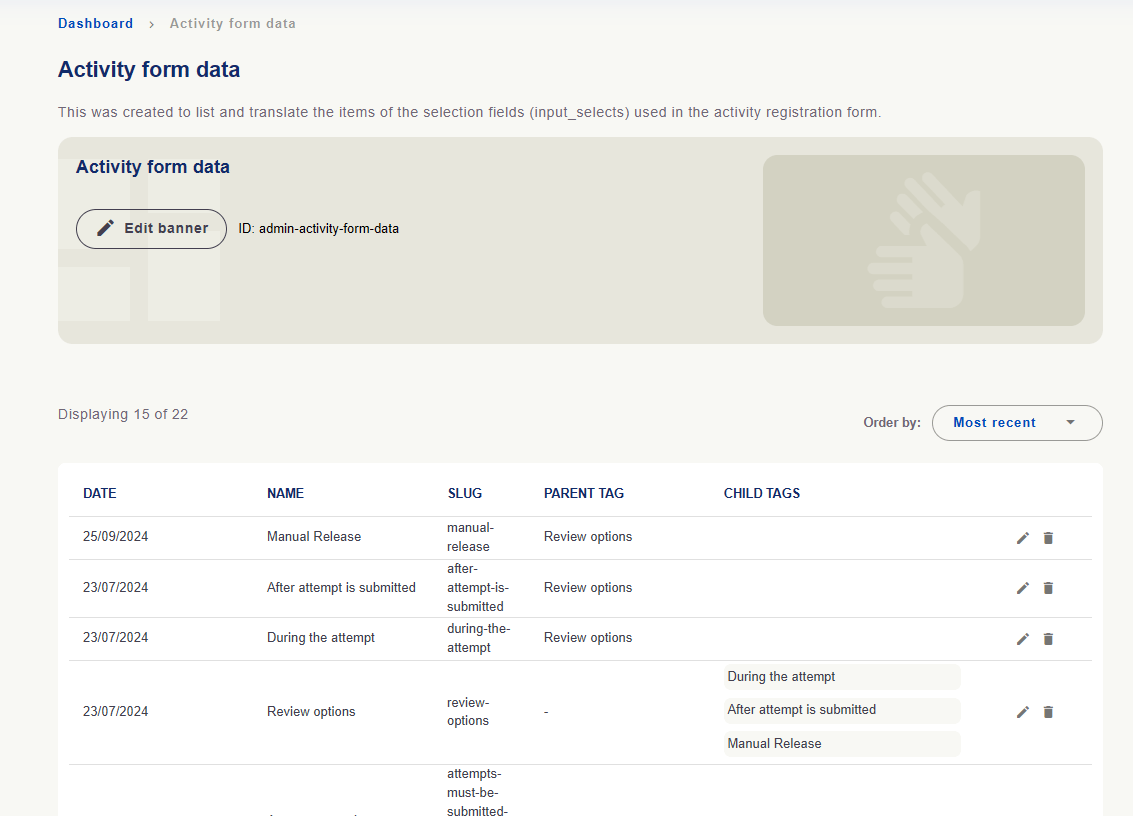
Activity form data: consult select-field options and their relationships. Review options includes During the attempt, After attempt is submitted and Manual Release in the example.
Activity form data with parent and child options.

Activity form data with parent and child options.

These lists configure records used by activities; they are not the activities created in Spaces. To monitor those activities, use Spaces/Activities → Activities.
After changing content or records, review versions in enabled languages. Check texts in Object Texts and videos in Sign Language, where applicable, and verify the result on the platform.
These screenshots are installation examples. Counts, options and permissions may vary; personal details have been hidden where owners are shown. See how to translate forms and institutional content → Return to the administration overview →