
 English
 Português
 Deutsch
 Eesti
EestiIdentify what to translate
Choose the target sign language and locate the text, area or element. Review the reference written version before producing the video.Prepare and review the video
Suggested organization for the local team:- Identify the record and its function.
- Review the reference text and prepare the chosen sign language translation.
- Record with framing and lighting that make signing clear.
- Arrange linguistic review with the responsible team.
- Identify the file by record and target sign language.
Associate the video
1
Open Sign Language
Go to Translations → Sign Language.
2
Select the sign language
In Target language, select the sign language receiving the video. Do not substitute the written interface language.
3
Find the table and record
Open the relevant table and locate the record. Groups follow Object Texts.
4
Insert and check
Associate the video using the record’s available control and complete the edit. Check playback in the corresponding area.
Area videos: Banners
Banners may contain videos explaining a section. Administrative IDs such as menu-admin and page-users help identify the area.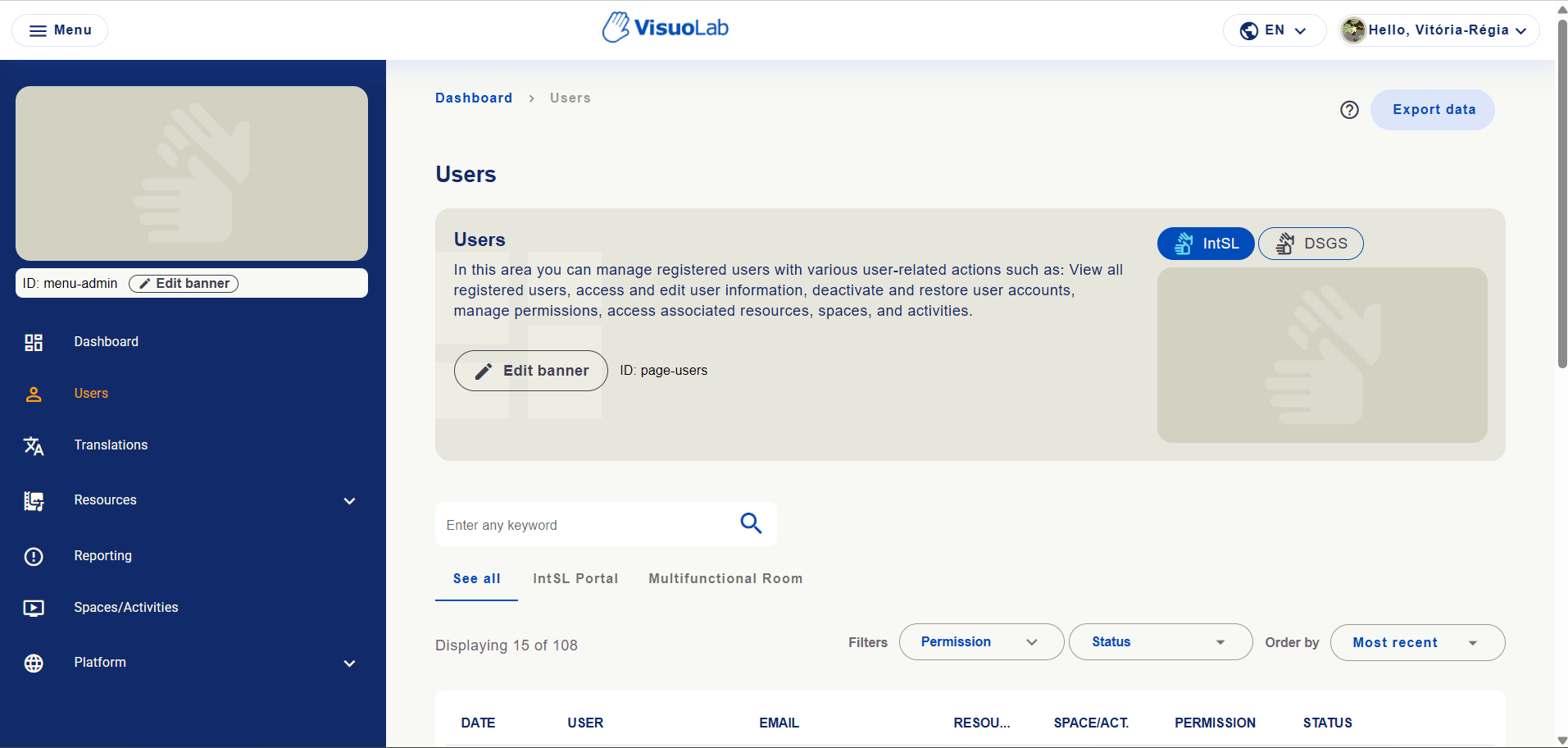
Users area with page-users ID and IntSL and DSGS banner options.