
 English
 Português
 Deutsch
 Eesti
EestiFind reports
Use search and See all, Users and Resources tabs to find cases. The screen also offers sorting, Attribution and Status options. The list shows date, Reported by, Reason, Type and status. Open a record using the row action to view details.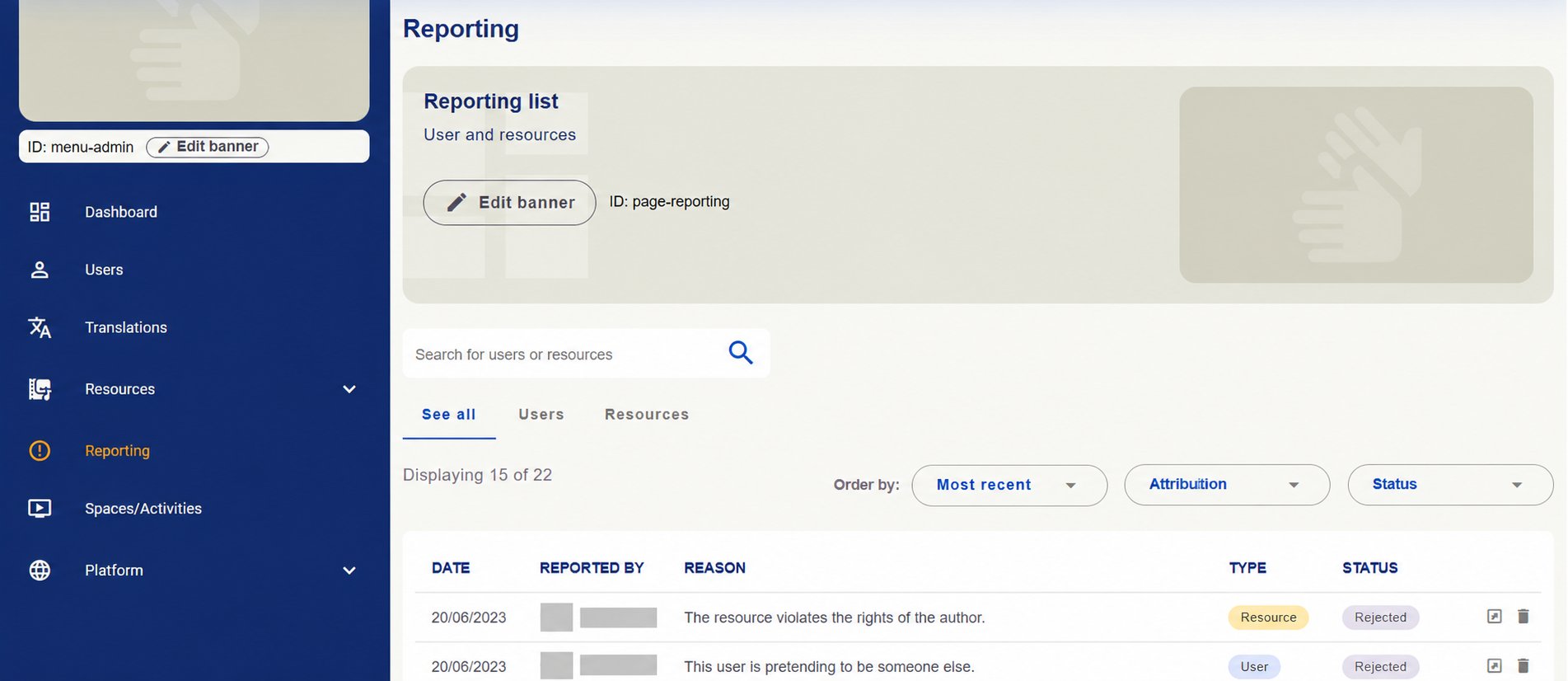
Reporting area with search, user and resource tabs and report list. Identifying details hidden.
Check information and responsibility
Before deciding, read Stated infringement, Additional information and Report status. Consult the related user or resource to understand the context. The resource report example shows the material, its owner, who reported it and the date. Open case indicates an open case in the screenshot.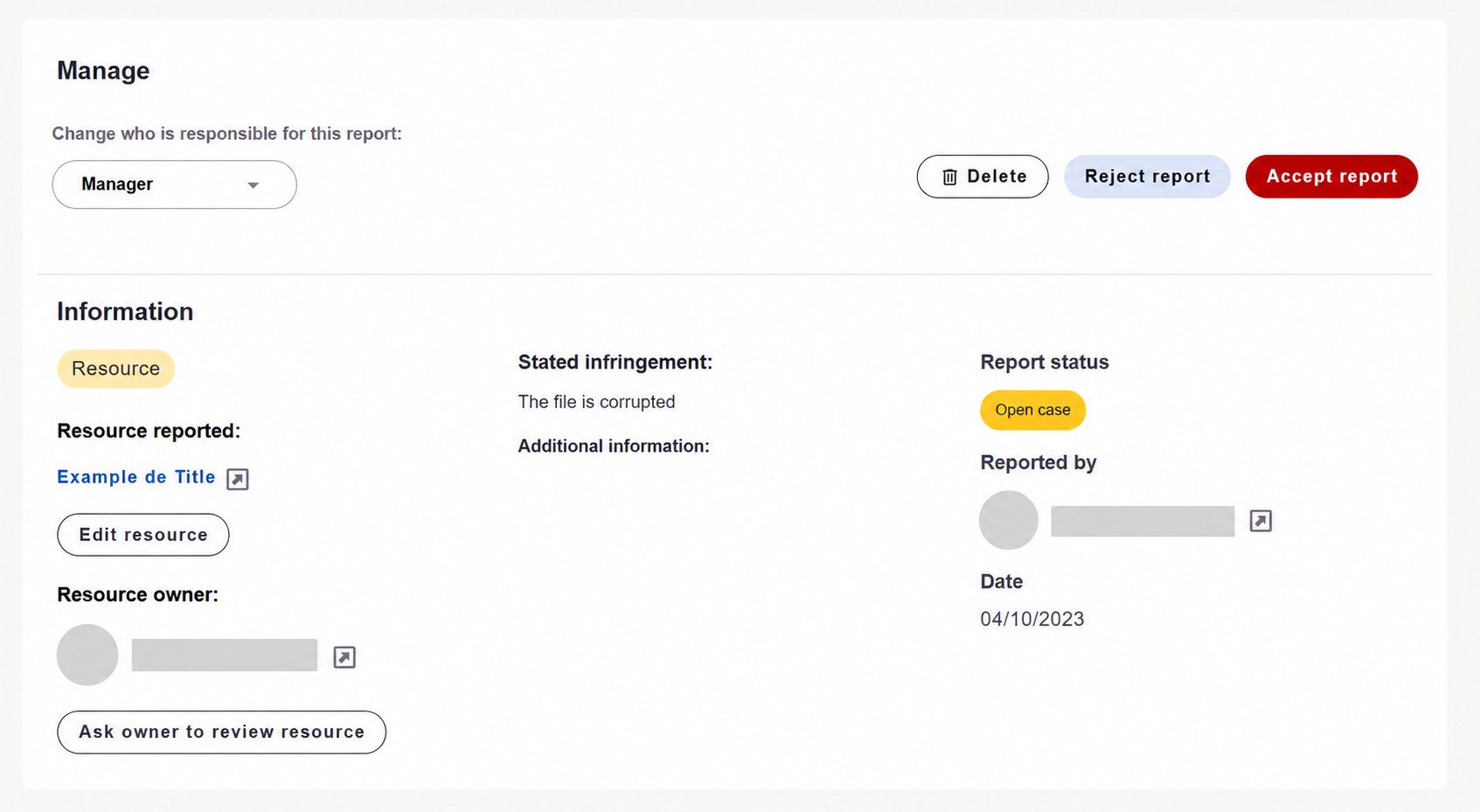
Resource report details with reason, status and management options. Identifying details hidden.
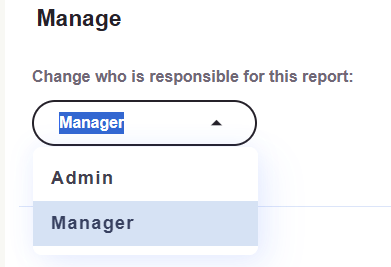
Report responsibility selector with Admin and Manager options.
Request a resource review
When a case concerns a resource and its owner needs guidance on a correction, use Ask owner to review resource. In the modal, write a clear message explaining:- What problem needs checking.
- Where it appears in the material.
- What correction or clarification is needed.
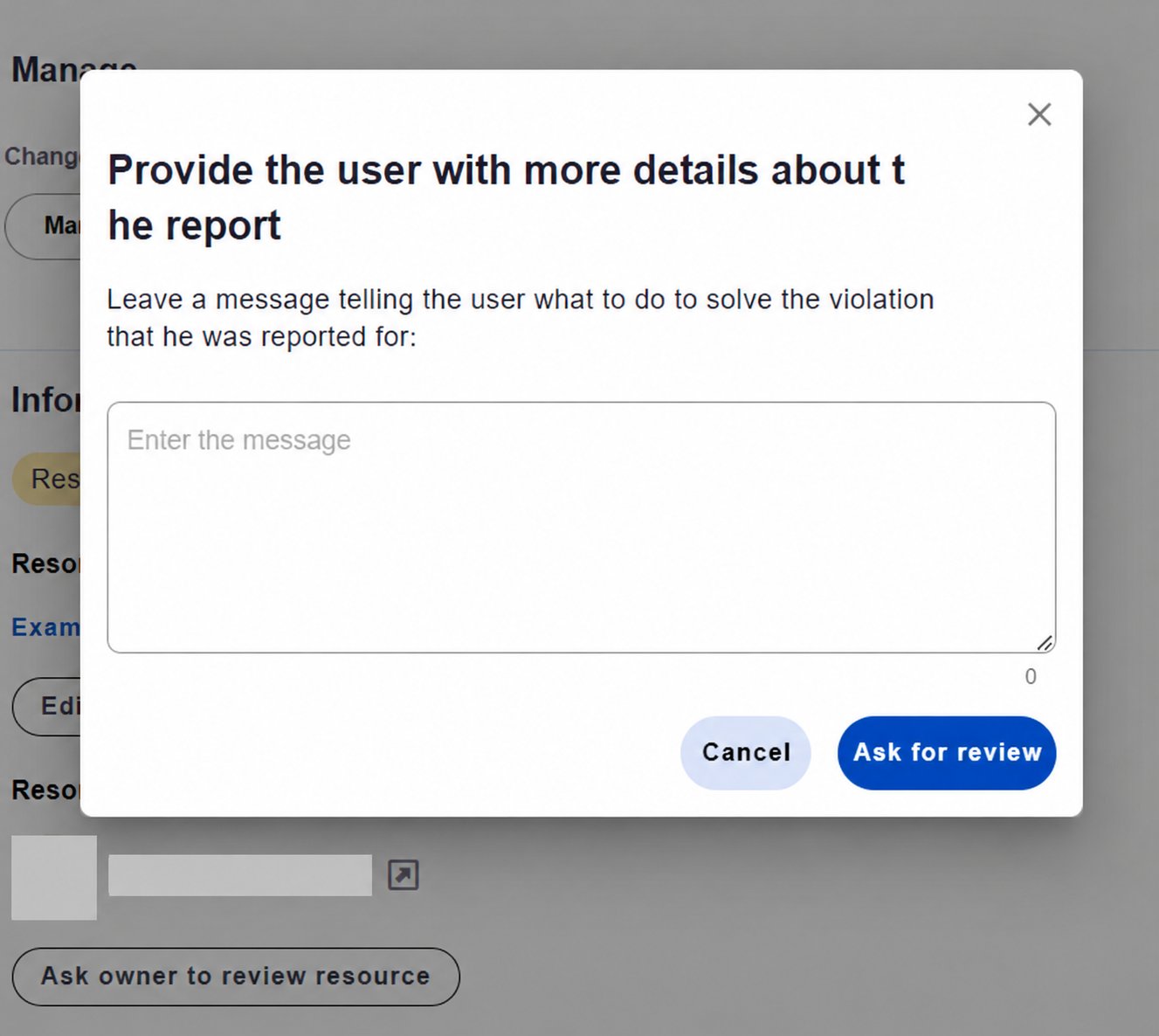
Modal for guidance to the resource owner and submission through Ask for review. Identifying details hidden.
Choose an outcome
After examining the case, use the appropriate action:
Delete, Reject report and Accept report buttons.
Reports need examination in context. Submission alone does not confirm wrongdoing. Check the information before deciding and provide clear guidance when requesting a review.