> ## Documentation Index
> Fetch the complete documentation index at: https://docs-visuolab.levantelab.com.br/llms.txt
> Use this file to discover all available pages before exploring further.
# Freeform activity: Video meeting
> Freeform activity: Video meeting — VisuoLab.
**For participants**
The **Video meeting** activity lets you join live meetings within a **Space**. It can support lessons, discussions, guidance and other synchronous interactions.
Participants meet at the scheduled time and interact by video call, following the Supervisor’s instructions.
 ## Check the instructions and schedule
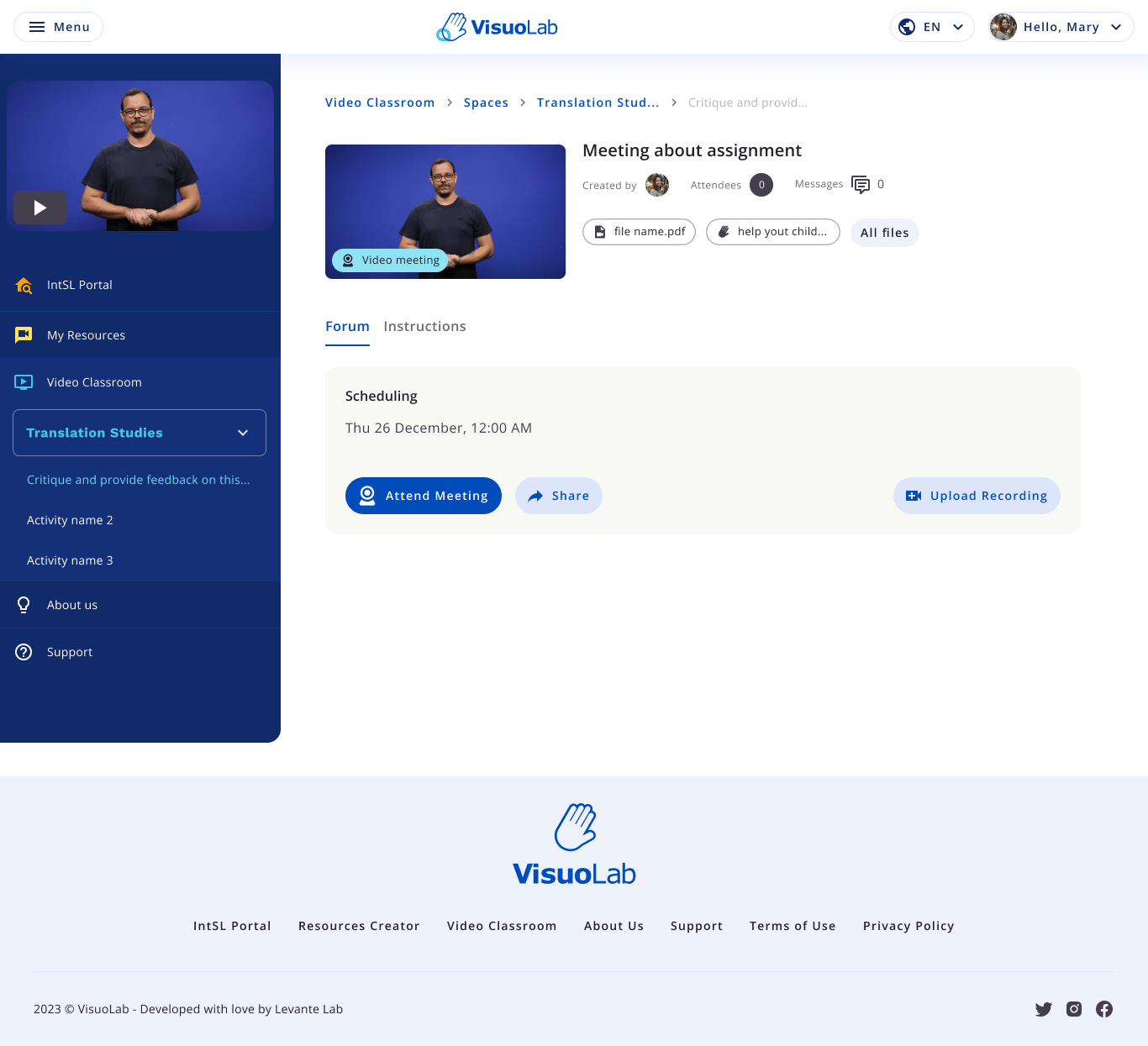
Open the activity in the Space and check **Instructions**. Review the task, supporting materials, and the date and time under **Scheduling**.
Before the meeting, check your connection, camera and microphone. For sign language communication, arrange lighting and framing so your face and hands are visible.
## Join the meeting
At the scheduled time, select **Attend Meeting**. Allow camera and microphone access when requested and check your devices.
## Take part in the meeting
Follow the Supervisor’s instructions and coordinate your contributions with the group. Use the available controls to manage your participation.
## Check the instructions and schedule
Open the activity in the Space and check **Instructions**. Review the task, supporting materials, and the date and time under **Scheduling**.
Before the meeting, check your connection, camera and microphone. For sign language communication, arrange lighting and framing so your face and hands are visible.
## Join the meeting
At the scheduled time, select **Attend Meeting**. Allow camera and microphone access when requested and check your devices.
## Take part in the meeting
Follow the Supervisor’s instructions and coordinate your contributions with the group. Use the available controls to manage your participation.
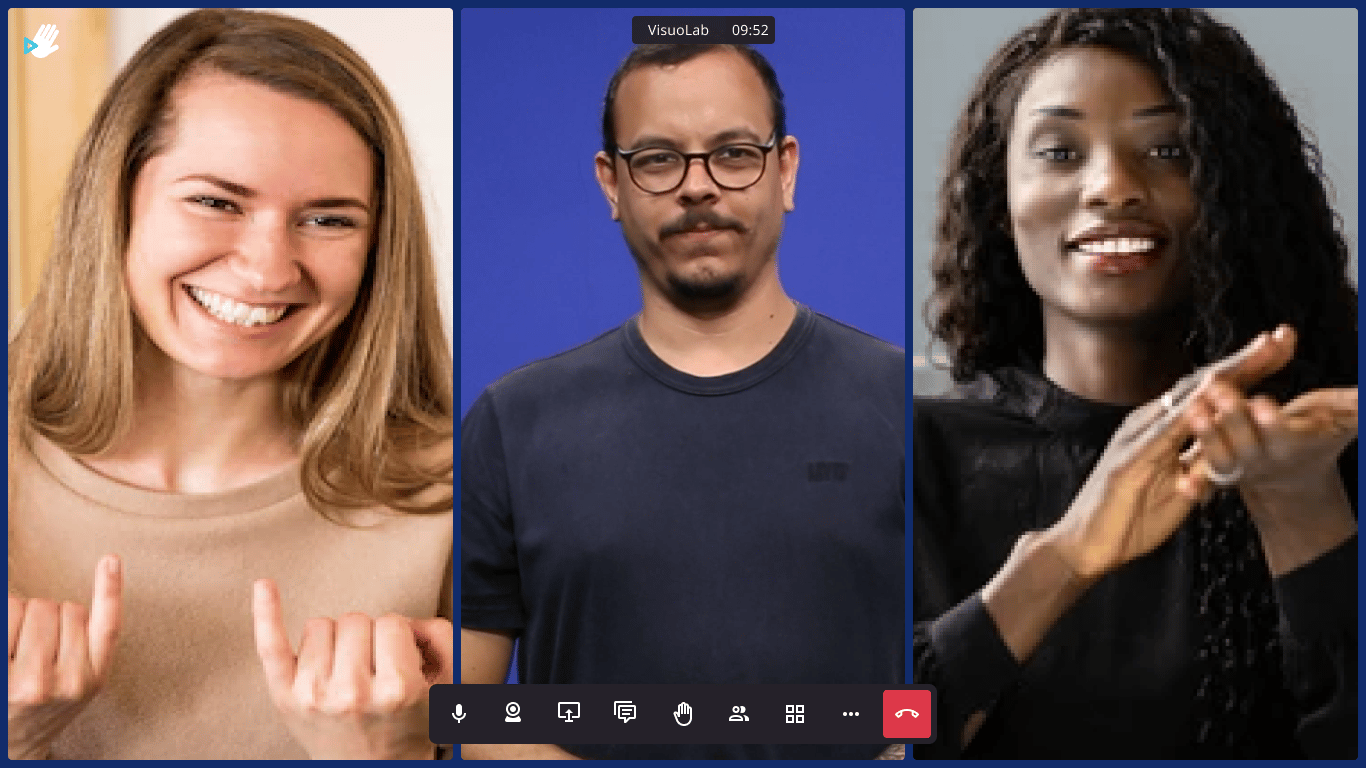 | Control | Purpose |
| - | - |
| **Microphone** | Turn audio on or off. |
| **Camera** | Turn your video on or off. |
| **Share screen** | Present content to the group, when available. |
| **Chat** | Exchange written messages during the meeting. |
| **Raise hand** | Indicate that you want to contribute. |
| **Participants** | View who is present. |
| **Layout** | Adjust the arrangement of videos. |
| **Leave call** | End your participation using the red button. |
### Adjust the view
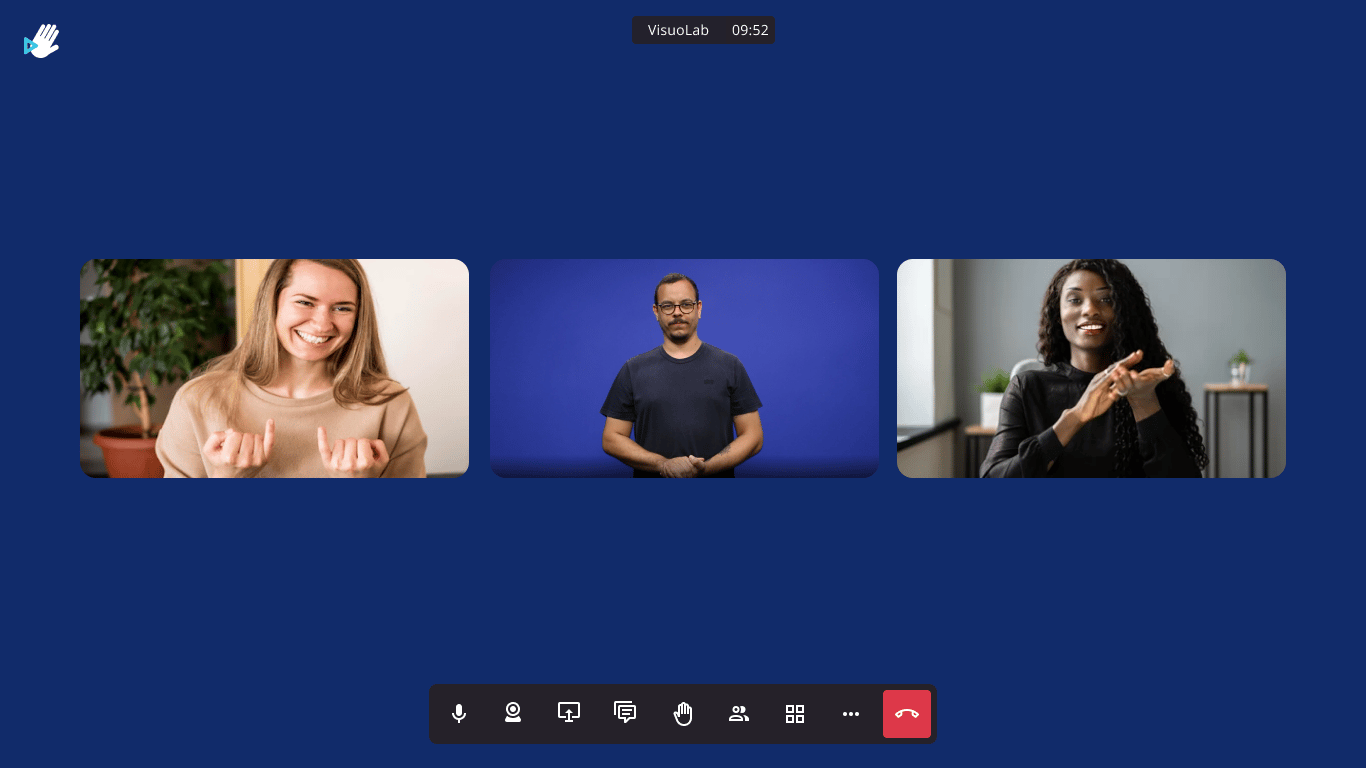
Use the available layout options to arrange videos for the meeting. In sign language communication, try to keep the people who are signing visible.
| Control | Purpose |
| - | - |
| **Microphone** | Turn audio on or off. |
| **Camera** | Turn your video on or off. |
| **Share screen** | Present content to the group, when available. |
| **Chat** | Exchange written messages during the meeting. |
| **Raise hand** | Indicate that you want to contribute. |
| **Participants** | View who is present. |
| **Layout** | Adjust the arrangement of videos. |
| **Leave call** | End your participation using the red button. |
### Adjust the view
Use the available layout options to arrange videos for the meeting. In sign language communication, try to keep the people who are signing visible.
 ## Explore other activity options
The initial page may also offer sharing and recording upload actions.
| Action | Guidance |
| - | - |
| **Share** | Access the activity’s sharing options. Sharing does not replace a Space invitation or access permissions. |
| **Upload Recording** | Upload a recording file when available and requested by the Supervisor. |
**Upload Recording** lets you upload a recording; its presence does not mean the call is automatically recorded.
## End your participation
When finished, use the red **leave call** button. Then check the activity for materials, comments or instructions provided by the Supervisor.
The images show English interface examples. Controls, options and permissions may vary with the installation and activity settings.
## Keep exploring
Return to the overview of freeform activity types.
Learn how to follow the available feedback.
This documentation is built and hosted on [Mintlify](https://mintlify.com), a developer documentation platform.
## Explore other activity options
The initial page may also offer sharing and recording upload actions.
| Action | Guidance |
| - | - |
| **Share** | Access the activity’s sharing options. Sharing does not replace a Space invitation or access permissions. |
| **Upload Recording** | Upload a recording file when available and requested by the Supervisor. |
**Upload Recording** lets you upload a recording; its presence does not mean the call is automatically recorded.
## End your participation
When finished, use the red **leave call** button. Then check the activity for materials, comments or instructions provided by the Supervisor.
The images show English interface examples. Controls, options and permissions may vary with the installation and activity settings.
## Keep exploring
Return to the overview of freeform activity types.
Learn how to follow the available feedback.
This documentation is built and hosted on [Mintlify](https://mintlify.com), a developer documentation platform.