> ## Documentation Index
> Fetch the complete documentation index at: https://docs-visuolab.levantelab.com.br/llms.txt
> Use this file to discover all available pages before exploring further.
# Organize My Resources
**My Resources** organizes the materials linked to your account. Use its tabs to separate what you have published, what you are preparing and what you have saved from others.
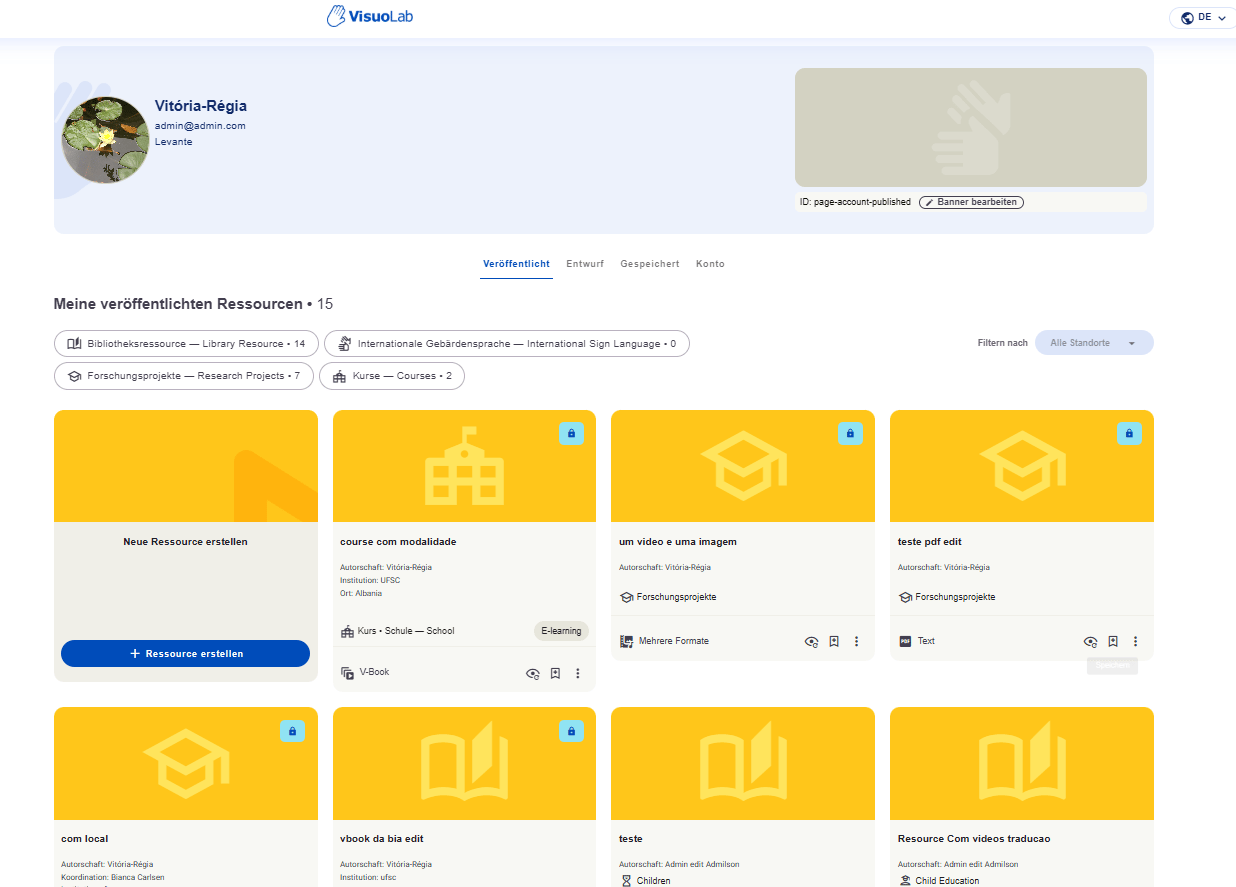 The screenshots show the platform in English and German. Control names are explained throughout the guide. The counts and materials shown are examples from the account used in the screenshots.
## Open My Resources
Select **My Resources** in the sidebar. You can also open your account menu at the top of the platform and select **My Resources**, as shown below.
The screenshots show the platform in English and German. Control names are explained throughout the guide. The counts and materials shown are examples from the account used in the screenshots.
## Open My Resources
Select **My Resources** in the sidebar. You can also open your account menu at the top of the platform and select **My Resources**, as shown below.
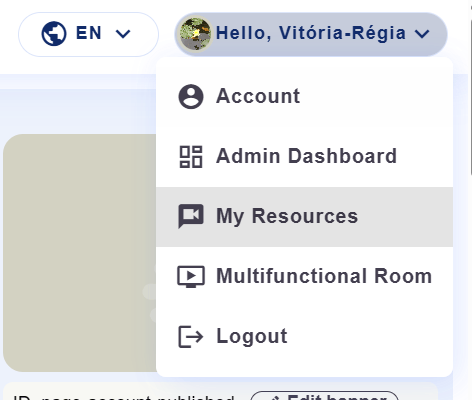 Additional menu options depend on your permissions. For example, **Admin Dashboard** appears in the screenshot but is not needed to access My Resources.
## Choose a tab
Use the tabs at the top to switch between published materials, drafts and saved resources.
Additional menu options depend on your permissions. For example, **Admin Dashboard** appears in the screenshot but is not needed to access My Resources.
## Choose a tab
Use the tabs at the top to switch between published materials, drafts and saved resources.
 | Tab | What it shows |
| - | - |
| **Published** | Materials you have published. |
| **Draft** | Your drafts and materials submitted for review. |
| **Saved** | Materials from other people that you saved. |
**Account** opens your account information.
### Published
Browse your published materials. Open a resource to view its details and edit it when permitted.
| Tab | What it shows |
| - | - |
| **Published** | Materials you have published. |
| **Draft** | Your drafts and materials submitted for review. |
| **Saved** | Materials from other people that you saved. |
**Account** opens your account information.
### Published
Browse your published materials. Open a resource to view its details and edit it when permitted.
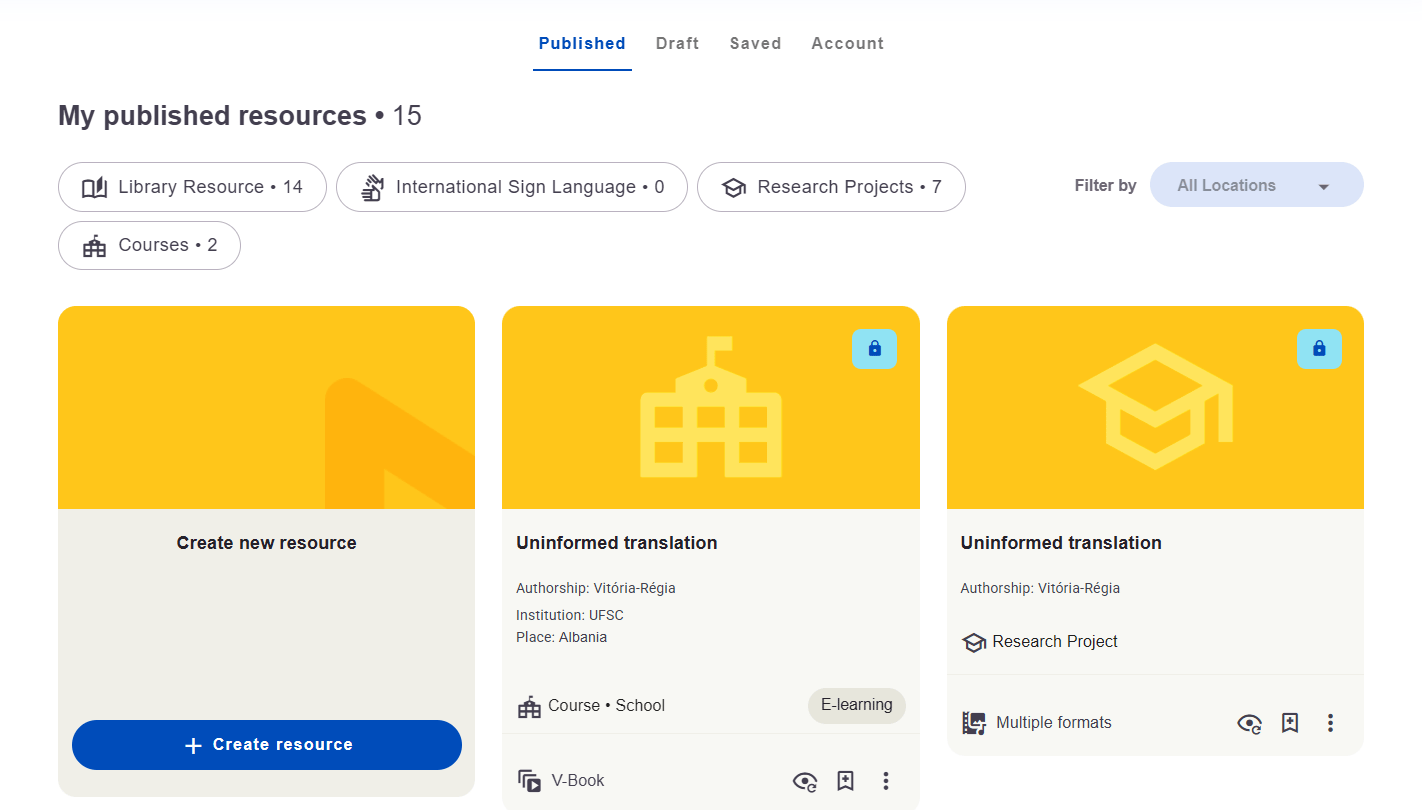 * Use the **categories** above the cards to explore the available material types.
* Use **Filter by → All Locations** to choose a location from the options available in your installation.
* Open a resource card to view the material and its actions.
### Drafts
Find content still in preparation and materials submitted for review. Open a resource to continue working with the available actions.
* Use the **categories** above the cards to explore the available material types.
* Use **Filter by → All Locations** to choose a location from the options available in your installation.
* Open a resource card to view the material and its actions.
### Drafts
Find content still in preparation and materials submitted for review. Open a resource to continue working with the available actions.
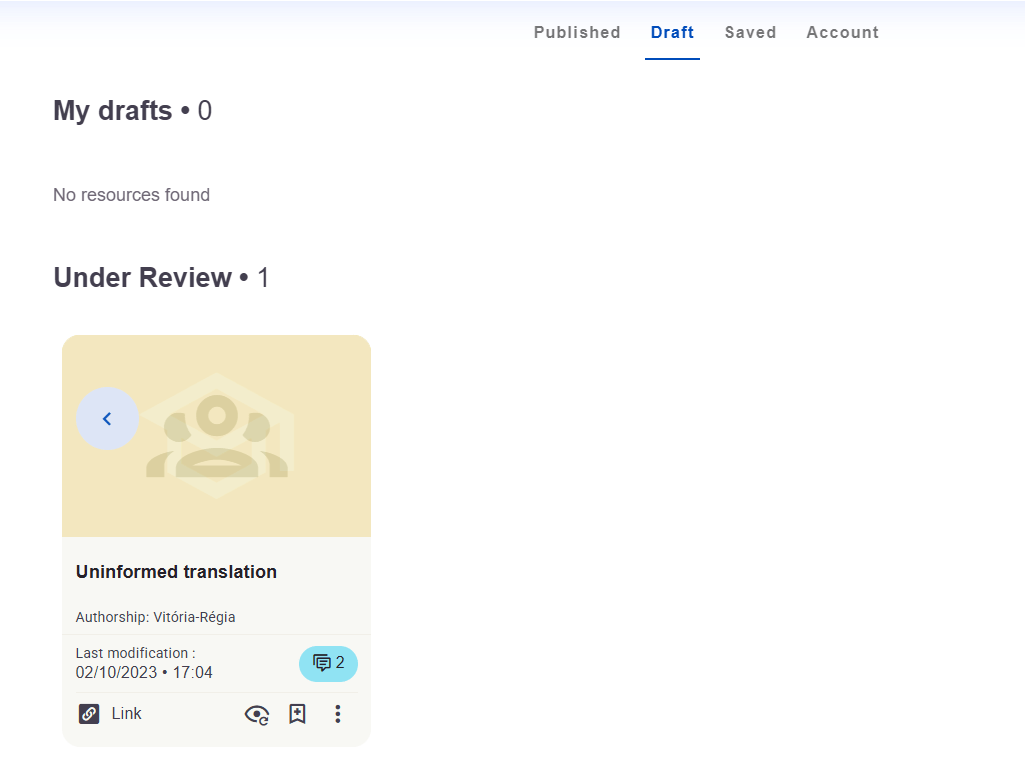 In the screenshot, **Draft** has two sections:
* **My drafts**: materials still in preparation. **No resources found** means this section has no drafts.
* **Under Review**: materials submitted for review. The example shows one resource here.
### Saved
Find materials you kept using **Save** on a resource page.
In the screenshot, **Draft** has two sections:
* **My drafts**: materials still in preparation. **No resources found** means this section has no drafts.
* **Under Review**: materials submitted for review. The example shows one resource here.
### Saved
Find materials you kept using **Save** on a resource page.
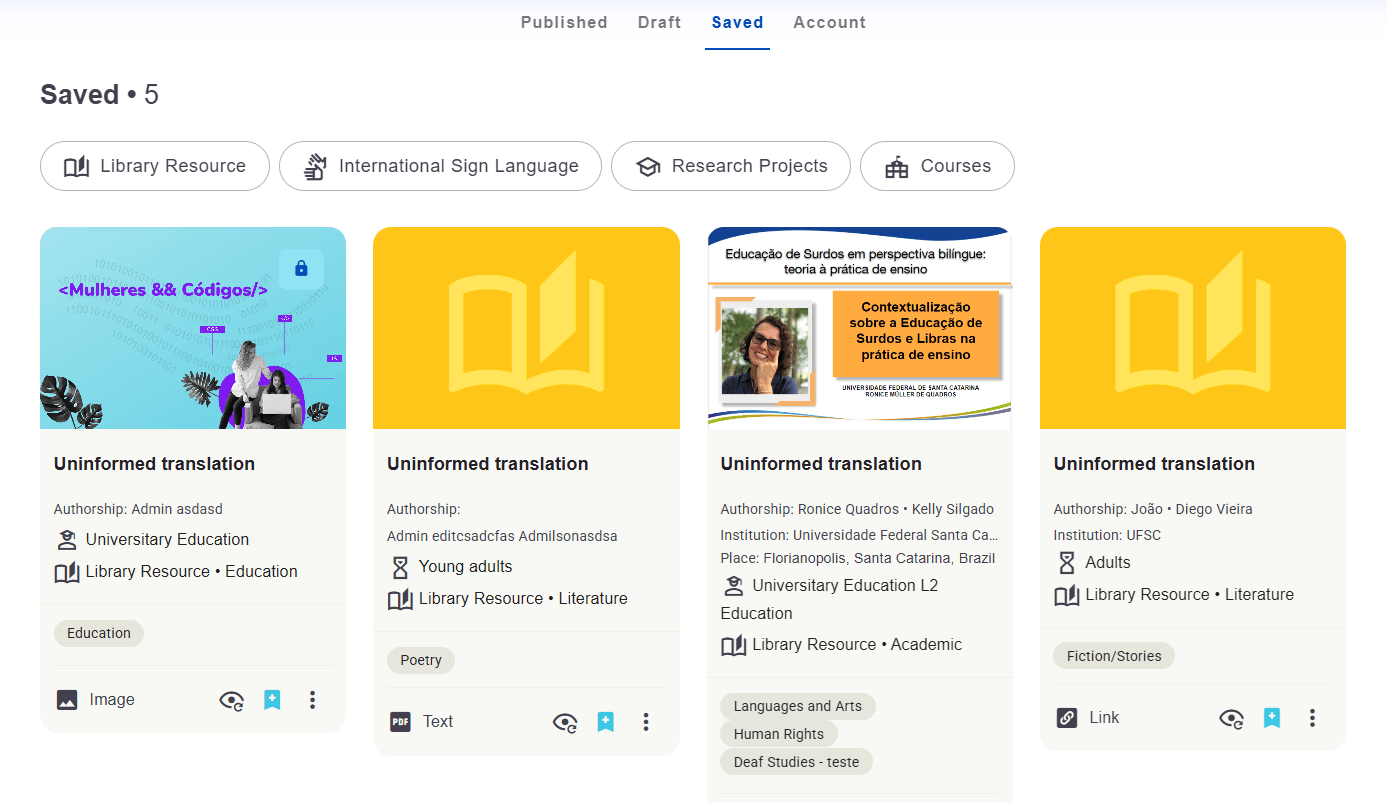 Select **Saved** and open the material you want to consult. Use the categories above the list to explore saved resources.
Saving helps you find a material later; it does not download the file.
The Portal displays the published collection. My Resources organizes your account’s materials; Saved also includes resources published by others.
## Create a new resource
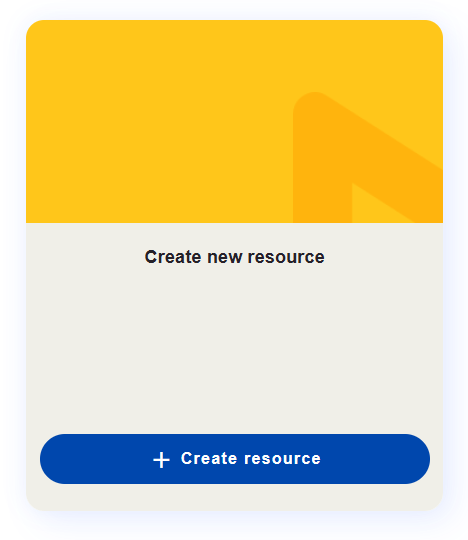
Use **Publish new resource** to create a material or V-Book. In the screenshot, this action appears in the **Create new resource** card with the **Create resource** button.
Select **Saved** and open the material you want to consult. Use the categories above the list to explore saved resources.
Saving helps you find a material later; it does not download the file.
The Portal displays the published collection. My Resources organizes your account’s materials; Saved also includes resources published by others.
## Create a new resource
Use **Publish new resource** to create a material or V-Book. In the screenshot, this action appears in the **Create new resource** card with the **Create resource** button.
 [Explore Resource Creation →](/en/resource-creator)
This documentation is built and hosted on [Mintlify](https://mintlify.com), a developer documentation platform.
[Explore Resource Creation →](/en/resource-creator)
This documentation is built and hosted on [Mintlify](https://mintlify.com), a developer documentation platform.