> ## Documentation Index
> Fetch the complete documentation index at: https://docs-visuolab.levantelab.com.br/llms.txt
> Use this file to discover all available pages before exploring further.
# First steps
> Create your account, access your profile and explore the VisuoLab sidebar.
This guide introduces **General Users** and **Participants** to creating an account, accessing their profile and finding the platform’s main areas.
General Users explore the Portal and create or publish resources. Participants also complete activities in the Multifunctional Room Spaces they have been invited to.
## Sign in
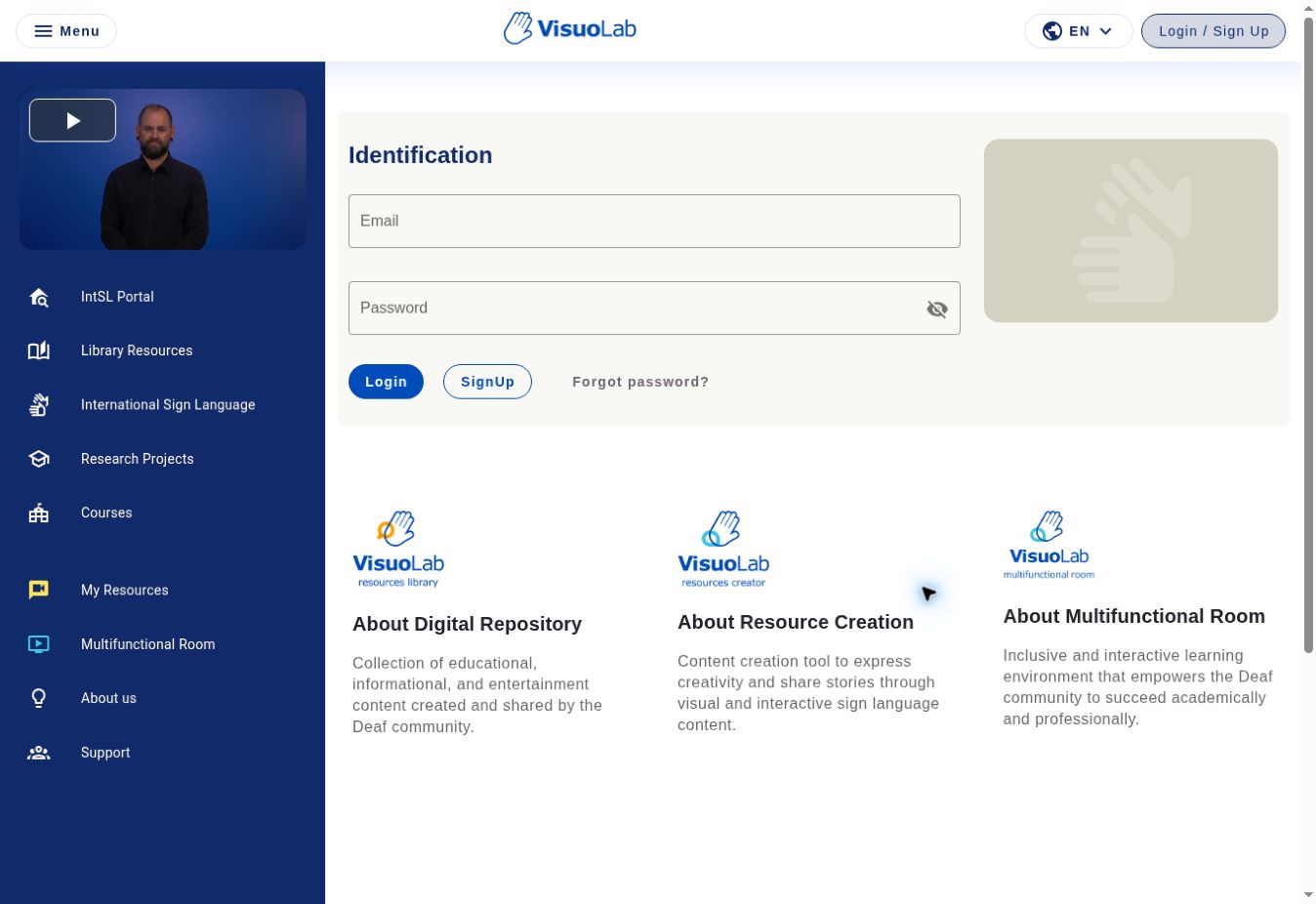
If you already have an account, enter your **Email** and **Password** and click **Login**. To create an account, use **SignUp**. **Forgot password?** is available on the same screen.
 ## Choose the platform language
At the top right, click the **language selector**, identified by a globe and the current language code, such as **EN**.
Choose one of the languages enabled by your institution to view the interface in that language.
## Choose the platform language
At the top right, click the **language selector**, identified by a globe and the current language code, such as **EN**.
Choose one of the languages enabled by your institution to view the interface in that language.
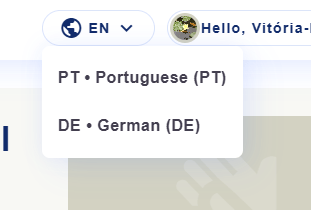 Available options vary between VisuoLab installations. Changing the interface language does not change the sign language of videos or materials.
## Create your account
Open the installation address provided by your institution.
Click **Login / Sign Up** and open registration. Enter your first and last names, email and email confirmation, password and password confirmation. Social name and institutional affiliation are optional fields.
Use the selector at the top right, as described in **Choose the platform language**.
Answer **What is your language background?** Choose the option that best describes your relationship with sign languages:
**L1** means first language. **L2** means second or additional language.
A Deaf person who acquired a sign language as a first language from childhood.
A Deaf person who learned a sign language as a second or additional language after beginning their language journey in another language.
A hearing person who learned a sign language as a second or additional language.
A person exposed to a sign language in their family from childhood, for example through Deaf relatives. Their use and proficiency may vary.
A person who does not yet use a sign language to communicate.
A person whose language background is not represented by the other options.
Choose the option that best represents your language journey. Some experiences may overlap categories. These options describe your relationship with sign languages; they do not assess knowledge or fluency.
Read the **Terms of use** and **Privacy Policy**. Set your cookie preferences and record your acceptance of the terms as requested by the form.
Available options vary between VisuoLab installations. Changing the interface language does not change the sign language of videos or materials.
## Create your account
Open the installation address provided by your institution.
Click **Login / Sign Up** and open registration. Enter your first and last names, email and email confirmation, password and password confirmation. Social name and institutional affiliation are optional fields.
Use the selector at the top right, as described in **Choose the platform language**.
Answer **What is your language background?** Choose the option that best describes your relationship with sign languages:
**L1** means first language. **L2** means second or additional language.
A Deaf person who acquired a sign language as a first language from childhood.
A Deaf person who learned a sign language as a second or additional language after beginning their language journey in another language.
A hearing person who learned a sign language as a second or additional language.
A person exposed to a sign language in their family from childhood, for example through Deaf relatives. Their use and proficiency may vary.
A person who does not yet use a sign language to communicate.
A person whose language background is not represented by the other options.
Choose the option that best represents your language journey. Some experiences may overlap categories. These options describe your relationship with sign languages; they do not assess knowledge or fluency.
Read the **Terms of use** and **Privacy Policy**. Set your cookie preferences and record your acceptance of the terms as requested by the form.
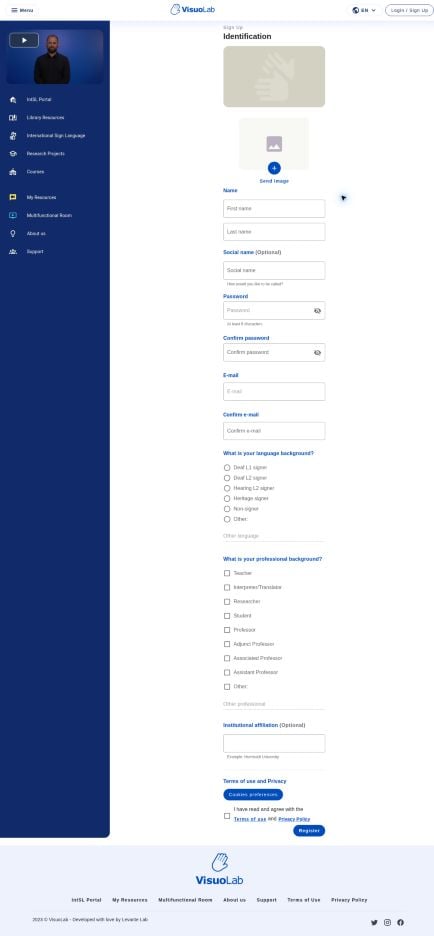 Screenshots use the English reference installation. Field names and available options may vary with your institution’s language and configuration.
## View your account
In **Account**, you can view and edit your user profile information.
Specific instructions for changing your password or email are covered in the platform’s help articles.
Screenshots use the English reference installation. Field names and available options may vary with your institution’s language and configuration.
## View your account
In **Account**, you can view and edit your user profile information.
Specific instructions for changing your password or email are covered in the platform’s help articles.
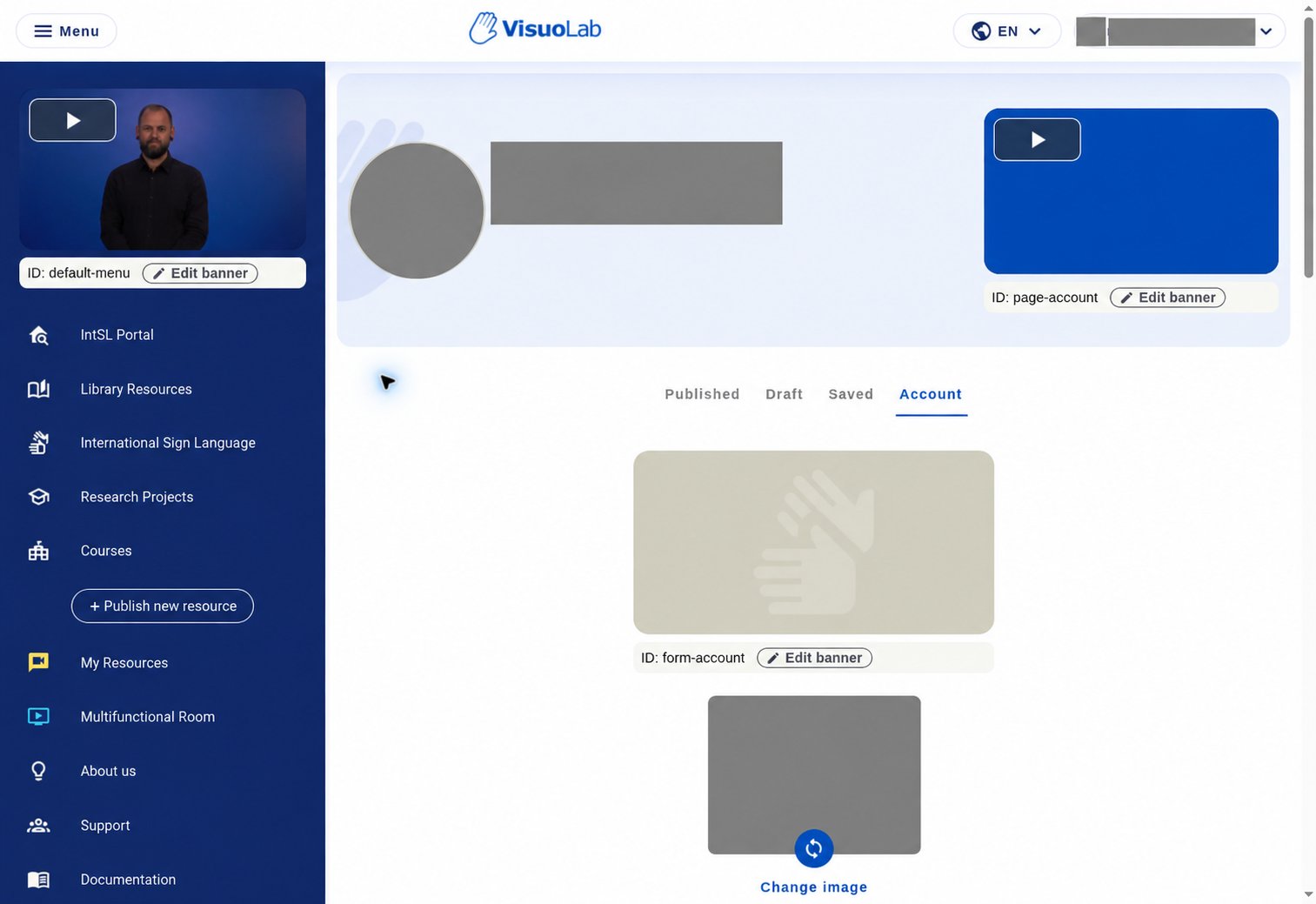 This screenshot uses an administrator profile. **Edit banner** controls belong to that profile and may not appear for General Users or Participants.
## Explore the sidebar
Use the sidebar to access the main areas:
This screenshot uses an administrator profile. **Edit banner** controls belong to that profile and may not appear for General Users or Participants.
## Explore the sidebar
Use the sidebar to access the main areas:
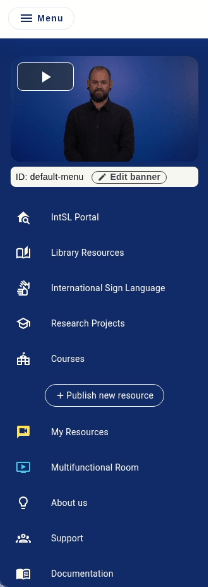 | Area | Purpose |
| - | - |
| **Portal** | Search and explore published materials. |
| **Resource Library** | Organize published resources, drafts and saved materials. |
| **Multifunctional Room** | Enter Spaces you have been invited to and complete activities. |
| **Account** | View and edit your account information. |
Access to Multifunctional Room activities depends on your invitation to a Space and your permissions.
## Keep exploring
Explore the platform’s resource library.
Discover Spaces and activities for participants.
This documentation is built and hosted on [Mintlify](https://mintlify.com), a developer documentation platform.
| Area | Purpose |
| - | - |
| **Portal** | Search and explore published materials. |
| **Resource Library** | Organize published resources, drafts and saved materials. |
| **Multifunctional Room** | Enter Spaces you have been invited to and complete activities. |
| **Account** | View and edit your account information. |
Access to Multifunctional Room activities depends on your invitation to a Space and your permissions.
## Keep exploring
Explore the platform’s resource library.
Discover Spaces and activities for participants.
This documentation is built and hosted on [Mintlify](https://mintlify.com), a developer documentation platform.