> ## Documentation Index
> Fetch the complete documentation index at: https://docs-visuolab.levantelab.com.br/llms.txt
> Use this file to discover all available pages before exploring further.
# Add sign language videos
**Sign Language** associates translation videos with the records and areas where this feature is supported, offering a visual way to understand the platform.
## Identify what to translate
Choose the target sign language and locate the text, area or element. Review the reference written version before producing the video.
| Platform translation | Published content |
| - | - |
| Explains an interface section or element. | Forms part of a material, activity or V-Book. |
| Associated with a supported record in Translations. | Added within the resource or activity. |
## Prepare and review the video
Suggested organization for the local team:
1. Identify the record and its function.
2. Review the reference text and prepare the chosen sign language translation.
3. Record with framing and lighting that make signing clear.
4. Arrange linguistic review with the responsible team.
5. Identify the file by record and target sign language.
The supplied material does not establish format, duration or file-size requirements for these videos. Check those in the insertion screen.
## Associate the video
Go to **Translations → Sign Language**.
In **Target language**, select the sign language receiving the video. Do not substitute the written interface language.
Open the relevant table and locate the record. Groups follow Object Texts.
Associate the video using the record’s available control and complete the edit. Check playback in the corresponding area.
## Area videos: Banners
Banners may contain videos explaining a section. Administrative IDs such as **menu-admin** and **page-users** help identify the area.
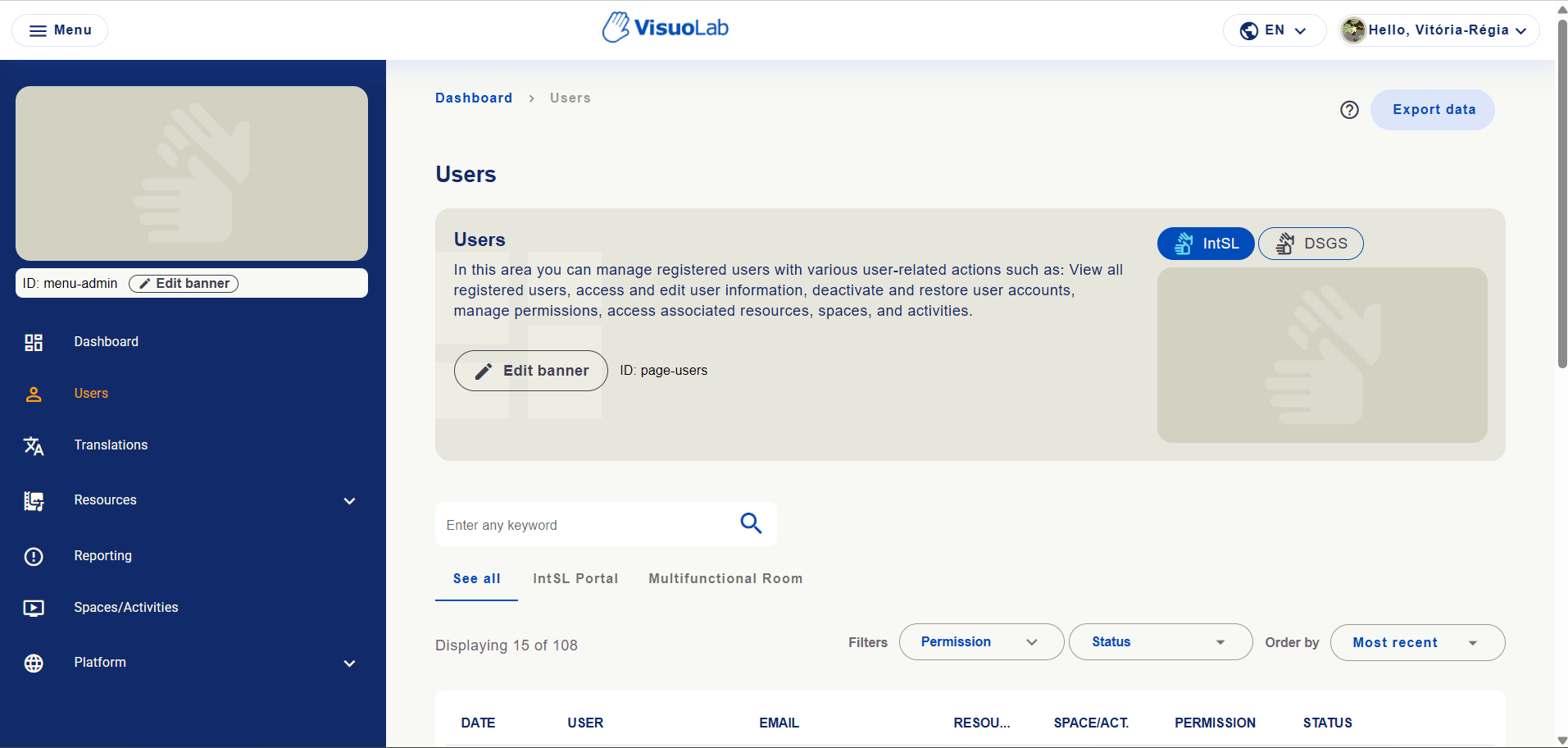 The screenshot shows sign language options in a banner, not the insertion form. **Banners** covers supported installation areas. The manual’s 212 records are an example, not a fixed total.
## Check the result
Verify the record, correct sign language and playback in the intended location. Monitor pending items.
[Check texts and videos →](/en/administration/review)
This documentation is built and hosted on [Mintlify](https://mintlify.com), a developer documentation platform.
The screenshot shows sign language options in a banner, not the insertion form. **Banners** covers supported installation areas. The manual’s 212 records are an example, not a fixed total.
## Check the result
Verify the record, correct sign language and playback in the intended location. Monitor pending items.
[Check texts and videos →](/en/administration/review)
This documentation is built and hosted on [Mintlify](https://mintlify.com), a developer documentation platform.