> ## Documentation Index
> Fetch the complete documentation index at: https://docs-visuolab.levantelab.com.br/llms.txt
> Use this file to discover all available pages before exploring further.
# Users and permissions
> View accounts and change user permissions.
In **Users**, consult registered accounts and manage permissions and status within your access level. The list includes General users and people with specific Multifunctional Room roles. Accounts may be active, deactivated or removed.
## Understand the two access routes
| Area | How access works |
| - | - |
| **Portal** | All users can access Portal resources. |
| **Multifunctional Room** | Access is by invitation to **Spaces**, the teaching, learning and assessment spaces. People participate in the spaces they are invited to, according to their permissions. |
A platform account does not automatically provide access to Spaces. Users invited to a space can participate in its activities while retaining access to Portal resources.
## Find users
Use the tabs to view the groups in user management:
**See all:** combined view of registered users.
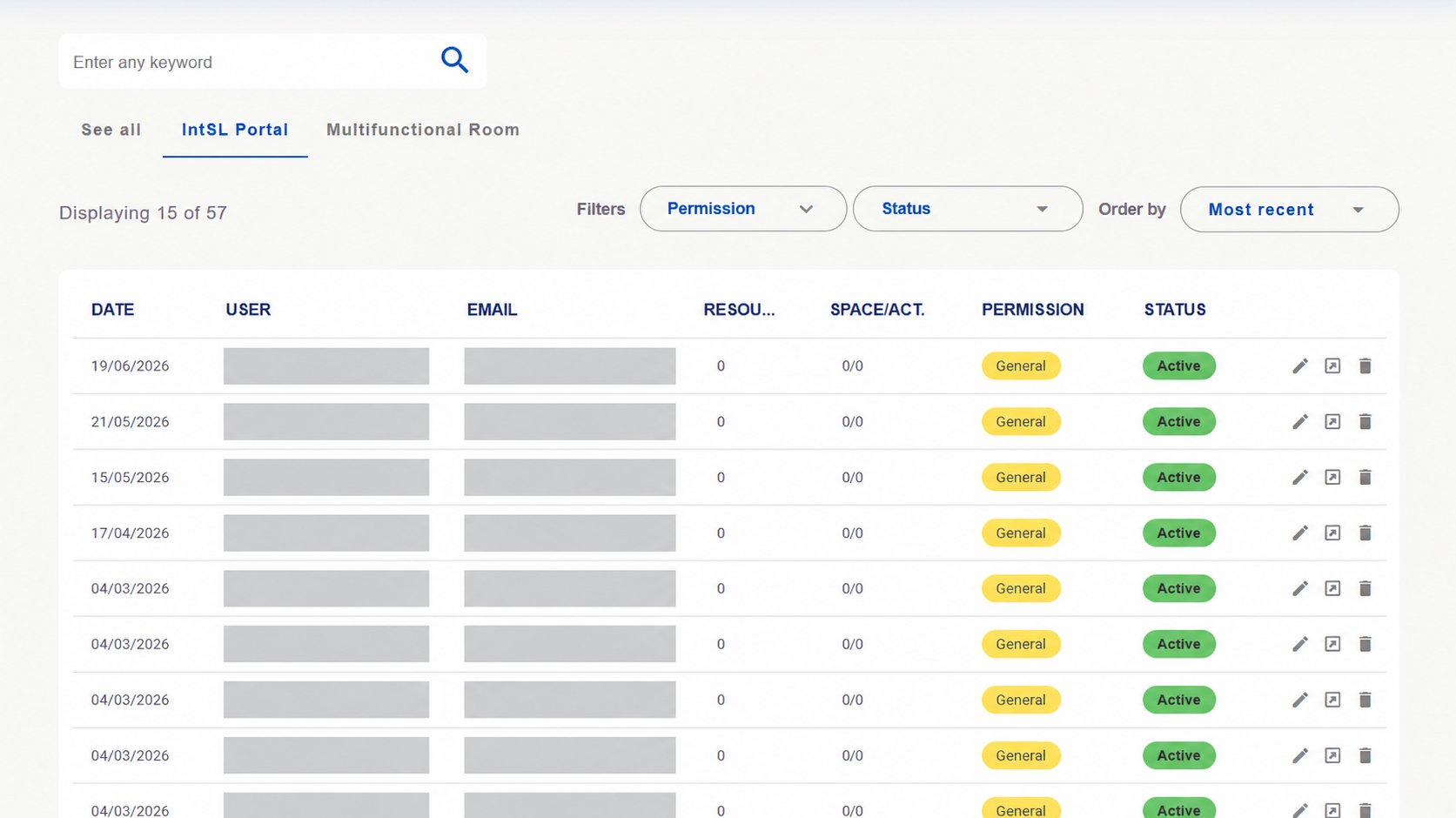
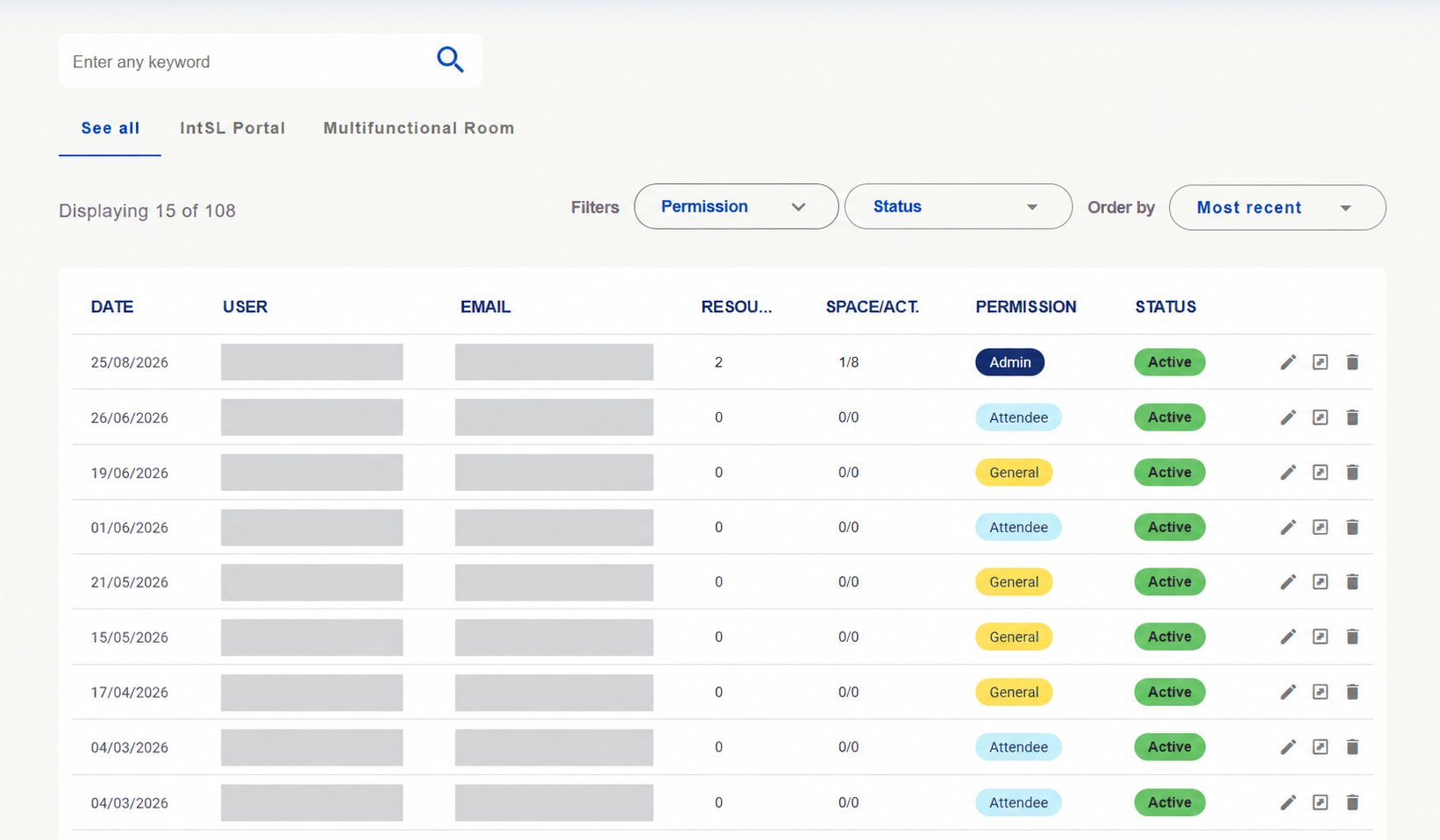 **IntSL Portal:** list of General Portal users. This grouping does not make the Portal exclusive to them: all users can access Portal resources.
 **Multifunctional Room:** users with specific access and roles in the Multifunctional Room. Participation depends on invitations and permissions in Spaces.
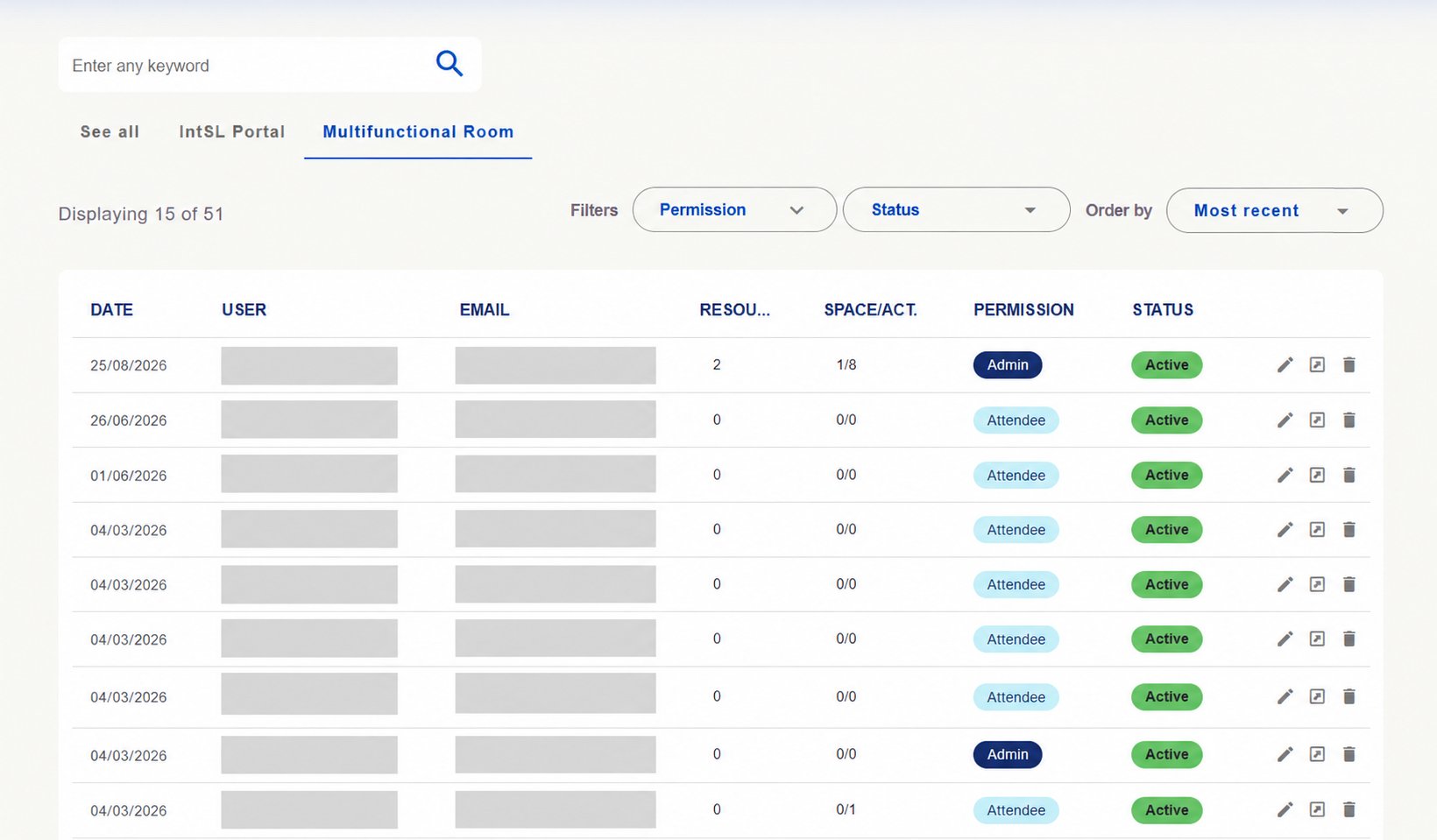 Use **search**, **Permission** and **Status** filters and **Order by** to find accounts. Check permissions, status and links to resources and spaces/activities in the table. Available actions depend on your access level.
## Change a user's permission
The permission defines the person's role on the platform. To change it, access administration with a profile authorized to edit users.
Open **Users** in the administration menu. Use the search and filters in the list illustrated above to find the person. Check the account before opening the editor.
Use **search**, **Permission** and **Status** filters and **Order by** to find accounts. Check permissions, status and links to resources and spaces/activities in the table. Available actions depend on your access level.
## Change a user's permission
The permission defines the person's role on the platform. To change it, access administration with a profile authorized to edit users.
Open **Users** in the administration menu. Use the search and filters in the list illustrated above to find the person. Check the account before opening the editor.
 In the account's row, click the **pencil icon**. It opens the **Edit user information** page.

 The **Edit banner** button edits this page's introductory content. To change the person's permission, continue to the **Permission** field in the user form.
Find the **Permission** field and open the list to choose the role appropriate to the person's responsibilities.
The **Edit banner** button edits this page's introductory content. To change the person's permission, continue to the **Permission** field in the user form.
Find the **Permission** field and open the list to choose the role appropriate to the person's responsibilities.
 The example installation shows **Admin**, **Manager**, **Supervisor**, **Attendee** and **General**. The available options depend on your permissions.
 Check the selected role and **save the changes in the form**. Then return to the list and verify the permission displayed for the account.
**Permissions and Space invitations are separate.** Changing a user's role does not replace the invitation required to participate in a Multifunctional Room Space.
## Check responsibilities
The **Supervisor** manages the Spaces they are responsible for. **Admin and Manager** manage the platform according to their permissions. Within a Space, roles such as **Attendee** and **Editor** define available actions; Editor can change certain content.
The images were edited to hide identifying details. Counts and records are installation examples.
[Back to the daily management overview →](/en/administration/daily-management)
This documentation is built and hosted on [Mintlify](https://mintlify.com), a developer documentation platform.
Check the selected role and **save the changes in the form**. Then return to the list and verify the permission displayed for the account.
**Permissions and Space invitations are separate.** Changing a user's role does not replace the invitation required to participate in a Multifunctional Room Space.
## Check responsibilities
The **Supervisor** manages the Spaces they are responsible for. **Admin and Manager** manage the platform according to their permissions. Within a Space, roles such as **Attendee** and **Editor** define available actions; Editor can change certain content.
The images were edited to hide identifying details. Counts and records are installation examples.
[Back to the daily management overview →](/en/administration/daily-management)
This documentation is built and hosted on [Mintlify](https://mintlify.com), a developer documentation platform.