> ## Documentation Index
> Fetch the complete documentation index at: https://docs-visuolab.levantelab.com.br/llms.txt
> Use this file to discover all available pages before exploring further.
# Spaces and activities
> Explore and monitor Spaces and their activities.
## Understand Spaces
**Spaces** are teaching, learning and assessment environments in the **Multifunctional Room**. Like classrooms, each brings together invited participants, an introduction and Supervisor-organized activities, supporting translator and interpreter training among other uses.
**Find your spaces**
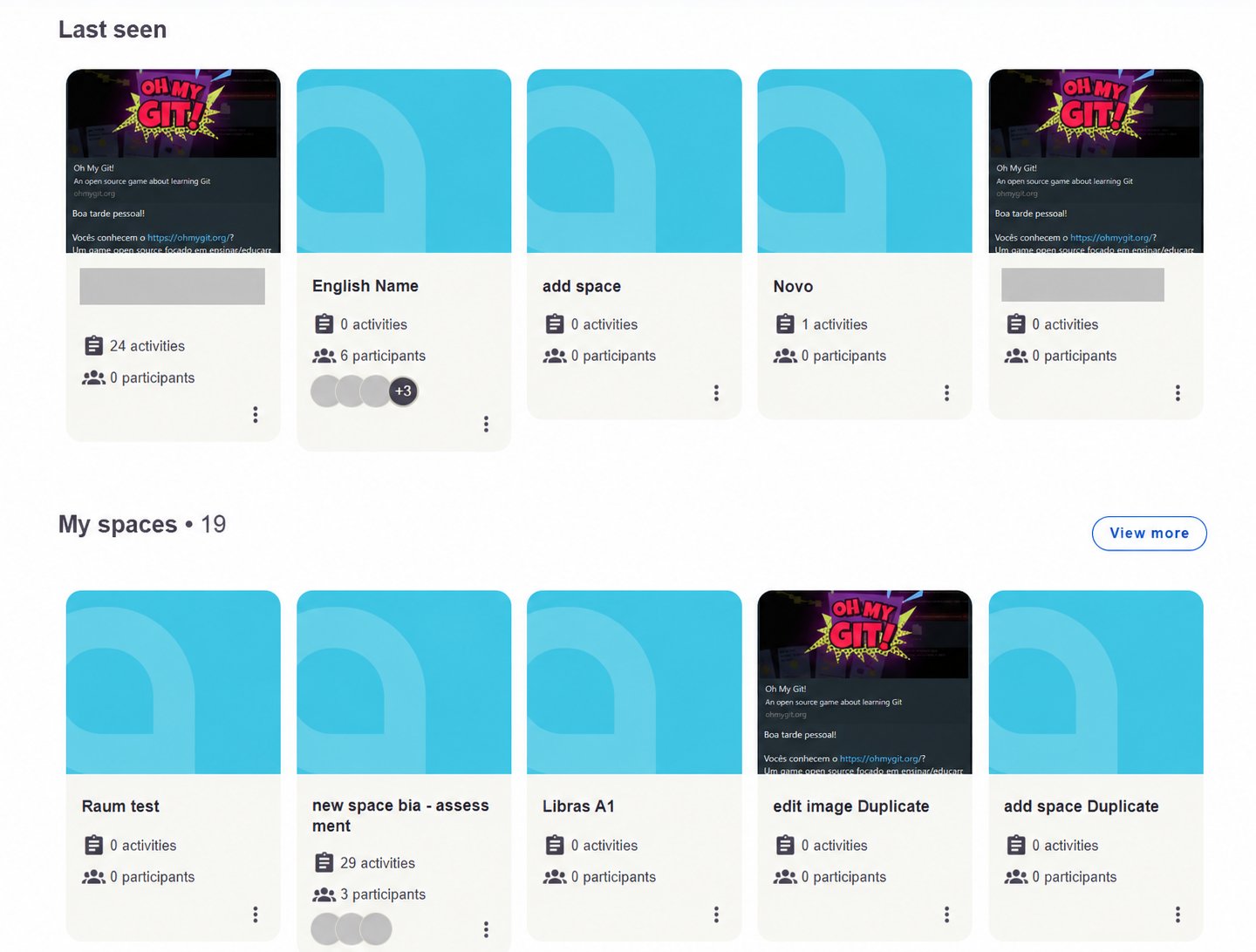
In the Multifunctional Room, cards show each space's name, introductory image and activity and participant counts. **Last seen** and **My spaces** help find spaces available to your profile.
 **Explore a space**
Open a Space to find its introduction and activities under **Freeform Activities** and **Assessment Activities**. The screen also has a **Grades** tab.
The introduction can combine text and sign language video to explain the space's purpose. Spaces can host discussions, submissions, live meetings and interpreting practice.
**Explore a space**
Open a Space to find its introduction and activities under **Freeform Activities** and **Assessment Activities**. The screen also has a **Grades** tab.
The introduction can combine text and sign language video to explain the space's purpose. Spaces can host discussions, submissions, live meetings and interpreting practice.
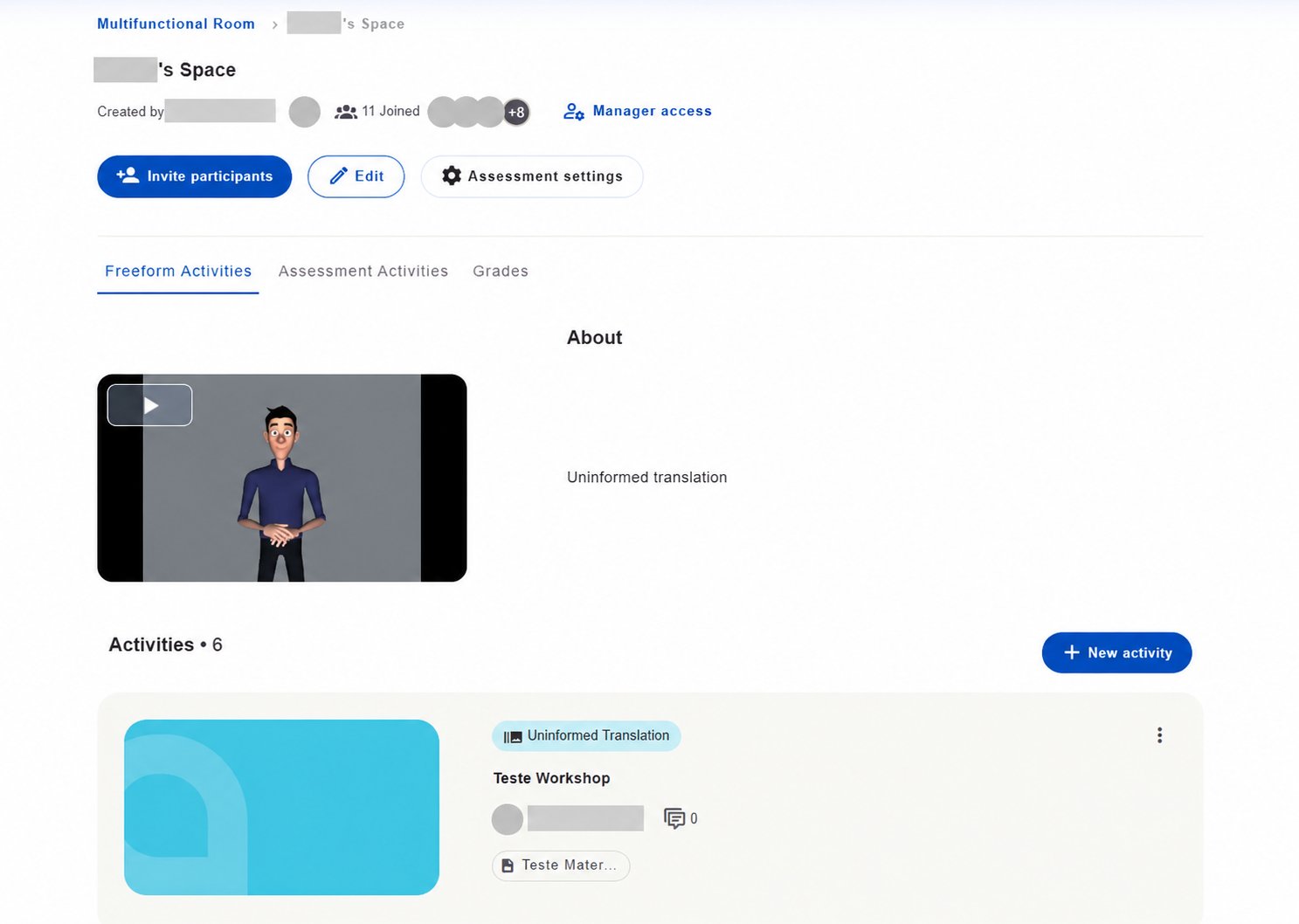 Participants access a space **by invitation**. Depending on permissions, the responsible person can **Invite participants**, **Edit** the Space, configure **Assessment settings** and create a **New activity**.
## Monitor spaces and activities
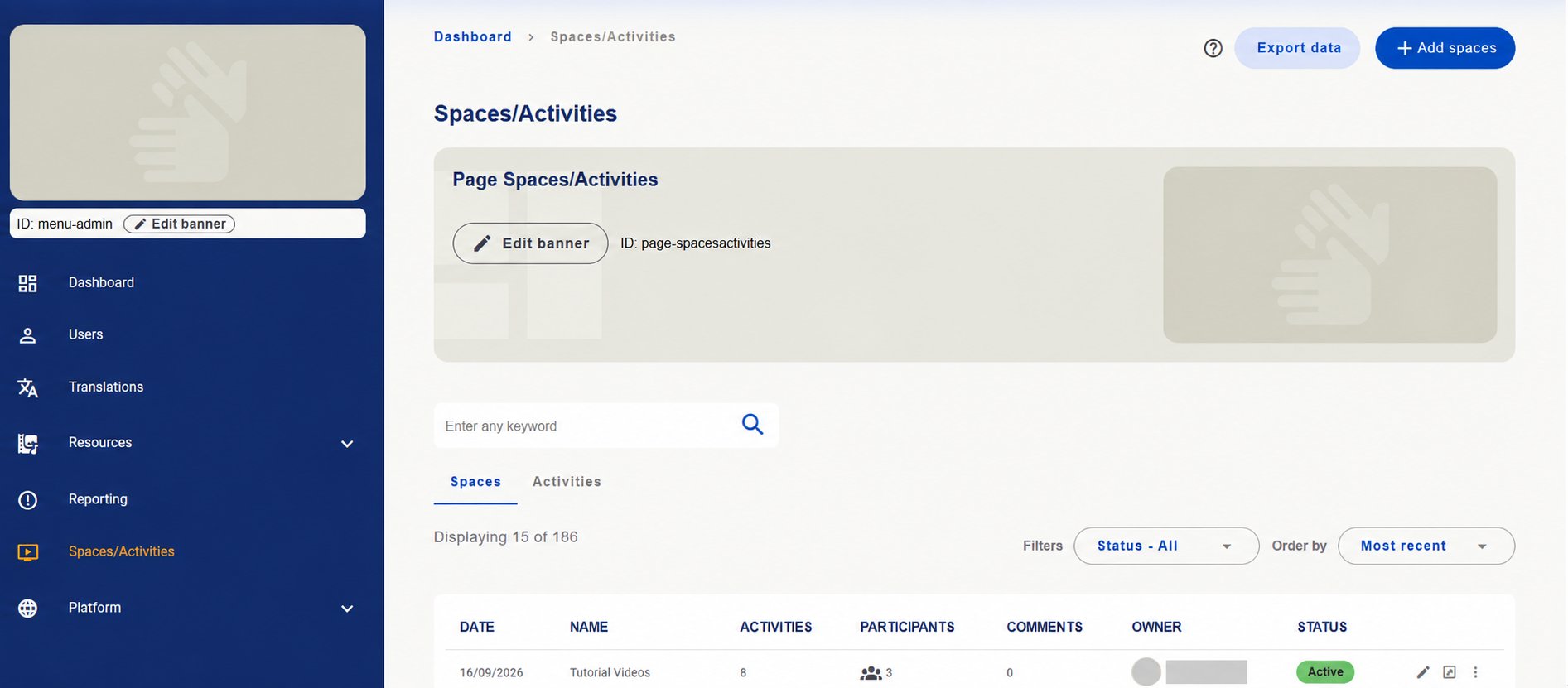
In **Spaces/Activities**, use the tabs:
| Tab | What to consult |
| - | - |
| **Spaces** | Registered spaces and activity, participant, comment, owner and status information. |
| **Activities** | The Multifunctional Room activity list. |
Use **search**, **Status** and **Order by** to find records. Creation and management depend on your permissions. **Add spaces** starts registering a space in the screenshot.
Participants access a space **by invitation**. Depending on permissions, the responsible person can **Invite participants**, **Edit** the Space, configure **Assessment settings** and create a **New activity**.
## Monitor spaces and activities
In **Spaces/Activities**, use the tabs:
| Tab | What to consult |
| - | - |
| **Spaces** | Registered spaces and activity, participant, comment, owner and status information. |
| **Activities** | The Multifunctional Room activity list. |
Use **search**, **Status** and **Order by** to find records. Creation and management depend on your permissions. **Add spaces** starts registering a space in the screenshot.
 ## Introduce the space to participants
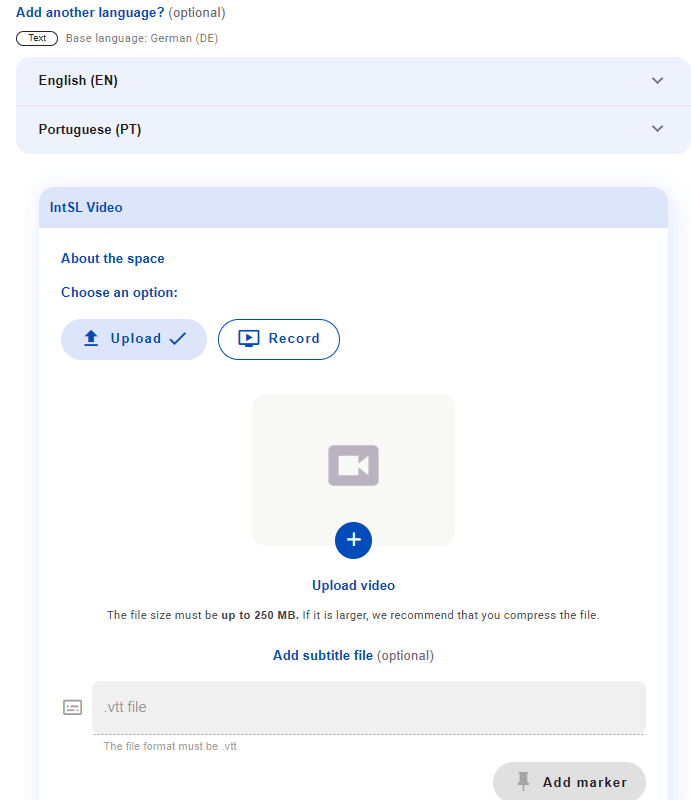
When preparing a Space, describe its purpose and participation guidance. **About the space** holds written information, with other language versions under **Add another language?**.
## Introduce the space to participants
When preparing a Space, describe its purpose and participation guidance. **About the space** holds written information, with other language versions under **Add another language?**.
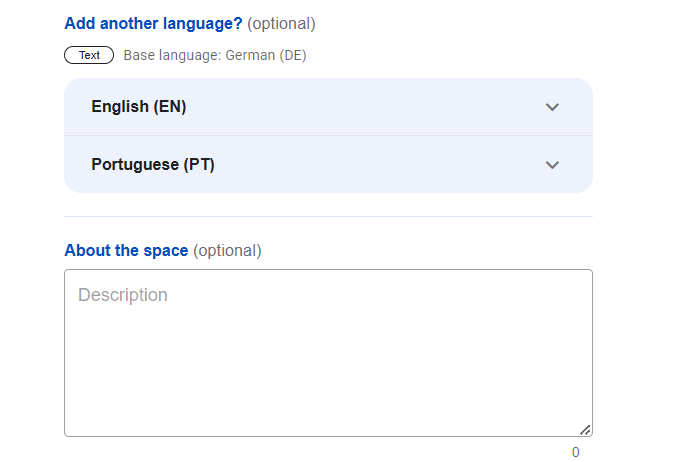 This introduction can also use **sign language video**, helping participants understand the space's context and purpose. Screens show **Upload** and platform **Record** options.
 **Add video in another sign language?** provides other sign language versions. Check each field's language and written versions before completing registration with **Create**.
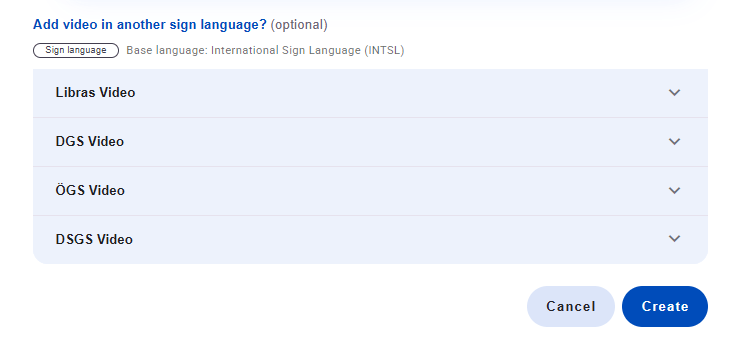 Written language and video sign language are separate choices. Languages in the screenshots are installation examples.
## Understand the two activity modes
| Mode | How it works |
| - | - |
| **Freeform activities** | Flexible discussion, submission and practice. They have no fixed platform-structured assessment method, but can receive Supervisor guidance and feedback. |
| **Assessment activities** | A more defined platform structure organizes completion and assessment. Details will be provided in the dedicated activities section. |
**Freeform does not mean no guidance:** it means the platform does not impose a fixed, structured assessment method.
There are five freeform activity types for discussion, submission and interpreting practice:
| Type | What participants do | Suitable for |
| - | - | - |
| **Comments only** | Comment in text or video. | Discussions. |
| **Submission** | Comment and record or upload a video for review and feedback. | Submissions. |
| **Simultaneous** | Watch the source material while recording a video response, played in synchronization with the original. | Simultaneous interpreting practice. |
| **Video meeting** | Join a live video call. | Synchronous classes and meetings. |
| **Consecutive** | Follow source material, take notes and then interpret. | Consecutive interpreting practice. |
This section provides an overview. Activity creation, completion and assessment will be detailed in the dedicated activities section.
[Back to the daily management overview →](/en/administration/daily-management)
This documentation is built and hosted on [Mintlify](https://mintlify.com), a developer documentation platform.
Written language and video sign language are separate choices. Languages in the screenshots are installation examples.
## Understand the two activity modes
| Mode | How it works |
| - | - |
| **Freeform activities** | Flexible discussion, submission and practice. They have no fixed platform-structured assessment method, but can receive Supervisor guidance and feedback. |
| **Assessment activities** | A more defined platform structure organizes completion and assessment. Details will be provided in the dedicated activities section. |
**Freeform does not mean no guidance:** it means the platform does not impose a fixed, structured assessment method.
There are five freeform activity types for discussion, submission and interpreting practice:
| Type | What participants do | Suitable for |
| - | - | - |
| **Comments only** | Comment in text or video. | Discussions. |
| **Submission** | Comment and record or upload a video for review and feedback. | Submissions. |
| **Simultaneous** | Watch the source material while recording a video response, played in synchronization with the original. | Simultaneous interpreting practice. |
| **Video meeting** | Join a live video call. | Synchronous classes and meetings. |
| **Consecutive** | Follow source material, take notes and then interpret. | Consecutive interpreting practice. |
This section provides an overview. Activity creation, completion and assessment will be detailed in the dedicated activities section.
[Back to the daily management overview →](/en/administration/daily-management)
This documentation is built and hosted on [Mintlify](https://mintlify.com), a developer documentation platform.