> ## Documentation Index
> Fetch the complete documentation index at: https://docs-visuolab.levantelab.com.br/llms.txt
> Use this file to discover all available pages before exploring further.
# Reporting
> Find reports, review their context and decide how to handle each case.
**Reporting** brings together reports about platform users and resources. Managers can find cases, examine information, assign responsibility and choose an outcome within their permissions.
## Find reports
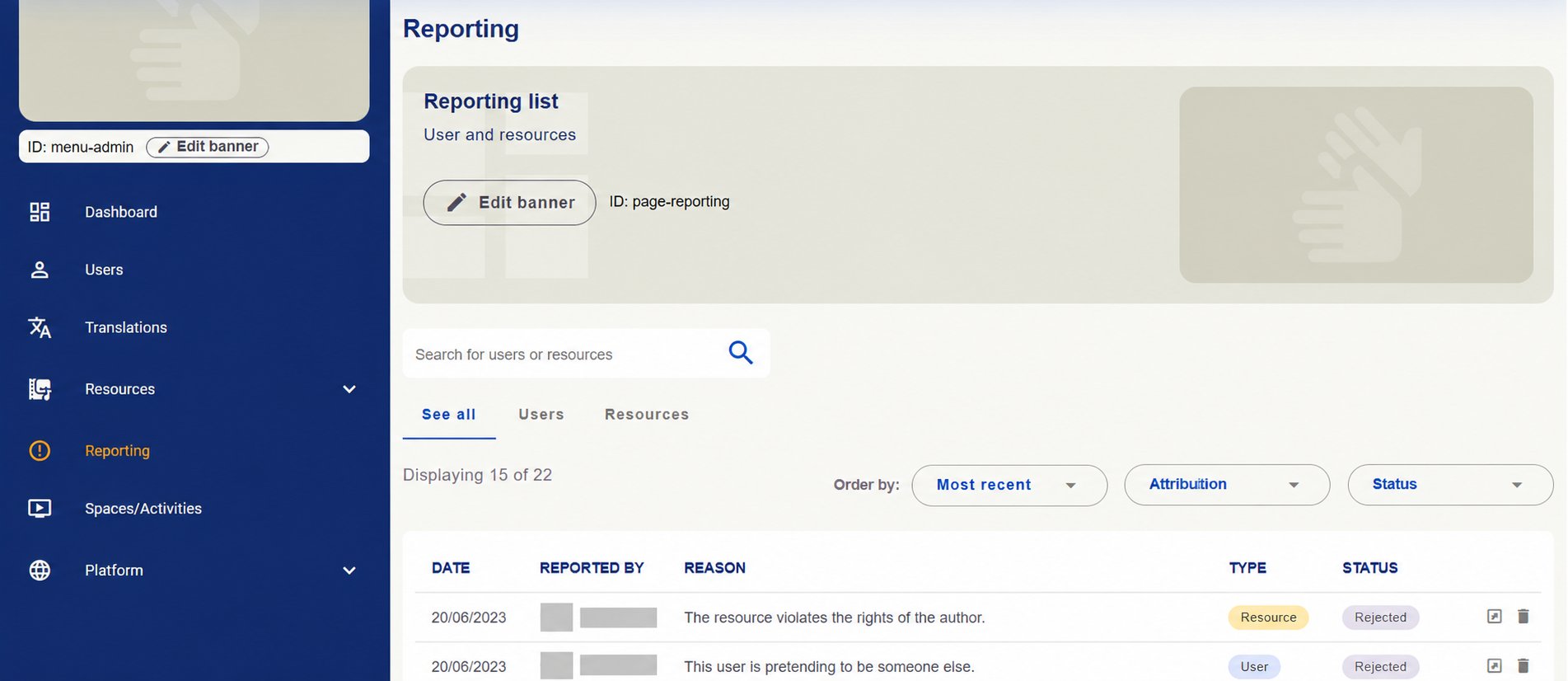
Use search and **See all**, **Users** and **Resources** tabs to find cases. The screen also offers sorting, **Attribution** and **Status** options.
The list shows **date**, **Reported by**, **Reason**, **Type** and **status**. Open a record using the row action to view details.
 ## Check information and responsibility
Before deciding, read **Stated infringement**, **Additional information** and **Report status**. Consult the related user or resource to understand the context.
The resource report example shows the material, its owner, who reported it and the date. **Open case** indicates an open case in the screenshot.
## Check information and responsibility
Before deciding, read **Stated infringement**, **Additional information** and **Report status**. Consult the related user or resource to understand the context.
The resource report example shows the material, its owner, who reported it and the date. **Open case** indicates an open case in the screenshot.
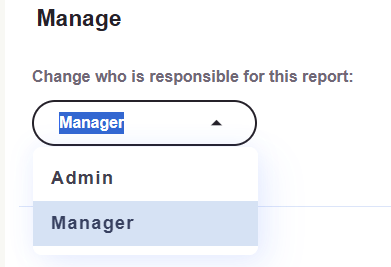
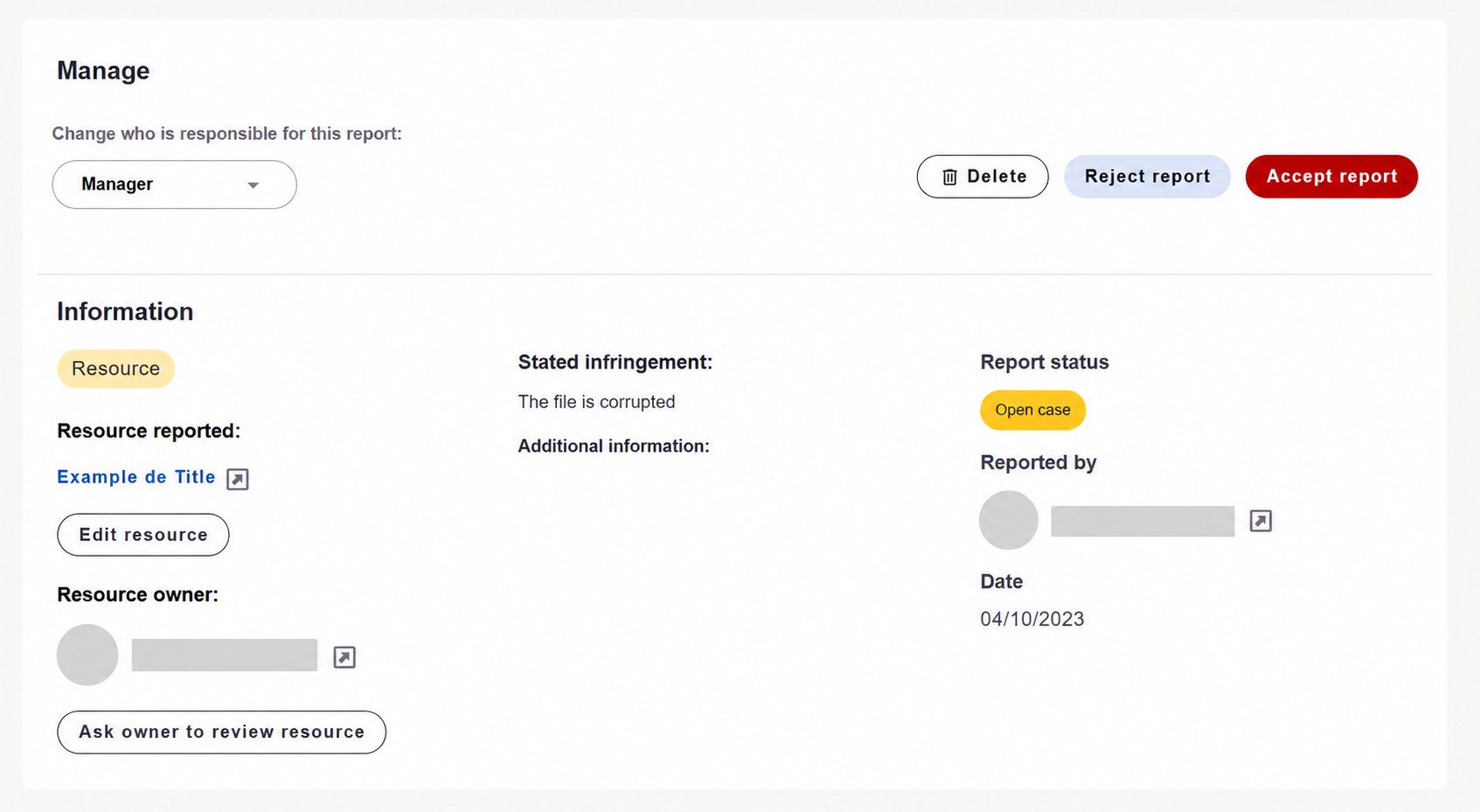 In **Manage**, **Change who is responsible for this report** lets you choose responsibility from available options such as **Admin** and **Manager**.
 ## Request a resource review
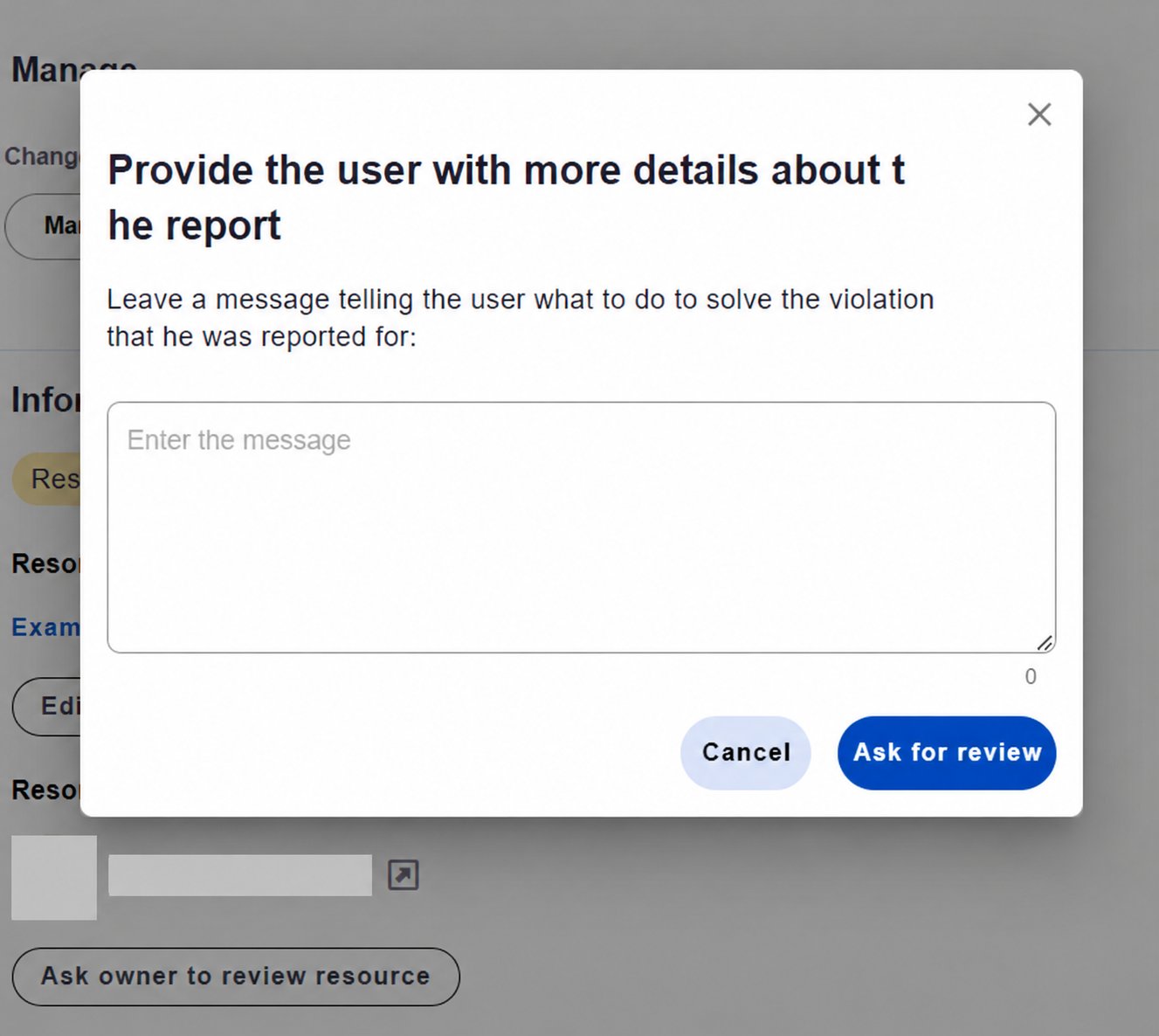
When a case concerns a resource and its owner needs guidance on a correction, use **Ask owner to review resource**.
In the modal, write a clear message explaining:
* **What problem** needs checking.
* **Where it appears** in the material.
* **What correction or clarification** is needed.
Click **Ask for review** to submit the request, or **Cancel** to cancel. The details screen also offers **Edit resource**, depending on the reviewer's permissions.
## Request a resource review
When a case concerns a resource and its owner needs guidance on a correction, use **Ask owner to review resource**.
In the modal, write a clear message explaining:
* **What problem** needs checking.
* **Where it appears** in the material.
* **What correction or clarification** is needed.
Click **Ask for review** to submit the request, or **Cancel** to cancel. The details screen also offers **Edit resource**, depending on the reviewer's permissions.
 ## Choose an outcome
After examining the case, use the appropriate action:
## Choose an outcome
After examining the case, use the appropriate action:
 | Action | Purpose |
| - | - |
| **Accept report** | Accept the report after examination. |
| **Reject report** | Reject the report after examination. |
| **Delete** | Delete the report record. |
**Reports need examination in context.** Submission alone does not confirm wrongdoing. Check the information before deciding and provide clear guidance when requesting a review.
These screenshots illustrate cases from an example installation. Names and photos have been hidden.
[Back to the daily management overview →](/en/administration/daily-management)
This documentation is built and hosted on [Mintlify](https://mintlify.com), a developer documentation platform.
| Action | Purpose |
| - | - |
| **Accept report** | Accept the report after examination. |
| **Reject report** | Reject the report after examination. |
| **Delete** | Delete the report record. |
**Reports need examination in context.** Submission alone does not confirm wrongdoing. Check the information before deciding and provide clear guidance when requesting a review.
These screenshots illustrate cases from an example installation. Names and photos have been hidden.
[Back to the daily management overview →](/en/administration/daily-management)
This documentation is built and hosted on [Mintlify](https://mintlify.com), a developer documentation platform.